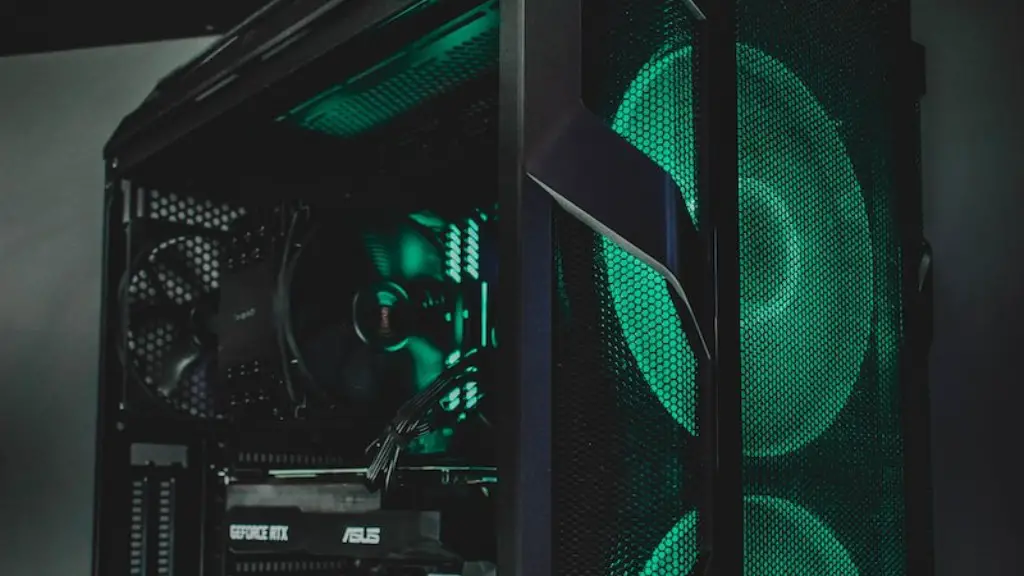
Building a gaming PC is no easy task as it involves plenty of components, installation, set-up and tweaking, but with a little guidance, you can put together an awesome gaming machine in no time. Here’s a step-by-step guide to setting up your new gaming PC.
First, you’ll want to assemble the pieces. Gather your processor, graphics card, cooling system, RAM, power supply, motherboards and storage. Make sure you’ve got all the right parts before you begin. Carefully handle the components and keep them dust-free. If you’ve got a pre-built system, then some of the components may already come pre-assembled.
Next up, install the CPU. Refer to the instruction manual to make sure you’re following the correct procedure. Once the CPU is secured in the socket, you’re ready to put in your motherboard. Secure the motherboard in its place and then start installing the RAM. Make sure to take note of the right slots to use before you begin. Install the RAM according to the product instructions.
Next, set up the cooling system so your hardware stays cool and runs properly. You’ll need to find the spot for your radiator, fans and pump. If you’re struggling to figure out which parts go where, refer to the technical manual that came with the cooler or check the manufacturer’s website for more info. Once everything’s set up and secure, attach the necessary cables and plug in the power supply.
If you’re using a discrete graphics card, then you’ll need to install it next. Refer to the manual to make sure you’ve got the right connections and settings. Once the card is in its place, attach the necessary cables and plug it in to the power supply. After that, you’ll be ready to install the hard drive and any other storage you plan on using. Make sure to screw them into the case securely and plug the SATA cable into the motherboard.
Finally, it’s time to install the drivers. The first step is to install any drivers that came with your motherboard, then the information and software that come with the CPU, RAM and storage. Install the drivers for the graphics card and other devices as well. After you’re done with the installation, configure the BIOS settings according to the manufacturer’s recommendation. Then you can finally boot up your gaming PC and begin making customizations for optimum performance.
Upgrading Your Gaming PC
Upgrading your gaming PC is key to getting the most out of your gaming experience. This can include anything from switching out graphics cards and installing RAM upgrades, to adding new components like a gaming mouse or keyboard. Before you begin any upgrades, make sure you research all the components you’ll be needing and determine if the new hardware is compatible with your current setup.
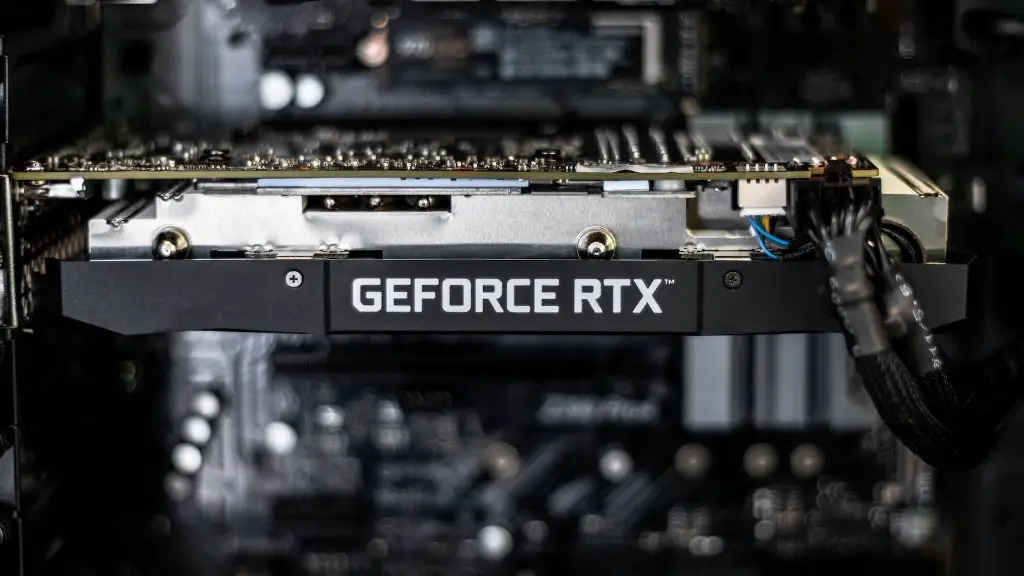
It’s also important that you make sure you have the right tools on hand, like a thermal paste, screwdrivers and anti-static gloves. This is to ensure your safety and maximise cooling performance. Before you upgrade any component, it’s always best to reference the manufacturer’s instructions to make sure the process is done correctly. If you’re adding a new GPU, it’s also important to check for any software updates. Taking the time to do these checks and researching the hardware you plan on adding could result in smoother, more enjoyable gaming experience.
If you’re going to be using a game controller, it’s a good idea to connect it before you start any game so that all the buttons and sticks can be assigned correctly. Make sure you research and install any necessary software as well. Some games may require additional settings; like screen resolution, frame rate and graphic adjustments. It’s always recommended that you research any game you plan on playing and read its minimum and recommended specs to get the best performance.
When it’s time to upgrade, it’s usually safe to assume that the newest parts offer the best performance. Switching out certain components like the graphics card, processor, or adding RAM can take your gaming PC to the next level and allow you to run games at higher settings and higher framerates.
Optimizing Your PC
Optimizing your gaming PC is a great way to squeeze more performance for the games you love to play. Before you make any changes, it’s important to know your system specs and research the exact parts you’re planning on upgrading. You should focus on the areas that make the biggest difference when it comes to gaming performance, such as the processor, RAM and graphics card.
It’s also important to make sure your system can handle the games you want to run. Check the specs of the game and make sure you’ve got a machine that can run it. Check the manufacturer’s website for any software updates and make sure you’re using the latest version of Windows. In addition, it’s also recommended that you keep your system clean and dust-free by using compressed air or a vacuum cleaner.
Finally, you should consider overclocking. This involves pushing your CPU and GPU to run beyond the factory settings to squeeze more performance from your parts. This requires a delicate balancing act, as overclocking can increase power consumption and create a lot of heat. We suggest only overclocking a little bit at a time, so you can monitor the performance and decide what can handle the extra workload. It’s best to consult with the manufacturer’s website for the best settings and make sure your system is adequately cooled before you start overclocking.
Maintaining Your PC
Setting up and optimizing your gaming PC doesn’t end with just putting in the parts and making tweaks. It’s important to regularly monitor and maintain your system if you want get the most out of it. This means keeping up with software updates, running anti-virus checks, and cleaning out extraneous files and programs.
It’s also a good idea to periodically test the performance of your gaming PC. This can tell you if your hardware and software components are in the right place and running correctly. Even if you’re not planning on making any changes, testing the performance can help to identify any issues you may have overlooked and make sure your system is running optimally.
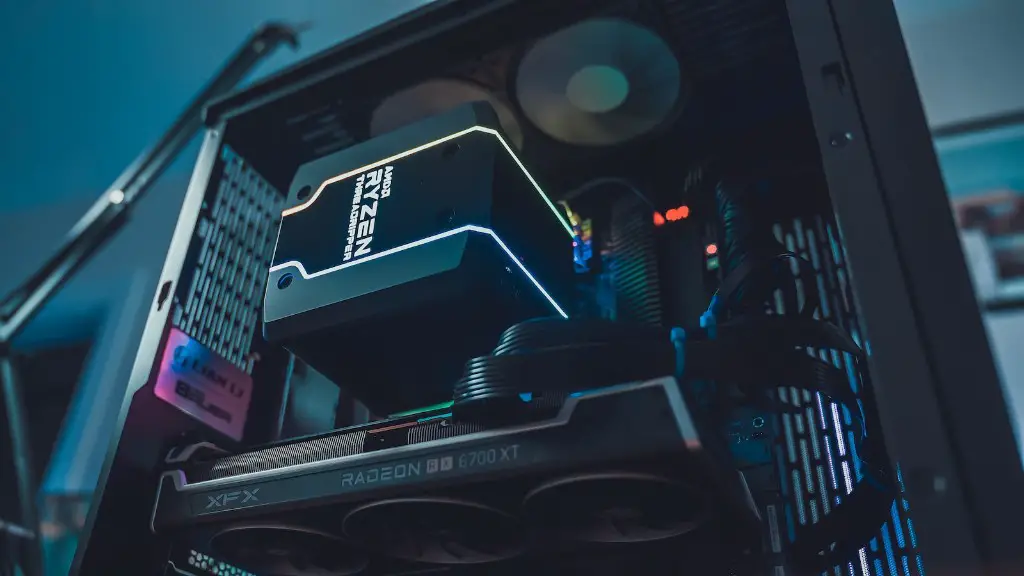
Finally, it’s also important to keep track of your gaming PC’s temperature. You should check the temperature of your CPU, GPU and other components so you can keep tabs on how hot your system is running. If your system starts to get too hot, it may be time to upgrade your cooling system or make sure you’re keeping up with software updates.
Keeping Your System Cool
Cooling is an essential part of any gaming PC setup. If your gaming PC starts to overheat, it can lead to problems like unexpected shutdowns and even permanent damage to the hardware. A good cooling setup can help keep your system running smoothly, no matter how much you’re pushing it. The key is to find the right balance between cooling performance and noise.
The most common type of cooling setup involves air-cooled heat sinks and fans. These are designed to pull in air and direct it over the parts of the system to keep them cool. The more efficient your cooling setup, the quieter the system will run, since there will be less strain on the fans. You can also look for liquid-cooling systems, which offer increased cooling performance with less noise.
In addition to a cooling system, it’s also important to make sure your gaming PC is properly set up. Put the case in a room with good airflow, use dust filters to keep the components clean, and consider investing in quieter fans and exhaust systems to help keep the noise down.
Finally, it’s a good idea to check the temperatures of your components regularly. Most CPUs, GPUs and other components have built-in temperature sensors, and many motherboards come with monitoring software that can help you keep track of your system temperatures.
