If you’re a serious gamer, chances are you know how important it is to have two monitors connected to your gaming PC. Being able to quickly navigate between different programs or windows can greatly improve your gaming experience and give you a real edge. Fortunately, connecting two monitors to a gaming PC is a relatively straightforward process that doesn’t take long to do. Here’s what you need to know about connecting two monitors to a gaming PC.
Requirements for Connecting Two Monitors to Gaming PC
The first thing you’ll need is a graphics card that’s capable of supporting multiple monitors. Many modern graphics cards have multiple outputs, but not all of them are capable of supporting multiple monitors. That’s why it’s important to check your card’s specs before attempting to connect multiple monitors. You’ll also need the appropriate cables for connecting your monitors – usually HDMI, DisplayPort, or DVI. Knowing which type of cable your monitor supports is essential for connecting the right cable.
Steps For Connecting Two Monitors to Gaming PC
Once you’ve gathered the necessary equipment, it’s time to connect the monitors. First, connect one end of the cable to the appropriate port on your graphics card. Then, connect the other end to the appropriate port on the back of your monitor. Finally, power on your gaming PC and the connected monitors. You should see a display on your gaming PC’s primary monitor. From here, you can configure the settings for your secondary monitor and then enjoy your improved gaming experience.
Advantages and Limitations of Connecting Two Monitors to Gaming PC
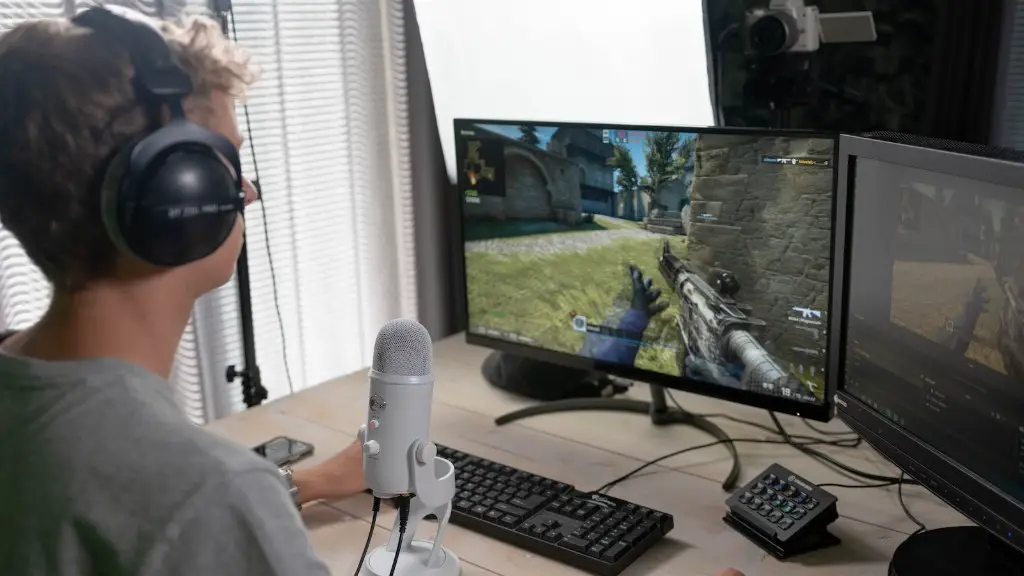
Having two monitors connected to your gaming PC offers a number of advantages. You can quickly switch between different programs or windows without having to open or close programs. You can use one monitor exclusively for gaming while using the other monitor for other tasks. Additionally, the increased real estate that two monitors provide can be very beneficial for multitasking. The main limitation of connecting two monitors to a gaming PC is the cost; if your graphics card doesn’t have multiple outputs, you may have to purchase a more expensive card in order to connect two monitors.
Things to Remember When Connecting Two Monitors to Gaming PC
When it comes to connecting two monitors to a gaming PC, there’s a few important things to remember. Make sure your graphics card is capable of supporting multiple monitor connections. Also, make sure you have the necessary cables for connecting your monitors – usually HDMI, DisplayPort, or DVI. Finally, once your monitors are connected and powered on, you’ll need to configure the settings for your secondary monitor. Once everything is set up, you can enjoy your improved gaming performance.
Connecting Multiple Monitors to Gaming PC
If you’re using multiple monitors with your gaming PC, you’ll need to make sure your graphics card is up to the task. Most modern graphics cards are capable of supporting up to four simultaneous monitor connections. You’ll also need the appropriate cables for each monitor; most commonly, these are HDMI, DisplayPort, or DVI. Once you’ve connected all the cables and powered on your gaming PC, you’ll need to configure the settings for each monitor. This will ensure that everything is displayed properly and that you can use all of your monitors for gaming.
Considerations for Connecting Two Monitors to Gaming PC
When connecting two monitors to your gaming PC, there are a few considerations to keep in mind. First, you’ll need to make sure your graphics card is capable of supporting multiple monitor connections. Next, you’ll need the appropriate cables for your monitors – usually HDMI, DisplayPort, or DVI. Finally, once your monitors are connected and powered on, you’ll need to configure the settings for your secondary monitor. Making sure to take care of these considerations will ensure you get the most out of your two monitor setup.
Troubleshooting Issues With Connecting Two Monitors to Gaming PC
If you’re having issues connecting two monitors to your gaming PC, there are a few things you can try. First, make sure the connections are secure and free from dust or debris. If the connections are secure and free from dust, try resetting your graphics card driver. If this doesn’t work, you may need to reinstall your graphics card drivers or check for any updates. Finally, if you’re still having issues, you may need to replace your graphics card or purchase a card with multiple outputs.
