Building a great gaming PC requires some technical know-how and careful consideration. The objective is to create a powerful, upgradeable machine that allows you to enjoy the most sophisticated gaming experiences without spending too much money. Here are a few steps you should take to create the ideal gaming PC.
Choose the right hardware. Decide on the components that best meet your gaming needs. You will want a powerful processor, plenty of RAM, and a fast graphics card. Look for components that support the latest versions of gaming software, as well as any accessories you may need. Pay close attention to compatibility and make sure that you know what type of ports are required for your components.
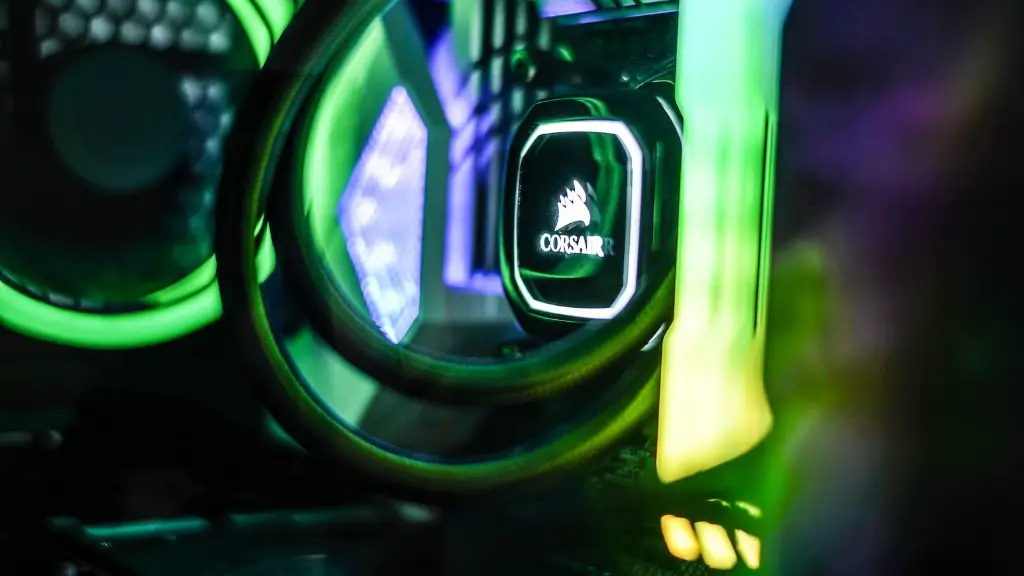
Optimize the airflow. Make sure that the components of your system are cooled adequately. Good airflow is essential for all parts of the system, including the CPU, GPU, and VRAM. Use the right type of case fans, or add heat sinks or water cooling systems if necessary.
Overclock where possible. Overclocking is the practice of pushing a processor beyond its stock speeds in order to gain a performance boost. Although it can be risky, if done properly it can give a nice boost in performance. Research overclocking and make sure you understand the risks, as well as how to properly test and configure your overclock.
Install appropriate software. Tweaking your PCs settings can help make it run faster and smoother. Look for performance-enhancing programs that can help optimize your system and make sure that all the latest game patches and updates are installed. Some popular programs include CCleaner and Razer Cortex.
Upgrade, upgrade, upgrade. The key to getting the most out of your gaming PC is to upgrade it whenever possible. Many components can easily be upgraded, such as the graphics card, the RAM, and the storage. Invest in the best components you can afford for the best performance.
Keep up with the latest technology. Newer games often require better hardware, so make sure you keep up with the latest trends in gaming. Don’t be afraid to upgrade your components when needed in order to stay competitive.
Research Upcoming Games
Making sure that you know what type of games you’re aiming to play is a must. Do your research; look into upcoming titles, read reviews and user experiences, watch videos and streams, ask questions. With this knowledge and the above steps, you can start building the perfect gaming system tailored specifically to your gaming needs.
Keep in mind that being able to upgrade your gaming PC is equally important as researching the specs of your desired games. This allows you to stay in the game longer and have enough power to run your games for many years to come.
Don’t just research their specs and requirements, take a look at how these games look and play. Understanding how games look and play will help you determine if the game requires more or less hardware. If a game requires more hardware than what you have currently, this gives you a good indication of parts you may need to adjust or upgrade in the future.
The best way to determine which parts are needed for a game is to look at the recommended and minimum specs of a game. It’s also important to take into account how demanding a game will be on your gaming PC. This is important because if your gaming PC specs are low, then the game may not run correctly at the best FPS or graphical settings.
When researching upcoming games, don’t forget to look at the system requirements gradually. This means looking into the system requirements of the last few games you played as well as the upcoming games you’re interested in. By doing this, you can track the progress of system requirements and anticipate future upgrades needed.
Understand Different Software
It’s also important to understand any accompanying software that may be needed for gaming. This includes drivers and program updates, as well as game-specific software needed to enjoy the game. Knowing which programs may be necessary can help you ensure a seamless gaming experience and make your hardware even more efficient.
Start by researching which programs are necessary for the games you’re planning to play. Some games may require special drivers, programs, or updates in order to run correctly. In some cases, you may need to install third-party applications in order to make full use of the gaming experience. Keep in mind that these programs can take up hard drive space, so it’s important to have enough room on your hard drive before you install any accompanying software.
Once you determine which programs you need, start researching them. Make sure they’re the latest versions or that they’re compatible with the latest games. This means checking for updates regularly as different programs may have frequent updates. Also, read the specifications of any driver or software carefully to make sure it’s compatible with all the hardware in your computer.
Finally, try to make use of the existing built-in software. This includes up-to-date Windows OS and any preloaded game software installed by the manufacturer. This will help keep your gaming PC optimized for performance and reduce any lag during gaming.
Install the Right Software
Once you’ve upgraded your gaming PC, install the necessary software. A great gaming PC must have a good combination of hardware and software in order to get maximum performance from it. This includes the installation of general software such as Windows OS, an antivirus program, and a firewall. It also includes specific gaming software such as the games, drivers, or any other necessary programs.
Install the appropriate operating system. Make sure that the operating system you’re installing is compatible with all your hardware and the games you plan on playing. This will ensure smooth performance and compatibility with most games and software.
Install the necessary drivers for each component. Drivers are the software that tell the PC how to interact with each component. Without the right drivers, your hardware won’t work properly and you may experience lag and instability. Look for the latest version of the drivers for each component and make sure they’re compatible with your system.
Install game-specific programs. Certain games may require special software to run or to get the most out of the game. Taking time to research and install the right software beforehand will help you enjoy the most immersive gaming experience.
Finally, install the appropriate anti-virus and firewall programs. These programs will help protect your system from malware and viruses that can slow down the performance or damage your system. Be sure to keep them updated to be able to receive the latest virus protections.
Tweak Settings to Optimize Performance
Once you’ve installed all the necessary hardware, software, and drivers, you should also take the time to tweak some of the settings for optimal performance. This may include a graphics card and video driver settings, as well as the optimization of your PC’s configuration and system performance.
Start by enabling the game mode feature in your graphics card’s control panel. This will optimize the performance of your PC for gaming. You can also try configuring the video driver settings for the game. These settings will help you get the best performance out of your games and can also improve graphics.
Then, look into optimizing your PC’s configuration. You can do this by disabling any unused features in your computer’s setup. This will free up system resources, allowing your computer to run more efficiently. You can also adjust the system’s power options, as this will help you monitor the power usage of your system.
Finally, tweak the system’s performance settings. Check your PC’s processor speed and temperature and adjust them accordingly to avoid overheating. You can also adjust the virtual memory and system cache settings for your PC for improved performance.
Troubleshoot Any Problems
No one likes dealing with technical issues, especially if it affects the performance of your gaming PC. Most of the time, basic troubleshooting should help you fix any issues you may have with your PC. Start by first checking if the issue is with the game, hardware, or software.
If the problem is with a game, check for any compatible updates or download any necessary patches. Look for any solutions posted online or contact the game’s developer or support team. Also, try reinstalling the game or changing the resolution or graphics settings.
If the issue is with your hardware, start by checking the cables, ports, and connections. In some cases, disconnecting and reconnecting the component may fix the issue. You should also check if the component was installed properly and if the right drivers are being used. If all else fails and you have a warranty, you can also contact the manufacturer.
If you’re having issues with any software, try uninstalling and reinstalling it. If the problem persists, look for solutions online or contact the software developer. Updating the software or searching for newer version may also help resolve the issue.
Finally, check for any errors or conflicts. This can be done by looking at the Event Viewer and checking for any errors. You can also try disabling any unnecessary programs or services running in the background.
