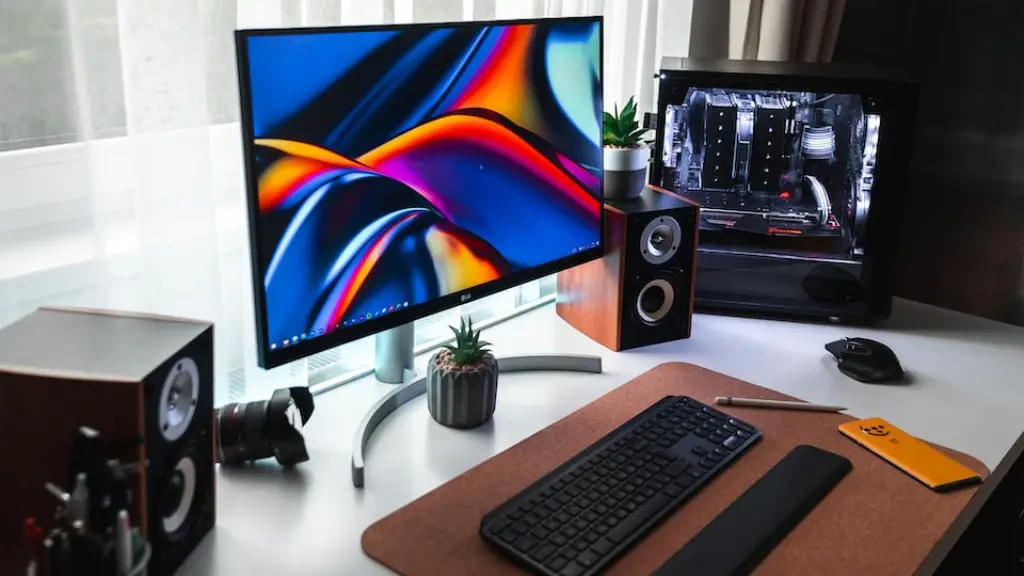
Building your own gaming PC in 2020 requires knowledge, experience, and bandwidth. Gaming PCs contain powerful components, including GPUs, that require a secure, sophisticated setup. To construct your own gaming machine, start by acquiring the right motherboard and CPU combination. After establishing a solid base, add RAM, a graphics card, a power supply, and a hard drive. Finally, you will have to install a Windows OS, select the right set of gaming software, and install the components into the case.
First, you need to research components that are compatible with one another and suitable for your gaming needs. You should look for a cost-effective and powerful combination of a processor and motherboard that satisfies your gaming requirements. Assemble components according to your budget, but make sure not to sacrifice quality.
Next, you’ll need to purchase RAM, a GPU, a power supply, and a hard drive. Again, research different options to ensure that the RAM and GPU you choose are compatible with one other, and work with your motherboard and processor. You also want to investigate power supply ratings and make sure that you purchase a power supply with enough wattage to power all the connected components.
Lastly, you’ll need to install the OS, choose gaming software, and physically assemble all of the components into the PC case. Carefully tuck and plug wires into the correct slots and ports of the case and make sure that the components are all securely fastened.
Graphics Card
A Graphics Card, or GPU, is the main component of a Gaming PC and it is often the most powerful component too. For the ultimate performance when gaming, you should opt for a dedicated Graphics Card. Dedicated Graphics Cards are built with components that are tailored for gaming and virtual reality.
The GPU you select should be both powerful and compatible with all the components of your PC. Durability and reliability should be your primary concern when selecting a GPU as cheaper cards may not withstand the heavy energy requirements and cause performance issues. Additionally, ensure that the GPU has enough power to run the games you plan to play, as some modern games require high-end GPUs for optimized performance.
To get the most out of your GPUs, you may need to update or install the latest video drivers. Drivers give the graphics card instructions on how to utilize the graphics card hardware and are updated frequently.
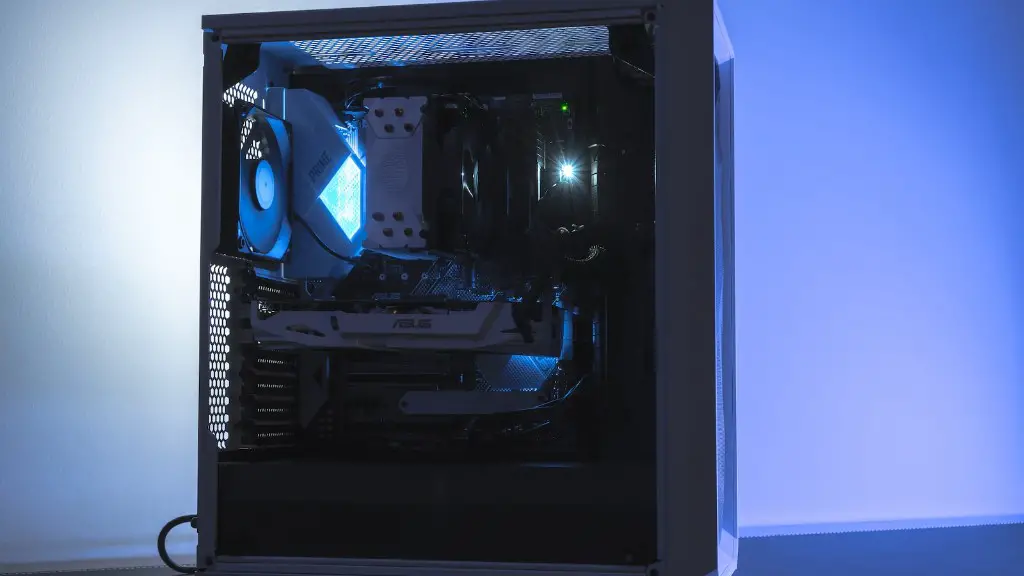
Once you have purchased your GPU, installation is easy. Identify which slot on the motherboard is compatible with the GPU, slide the GPU in the slot and fasten it with the screws provided. Connect the power cables to the NVIDIA or AMD graphics card and you are ready to game!
Processor
Selecting the right processor is another key component of building a gaming PC in 2020. A processor is the brain of the PC and handles all the instructions associated with running software, games, and applications.
Generally, the more CPU threads you can use the better. You may want to consider buying an 8-core processor if you anticipate heavy usage or advanced gaming. The processor should also have a frequency rating that ensures smooth, efficient operation. The type of processor will determine the cost and whether or not you will require an additional cooler.
When selecting a processor, ensure that it is compatible with the motherboard you have chosen. Motherboards are designed to support particular types of processors and you will have to make sure that the processor is compatible with the socket type of the motherboard.
Before purchasing a processor, consider the integrated graphics and make sure it is a good fit for the games you wish to play. If the integrated graphics do not meet the requirements for the games you want to play, you may want to opt for a dedicated graphics card.
When installing a processor, make sure to apply thermal paste to the processor. This prevents the processor from overheating code from running too hot. Use a thermal paste that is specifically designed for CPUs and follow the manufacturer’s instructions on how to apply it. Once the thermal paste is applied, you can install the processor into the motherboard by placing it into the corresponding slot and securing it with the trusty screws.
Power Supply
Your power supply will help you keep your PC running and prevent it from overheating or draining too much of the power. Powerful components, such as GPUs and HDDs, needing the correct wattage rating and voltages to effectively run. A good power supply should have an adequate number of 8-pin or 6-pin connections for all of your components. A good rule of thumb is to select a power supply with an output at least 20-percent higher than the estimated PC power requirement.
When selecting a power supply, also consider factors such as power efficiency rating, which ensures that the range runs at full efficiency, and form factor, which describes the size and shape of the power supply and how it fits within the PC case. You may also want to factor in the noise output and cooling systems, for a quieter and cooler PC.
Installing a power supply into the case is also a relatively simple process. First, align the power supply with the box by unhinging the latch on the front of the case and sliding it in. Then, screw in the back to secure the power supply in place and locate the power cables. You can connect each power cable to the corresponding port on the motherboard.
To reduce unnecessary noise, it is best to tuck away the wires leading to all of the components. The less wires exposed, the less friction caused by air movement, which reduces noise output. Additionally, check that the fan on the power supply is properly aligned and connected.
Hard Drive
A hard disk drive (HDD) stores all of your data and allows your system to save information. HDDs are available in a variety of sizes and speeds, from 500GB to 4TB. For the best gaming experience, it’s recommended that you purchase an HDD with high storage capacity and high rotational speeds.
HDDs are available as either Solid State Drives (SSD) or Hard Disk Drives (HDD). SSDs are much faster and more reliable than conventional HDDs and require less power. However, they are more expensive and may not offer the same storage capacity of HDDs. When selecting a hard drive, consider your budget and overall needs.
Once you have purchased your hard drive, connect it to either a SATA port on your motherboard or an M.2 slot. Connect it to the appropriate power cable and secure the HDD in your case with the clips provided. After that, it’s simply a matter of loading your OS and setting up the BIOS.
You may also want to consider purchasing an additional HDD if you plan to run multiple programs or are a heavy user of data. Installing an additional drive may require storage expansion to be enabled in the BIOS system settings. You will also need to select an appropriate connection interface for the device, either SATA or M.2.
Operating System Installation
Installing an operating system is the final step when building your gaming PC. Windows 10 is the most popular and feature-rich Windows operating system and is officially compatible for gaming. Once you have purchased the license and created a USB or other media with the installation files, you are ready to install the OS.
Make sure to insert the Windows 10 installation media into an appropriate port on your motherboard. Select the correct boot drive in the BIOS system boot menu and Windows will begin to install. Select the correct drive and language during the installation process and choose custom installation when prompted. Select the drive that you would like to install Windows on and continue with the installation.
Lastly, to customize the OS and speed up performance further, check your system stats. Installing the latest Windows updates and removing unwanted programs can improve system performance and make sure that your gaming PC runs as fast as it is meant to.
Optimization and Testing
After you’ve completed the process of physically assembling the components and installing the OS, you will want to ensure that your PC is set up correctly by testing it. First, make sure to test the temperature of your components while they are idle and under a full load. If the temperatures are too high, you may need to check your fans, re-apply thermal paste, or add additional cooling solutions, such as liquid cooling.
It is also important to stress test your system for any potential stability issues. PC benchmarking tools are available online and can help you identify any issues with your PC before you start gaming. Ensure that your RAM and GPU performance are up to snuff, and that no parts are running too hot or failing tests.
The last step of the assembly process is to make sure your gaming PC is ready for long gaming sessions by optimizing the system settings. Update Windows to the latest version, install the latest drivers for the GPUs and motherboards, disable background applications, and enable the high performance power setting in the control panel.
Once assembly and testing is complete, you will have a premise that is a ready gaming PC. Several tools and services are available to keep your system running at peak performance. If any components become outdated or underperforming, they can be replaced or updated during further upgrading.
