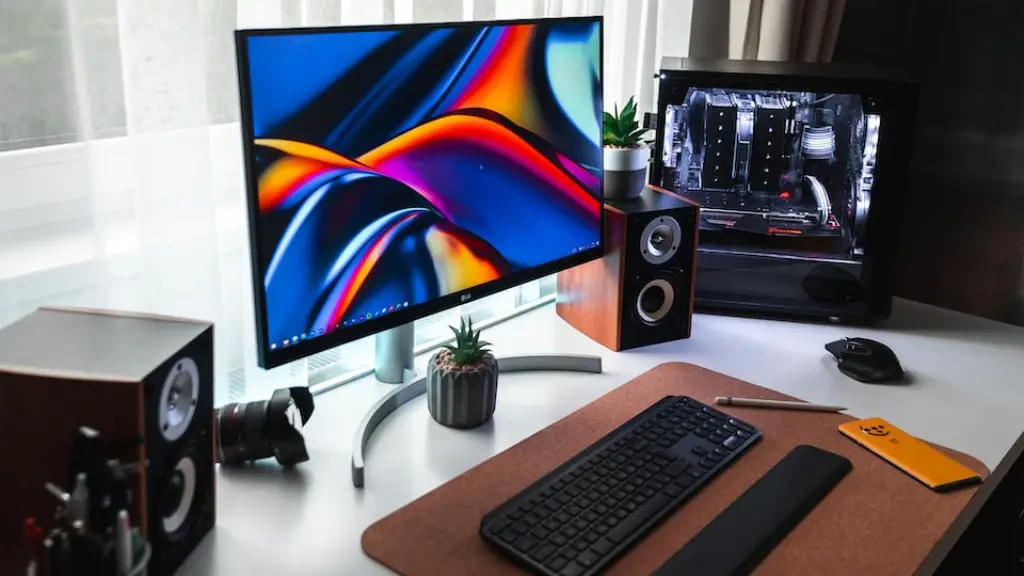
A gaming PC provides a powerful platform to play the latest titles with the highest graphics settings; however, knowing how to download games can be daunting. This guide takes you through the steps necessary to download any games to your gaming PC. First, you’ll need to identify and purchase the game you want to download. You can buy the game from your preferred digital game delivery platform, such as Steam, GOG, or the Epic Games Store. Once you’ve purchased the game, you’ll need to install it. Nowadays, most game downloads will require you to install them by downloading the executable file from the platform and running it. This file will often prompt you with a license agreement and ask you to enter your game code, as well as other access details. After the game installation is complete, you will need to verify that the game is running. You can do this by opening it and navigating the main menu. If everything is installed correctly and the game is working, you can now customize your gaming experience. You can tweak the game settings and install any content updates (patches). Finally, you can enjoy the game on your gaming PC!
Finding Games For Your PC
If you’re looking to download games for your gaming PC, you’ll want to make sure you’re downloading titles that are compatible with your hardware and operating system. One way to do this is to visit the digital retailer’s website and look for the ‘system requirements’ section. This will tell you what specs your PC will need to be able to run the game. Additionally, you may want to read user reviews or watch YouTube reviews of the game you’re interested in to get a better feel for its gameplay and system requirements. Once you’ve found a game that’s compatible with your system, you can purchase and download it.
Free Games on Your PC
If you’re in the market for a gaming PC, you may be wondering if there are any free titles available. Fortunately, there are many free-to-play games like World of Tanks, Warframe, and Dota 2 that you can download to your PC. Additionally, you may be able to find some free downloadable content (DLC) for certain titles that can add new features or gameplay elements to the game. While most free-to-play games rely upon microtransactions, many of them still offer great experiences without spending any money.
Preparing for Download
Before you start downloading a game, you should prepare your gaming PC. Make sure it’s connected to a robust and stable internet connection and that there’s enough hard drive space to accommodate the game file size. You may also want to check whether or not your PC’s drivers are up to date by running a driver check; this is especially important if your GPU drivers are out of date. It’s also a good idea to screen capture your gameplay, or have the ability to stream your game online. This can be done with several streaming programs, such as Twitch, Steam Broadcasting, or Facebook gaming.
Download Process
Once you’re ready to download your game, you will want to follow the instructions on the download page. This will include entering your game code, downloading the game installer, and running the setup file. Depending on your game and platform, the download process may differ, so be sure to follow the instructions carefully. Once your game is finished downloading, you can launch it and start playing!
Downloading Updates
As time goes on, games receive patches and content updates that fix bugs, add features, or change the game data in some way. It’s important to keep your game up to date in order to take advantage of all the features and new content that comes with each update. Most of the major digital gaming platforms will automatically detect when a patch is released and will prompt you to download it. These updates can be downloaded from the game’s page on the platform’s website or from within the game itself. Once the updates have been downloaded, you’ll need to restart your game in order for the changes to take effect.
Installing Additional Content
Games often offer additional content, such as expansion packs or downloadable content (DLC). These extras can add new levels, characters, or storylines to a game. There are usually two ways to purchase additional content; directly from the game’s publisher or from your digital retailer. Once you’ve purchased the content, you can then download and install it. The process will vary depending on the platform and game, but it usually involves downloading the additional content installer, running the executable, and then following the instructions.
Transferring Old Games
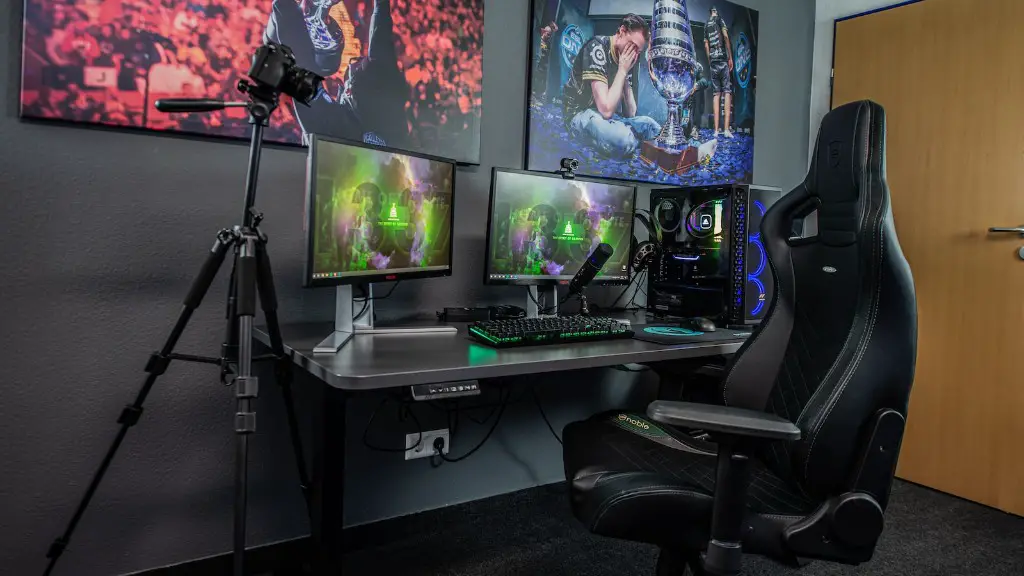
If you have an old computer game or console and you want to play it on your gaming PC, you may be able to transfer the game to your new system. This process is known as game emulation, and it allows you to play classic games on modern hardware. There are several free and pay-for programs available for this purpose, such as Virtual Console, RetroArch, and DOSBox. The process of game emulation varies depending on the platform and game, so it’s advisable to do some research before attempting the transfer.
Game Uninstalling
If you ever need to uninstall a game from your gaming PC, it’s important to do so in the correct way. To ensure that all files are removed, you should open up the Control Panel and find the ‘Add/Remove Programs’ section. You can then select the game you want to uninstall and click ‘Remove’. Once this is done, you should manually delete any leftover files; these can usually be found in the game’s installation folder. Once this is done, you can be sure that the game has been completely removed from your gaming PC.
Checking System Performance
It can be hard to know how well your gaming PC will perform before downloading a game, especially if the game has high system requirements. Fortunately, there are several tools and apps available to test your system’s performance. You can use a benchmarking program such as 3DMark to measure your system’s performance before downloading and playing the game, or you can use a hardware monitoring tool to monitor your memory, CPU, and GPU stats during play. That way, you can be sure that your PC is up to the task ahead.
