
As any PC gamer knows, all the fans and components of a gaming PC can result in a lot of noise. Fortunately, it’s possible to reduce your gaming PC’s sound level dramatically, creating a much quieter gaming environment. Here we will walk through how to make your gaming PC quieter.
To start, take steps to reduce your gaming PC’s idle noise. This can be done by increasing your PC’s fan speed slightly, as this will facilitate greater airflow & cooling without the need of further increasing the fan speed. Additionally, you should invest in noise dampening materials like sound foam. This sound foam can be placed on the inner walls of your case, to absorb sound waves more quickly and effectively.
Secondly, you should reduce the amount of heat generated by your system. This can be done by underclocking or undervolting your components. This will reduce their performance output, yet will also lower the amount of power and heat generated by your components in the process. In addition, you should clean your PC regularly, as the air vents and fan blades can accumulate a lot of dust and debris, creating loud noise as well as preventing your components from cooling adequately.
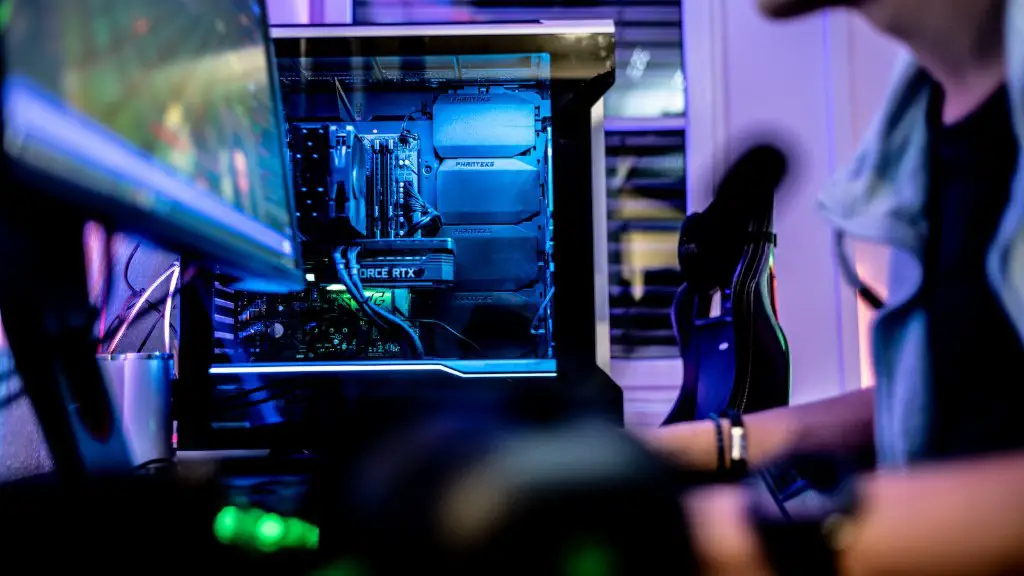
Thirdly, you can replace your PC’s existing fans with quieter units. Quality fans can be found that move the same amount of air as standard PC fans, but at a much lower noise level. Additionally, you should also make use of case air ducts to direct air away from your fans, thus reducing their rotation speed and making the overall noise level lower.
Lastly, you can invest in a graphics card with an external cooler. External graphics cards usually make less noise than internal graphics cards, as their fans will be more isolated from the rest of your system. As an alternative to a discrete GPU, you can opt instead for a laptop with a dedicated GPU, which will be quieter due to being more integrated into the system.
Ensuring Adequate Cooling
With the focus on making a gaming PC quieter, it is essential to ensure that there is adequate cooling. To make sure that your components are getting the cooling that they need, you should consider several strategies. Firstly, when replacing your case fans with quieter units, ensure that their quieter fan blades are still big enough to efficiently cool your system.
Secondly, you should upgrade your thermal paste. Thermal paste is a material used between the CPU heatsink and your processor to provide better thermal contact between the two. As such, upgrading to a high-quality thermal paste will increase the cooling efficiency of your CPU and reduce the need for loud fan speeds.
Beyond that, you should also consider investing in liquid or air-cooled CPU coolers. These types of coolers provide better cooling performance than the standard stock coolers included with CPUs, resulting in less stress on the processor. Furthermore, the noise generated by these CPU coolers is much lower than a standard fan setup.
Finally, you should consider a case with adequate cooling. Cases with larger side panels and better fan positions will enable greater airflow, keeping heat away from the fan blades and therefore reducing their noise level. Additionally, you should check your case’s fan filters on a regular basis, as they can reduce the amount of dust and debris entering your system, reducing the noise caused by fan blades clogged with dust.
Variations Between Fans
Given the range of fans available, there are many factors to consider when trying to reduce the noise level of your gaming PC. Firstly, fans are designed with different bearing types, and each bearing type will produce a different noise level. Secondly, fan blades can be shaped with either standard straight blades, or curved blades which generate noise more quietly. Thirdly, Fans also have different blade numbers and blade shapes, both of which play a role in how much noise the fan produces.
Focusing on the fan’s speed is also important. This is because higher fan speeds result in more air being moved, thus keeping your system cooler but also making more noise. Therefore, you should always make sure that the fan speed of your gaming PC is appropriate for the load. That said, some fans come with built-in speed controls, so you can adjust the fan speed depending on the load, keeping noise levels low and avoiding an overcooled system.

Finally, you should look for fans labeled as “silent” or “quiet”. These fans usually contain rubber padding, rubberized corners, and/or thicker fan blades to minimize vibrations, thus reducing the overall noise level of your gaming PC.
Extra Measures
Outside of the hardware modifications we have discussed, there are a few ways to combat noise on your gaming PC. Phantom fan technology can be used to reduce the noise level of your PC’s fan, while soundproofing and noise absorbent materials such as acoustic foam can be used to trap sound waves and reduce the overall noise of your system.
Also, you can make use of a mechanical hard drive which will generate less noise than a normal hard drive and has a better performance. In addition, including a headphone amplifier and high-quality headphones will reduce your PC’s noise by directing it away from your ears.
Finally, it should be noted that software fan control programs such as Speedfan, EasyTune, and particularly MSI Afterburner can be used to control the fan speeds within your system, minimising unwanted noise levels.
Checking Frequency Curve
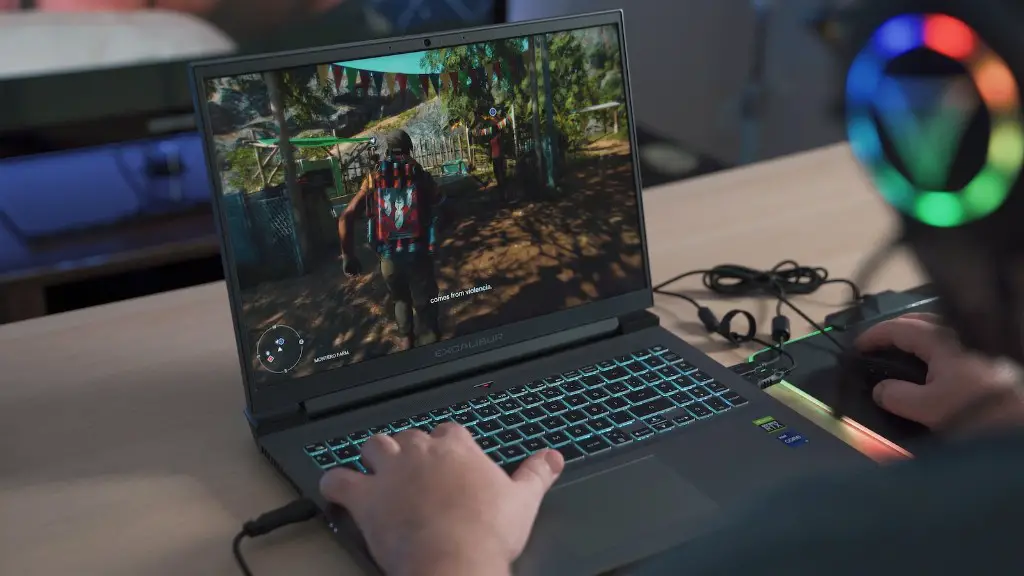
By adjusting the frequency curve of your fans, you can achieve an almost silent operation. This is because when a fan’s frequency curve is adjusted, it will reduce the noise level at lower fan speeds, while still providing sufficient cooling performance. This is accomplished by using a fan controller, such as those included in motherboards with fan headers, or standalone fan controllers.
Once connected to the fan, the fan controller can be used to manually adjust the fan’s speed. When adjusting the fan’s speed, you should keep an eye on the temperature of your components. It is important to keep the temperature of your components below their thermal limit, as running them at high temperatures will reduce their lifespan.
Once you have set the fan’s speed, you should also adjust the frequency curve. By default, the fan speed will increase linearly with your system’s temperature, but this can be changed. If you adjust the fan’s curve to run at lower speed for similar temperatures, this will significantly reduce the noise level of your PC.
Conclusion
All in all, making your gaming PC quiet requires a combination of careful hardware selection and modifications, as well as utilising added sound-proofing materials. Make sure to upgrade your thermal paste, replace your fans with quieter units, and use sound dampening materials like sound foam. Additionally, make use of fan controllers, check the fan’s frequency curves, and set a lower fan speed for better cooling performance and quieter gaming. And, if all else fails, opt for an external GPU with a built-in fan.
