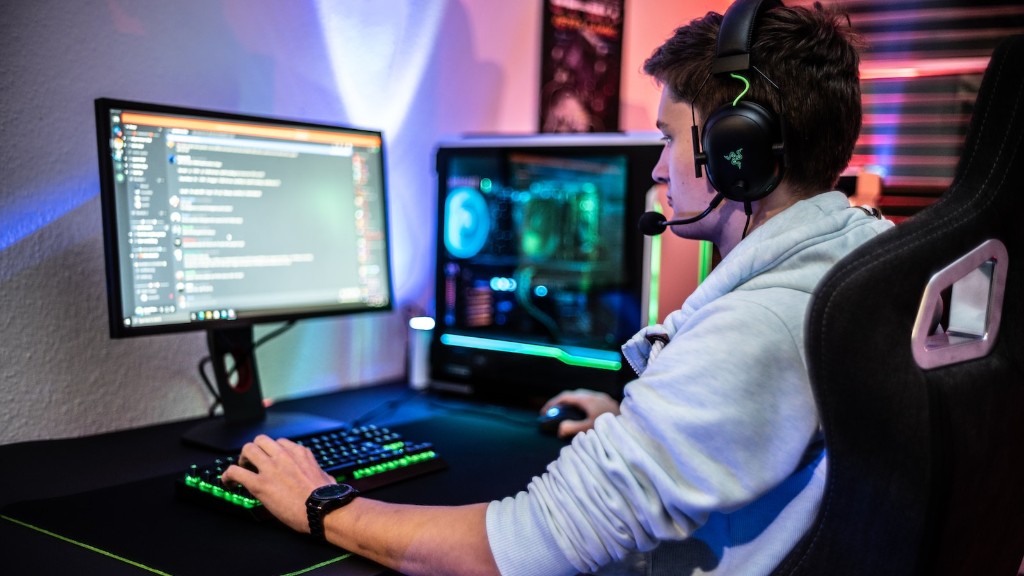
A monitor is essential for gaming on a PC. Without one, it can be difficult to fully appreciate the special effects, great sound and intense gameplay that modern gaming PCs can offer. Fortunately, the process for connecting a monitor to a gaming PC is straightforward, and can be accomplished in a few easy steps.
The first step is to identify the type of input port available on the monitor. Most modern gaming monitors will feature a DisplayPort connection, while some may also include HDMI, DVI, VGA or USB-Type C.
Next, make sure the PC is powered off. Locate the video ports on the gaming PC – these will match the type of port available on the monitor. Plug the cable into both the monitor and gaming PC, and ensure a tight connection.
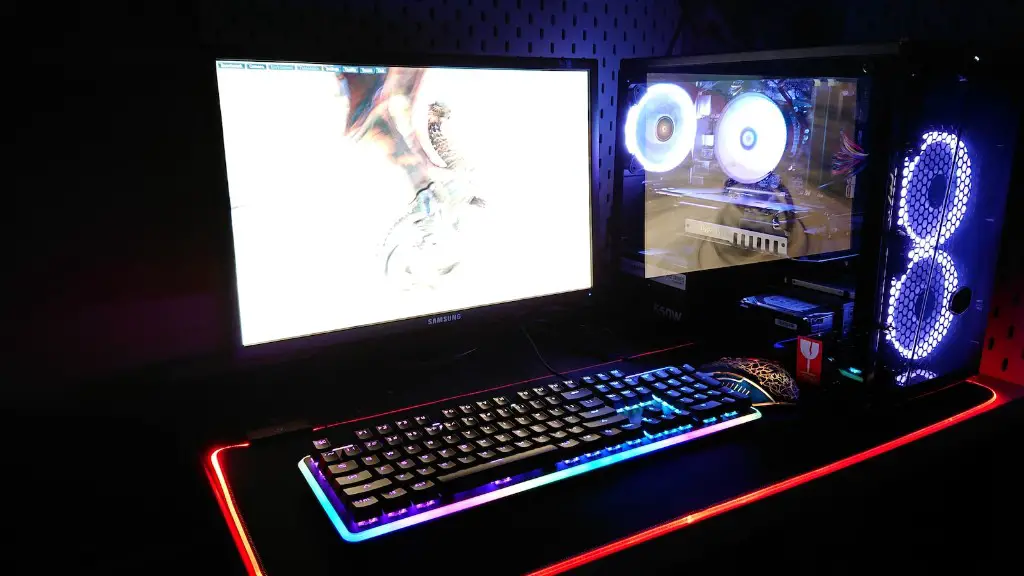
Once the cable is connected, turn on the monitor. Like with any other type of computer, the monitor may cycle through a series of self-testing messages before displaying the usual desktop.
Now it’s time to power on the gaming PC. Some PCs will have an onboard graphics card, and connecting the monitor will have no effect; the monitor only needs to be connected for use when using a dedicated graphics card.
When the desktop appears, the installation of necessary drivers may begin. This process may take several minutes, and involves the installation of important software. It’s possible to choose not to install this software, but this will commonly result in poorer performance and compatibility issues.
The final step is to test the monitor and make any necessary adjustments. This could involve adjusting the brightness and contrast levels, or making sure the stereo sound is properly balanced. Once the monitor looks and sounds great, it’s time to start gaming.
Supported Technologies
Connecting a monitor to a gaming PC requires considerable knowledge of the latest technologies available to gaming displays. Modern gaming monitors may support a range of high speed refresh rates, specialized driver software and support for the latest graphics cards.
A high refresh rate is key to enjoying a smooth gaming experience. Most modern gaming monitors offer refresh rates of 120Hz and higher, although the actual performance may depend on the hardware available in the gaming PC.
With the right hardware, it’s possible to take advantages of even higher refresh rates, offering a smoother and more immersive gaming experience. For maximum compatibility, it’s a good idea to check the specifications of the monitor to ensure the gaming PC supports the same standards.
Many gaming monitors need to be connected directly to the graphics card in the PC. This means the monitor needs to be compatible with the graphics card, and may require specific drivers or software. It’s worth checking for updates to the monitor’s firmware to ensure the best performance.
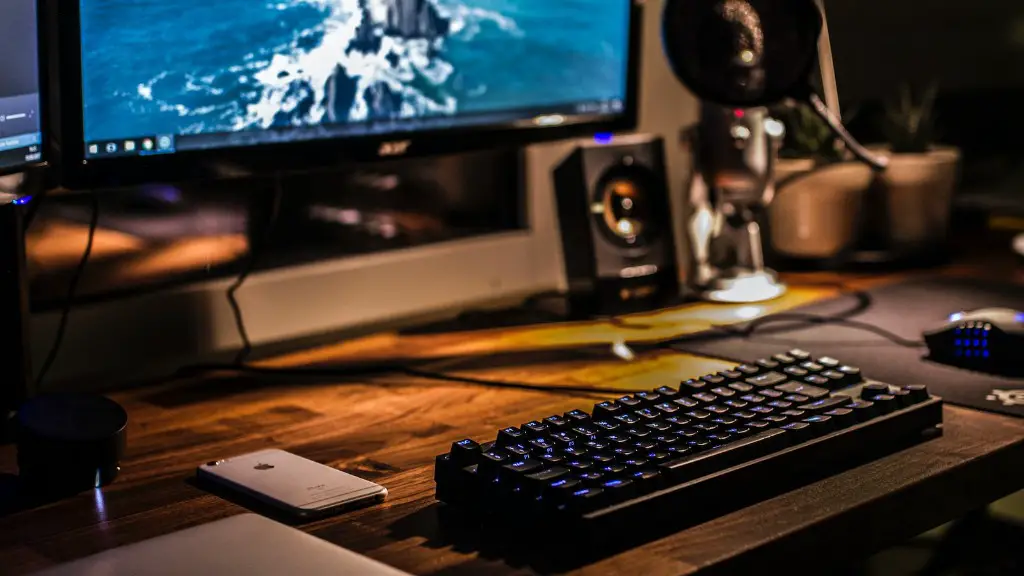
Connecting the correct cables is also essential. Many gaming monitors feature dedicated ports for increased throughput, such as DisplayPort or HDMI. It’s important to check these ports don’t exceed the capabilities of the graphics card before attempting to connect.
The right combination of hardware and software can create an optimal gaming experience on a PC. While it’s important to ensure the monitor and graphics card work together, selecting the right monitor and connecting it correctly can make a huge difference to the overall quality of the experience.
Using External Displays
In some situations, it may be necessary to use an external display when gaming on a PC. These external displays can take many forms, including televisions and projectors, and can be portable or clamped to a wall.
Like with most other displays, connecting an external monitor requires a suitable cable or adapter. Home cinema projectors, for example, will require a dedicated display cable with a suitable port, while a television may need an adapter cable to work with a gaming PC.

It’s also worth noting that some external displays may lack the necessary specifications for gaming. An HD ready television, for example, may not be able to display games in full HD, as some gaming PCs have special settings than can exceed the capabilities of the display.
External displays don’t always come with a power source, so it’s worth checking if a power cable is included before purchasing. Standard power cables may differ from country to country, so it’s important to make sure the cable is compatible before making a purchase.
Finally, many external displays come with integrated speakers that can replace the need for a dedicated sound system. When connecting a television or projector to a gaming PC, it’s important to ensure the sound and video are output correctly.
Troubleshooting and Preventative Maintenance
When connecting a monitor to a gaming PC, it’s important to take steps to ensure the connection is secure. Many gaming PCs come with a dedicated graphics card, so it’s essential to check the size and type of the port on the card before connecting the monitor.
In some cases, a monitor may not detect a gaming PC when connected. When this happens, it’s important to check if the cables are securely connected, and if the correct input port has been chosen. If possible, it’s a good idea to check the settings of the PC to ensure the video card and monitor work in harmony.
In some cases, the monitor may refuse to power on. When this happens, it’s important to check the connecting cables to ensure a good connection. If the monitor still won’t power on, it’s worth trying a different port on the gaming PC. If the monitor still won’t start, it may be worth getting a technician to diagnose the problem.
Taking regular care of a gaming monitor is also essential. Wiping away dust and leaving the screen with enough time to cool can help prolong the life of the monitor. It’s also a good idea to check the manufacturer’s website for updates that can optimize performance or add compatibility with the graphics card.
Types of Connectors
When connecting a monitor to a gaming PC, it’s important to consider the type of connectors available. Different PCs may come with their own connectors, so it’s important to check the type of port before attempting a connection.
One common type of connector is a display port, which is designed to provide an optimal link between gaming monitors and graphics cards. It’s possible to find display ports on both modern gaming PCs and monitors, allowing for an excellent connection speed when using dedicated graphics cards.
Alongside display ports, it’s possible to find HDMI ports on gaming PCs. These ports provide an easy way to connect external devices, such as Blu-ray players, and offer an excellent connection speed for gaming. They can also be used to connect multiple monitors with the same input.
It’s also possible to find USB-C ports on some gaming monitors. These ports are designed to easily connect a range of different external devices, and can also supply power to many monitors. It’s possible to find USB-C ports on powerful gaming PCs, allowing for an easy connection between gaming laptops and modern monitors.
Finally, older monitors may come with alternative ports, such as VGA. Although these connectors are becoming increasingly rare, they can provide a point of transfer between a gaming PC and other devices. It’s possible to find adapters to connect VGA monitors to gaming PCs and laptops, allowing for an easy connection.
Conclusion
Connecting a monitor to a gaming PC can be straightforward with the right hardware and knowledge. It’s important to check the ports available on both the monitor and gaming PC before attempting a connection, as well as to make sure the monitor is compatible with the graphics card.
Taking regular steps to care for a monitor is also essential. Keeping it clean, ensuring the drivers are up-to-date, and regularly checking for updates can all help maintain an optimal gaming experience. With the right steps, it’s possible to enjoy years of gaming with an excellent monitor.
