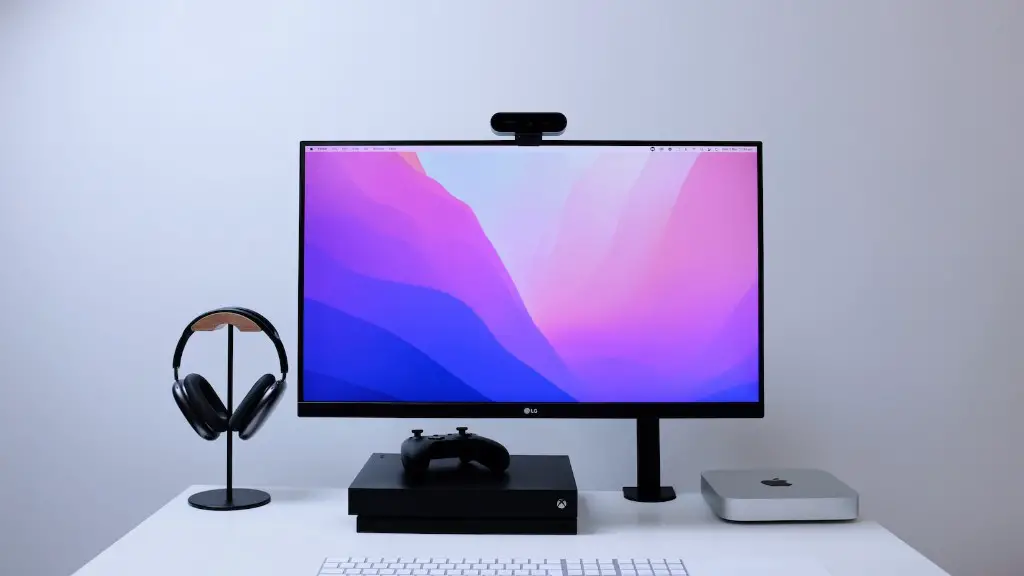
Hooking up a gaming PC to monitor is an easy task that most people with some technical knowledge can do. Firstly, users must gather the necessary components, including a monitor, cables, and a gaming PC. Starting with the monitor, users should use a DVI or HDMI cable as these are the most common as well as support high resolutions. They’ll also need to make sure the cables fit their ports, as some monitors and PCs come with varying port designs. Once users have gathered the necessary components and verified that they are compatible, they can begin the setup.
After opening up the monitor and the PC, users need to plug one end of the cable into the back of the monitor and the other end into the PC. If users are using a DVI or HDMI cable, they’ll notice that the ports are labeled. This makes it easier to find the right one on both the PC and the monitor. Once the cable is plugged in, most PCs will automatically detect the display, but users can also manually configure the resolution depending on the type of monitor they have.
After plugging the cable into the PC and the monitor, users will need to power up the monitor using the power cable. This can be plugged into a wall outlet or into a power bar depending on where the setup is located. The gaming PC will also need to be powered up. Once the monitor is on and the PC is running, users can try and open the game to check if the setup was successful.
If the setup was successful, the game should be displayed in full screen and the resolution should match that of the monitor. If the resolution still needs adjusting, users can go into the settings either directly on the PC or the monitor. This will let them adjust the resolution according to their gaming needs. Some games also offer various resolutions and some monitors may come with a pre-loaded configuration that users can select.
Once the resolution has been adjusted, users might also want to adjust other display settings. For instance, they can adjust the brightness or the contrast. This can be done in the settings on either the monitor or the PC and should help fine tune the image quality. In some cases, users may also be able to adjust the refresh rate and the frame rate, but this usually varies from game to game.
Overall, hooking up a gaming PC to a monitor is a fairly straightforward task that doesn’t require any technical knowledge. All users need to do is make sure they have the right components and then plug it in. Once that is done, users can adjust the display settings to get the most out of their gaming experience.
Setting Up The Audio
Once the monitor is hooked up to the gaming PC, users may want to adjust the audio settings as well. Most gaming PCs come with built-in audio ports, which users can use to connect external speakers or headphones. Users can also connect their PC to their home theater or audio system if they wish. To do this, users need to plug one end of the cable into the line-in port on the PC and the other end into the audio input on the device.
It’s important to note that some gaming PCs may require special cables to output audio, so make sure to check the manual or contact the manufacturer. Once the cables are plugged in, users can go into the sound settings on the PC and set the output device to their external speakers or headphones. This will ensure that the audio is correctly outputted to the device. Some users may also want to adjust the audio levels in order to get the best sound quality.
Another option is to use a digital-to-analog audio converter (also known as a DAC). This is a device that connects the PC to any HDMI-enabled audio system. The DAC converts the digital signal from the PC into an analog signal and outputs it through the HDMI port. If a user has a home theater system or audio system with an HDMI port, then using a DAC is the ideal way to connect the gaming PC to the system.
Finally, some monitors come with built-in speakers, which allow users toEnjoy sound without the need for an external device. This can be beneficial for users who don’t want to deal with the hassle of setting up external audio equipment. The sound quality from built-in speakers usually isn’t as good as external speakers or headphones, but it can still provide enough sound for basic gaming.
Configuring the Visuals
Once the monitor is set up with the gaming PC, users may want to adjust the visuals. For instance, they can adjust the resolution, brightness and color saturation. Users can do this either in the settings on the PC or the settings on the monitor. Most gaming PCs come with built-in graphic settings that allow users to adjust a range of visual settings. This includes things such as anti-aliasing, ambient occlusion and motion blur.
Depending on the type of game being played, users may be able to adjust the frame rate. Games that are graphically intensive may require higher frame rates in order to run smoothly. By adjusting the frame rate, users can make sure that the game runs as smoothly as possible. This can also help to reduce graphics lag and improve the overall gaming experience. It’s important to note that different monitors may have different settings and capabilities, so users should check the manual before adjusting any of the visual settings.
In addition to the graphics settings, users may also want to adjust the monitor’s refresh rate. This refers to how quickly the image on the monitor is refreshed, with higher refresh rates offering smoother visuals. Some gaming monitors come with pre-set refresh rates, while others allow users to adjust the rate manually. Keep in mind that adjusting the refresh rate too high can cause image degradation, so it’s important to keep it at a reasonable level.
Finally, some monitors offer different presets for different types of games. For instance, a monitor may have presets for shooter games and for sports games. These presets can make it easier for users to adjust the settings for the type of game they are playing. This can help to improve overall image quality and also help to reduce graphic lag.
Installing Monitor Drivers
In addition to hooking up the monitor to the gaming PC, users may also want to install the proper drivers. This can ensure that the monitor is working correctly and provide the best possible performance. Most monitors come with their own driver installation discs, but users can also find the latest versions online. It’s important to make sure that the drivers being installed are compatible with the specific monitor model.
Most monitors also come with their own control panels, which give users access to various settings. These settings can be used to adjust things such as the brightness, contrast and color balance of the monitor. It’s important to note that some monitors may have additional settings that can be adjusted, such as the overdrive setting. Adjusting the overdrive setting can help to reduce ghosting and input lag, which can improve the overall gaming experience.
Finally, users may want to adjust the position of the monitor as well. Most modern monitors come with adjustable stands, which allow users to adjust the height and angle of the monitor. This can make it easier for users to find the perfect viewing angle. It’s important to make sure that the monitor is positioned correctly, as incorrect positioning can lead to neck and back pain.
Making the Most Out of the Monitor
Once the monitor is set up with the gaming PC, users may want to consider a few extra tips to get the most out of their gaming experience. For instance, they can adjust the lighting in the room to make sure that it isn’t too bright or too dark. This can help to reduce the strain on the eyes and make the image on the screen easier to view. It’s also important to maintain a comfortable distance from the monitor, as sitting too close can cause eye strain.
Another tip is to invest in a monitor with a higher refresh rate. Higher refresh rates can help to reduce motion blur and improve overall image quality. However, it’s important to remember that higher refresh rates will consume more power and may require additional cooling, so users should make sure they have a compatible power supply and cooling system.
Finally, users may want to consider investing in an anti-glare filter. These filters are designed to reduce the amount of light that is reflected off the monitor, which can help improve viewing comfort. Most anti-glare filters are made of a special material that filters out the light, allowing for a clearer image. This is especially useful for monitors that are located in sunny areas, as the glare from the sun can make it difficult to view the screen.
Conclusion
Overall, hooking up a gaming PC to a monitor is a fairly straightforward task that doesn’t require any technical knowledge. All users need to do is make sure they have the right components and then plug it in. Once that is done, users can adjust the display settings to get the most out of their gaming experience. They may also want to adjust the audio settings and consider investing in a higher refresh rate or an anti-glare filter. By following these steps, users can ensure they are getting the most out of their gaming PC and monitor.
