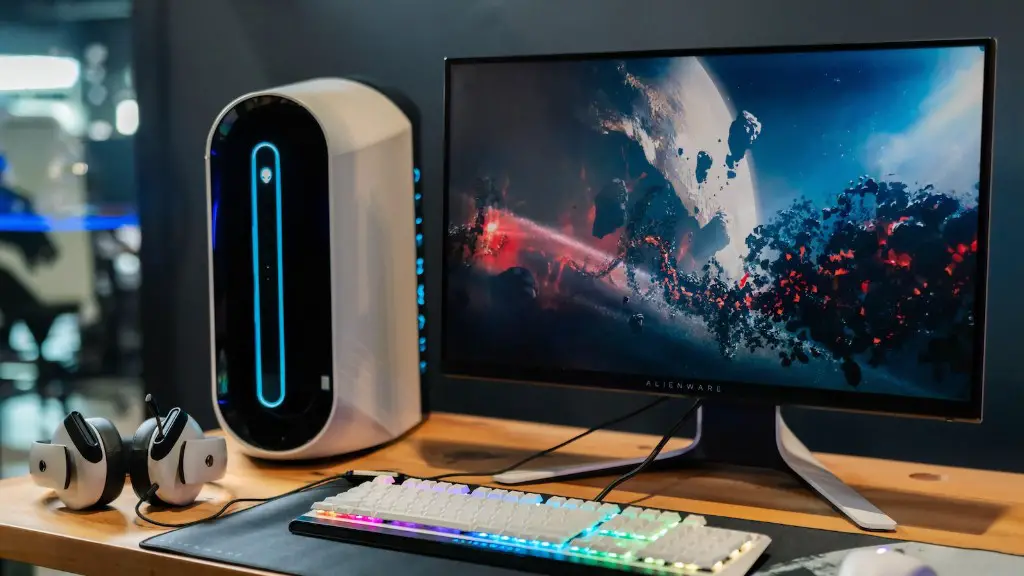
Building a gaming PC from the comfort of your home is an exciting and rewarding experience. There are several things to consider before starting the build, and these steps will help you make a gaming computer that’s both powerful and cost-effective. This article will walk you through the process, from choosing your components to getting your new gaming PC up and running.
First and foremost, you should decide on your budget. You should have a realistic budget in mind before you start shopping for the components you’ll need. Not only will the total cost of the parts be important, but also their individual prices. Some components may be more expensive than others, which can affect the overall cost significantly.
Next, you’ll need to determine which components are right for you. This includes selecting a CPU, GPU, RAM, storage, and motherboard. You should also consider any additional components you may need, such as a power supply, heatsinks, fans, and cooling systems. Try to find components that are compatible with one another and are within your budget. Always make sure to read reviews to get an idea of how good the components are.
Once you have chosen your components, the next step is to assemble them. Make sure you have the right tools for the job, such as a screwdriver, pliers, and antistatic mat. Always make sure to follow the instructions provided. After that, you’ll need to install the operating system and any additional software you may need. Pay attention to the installation process and make sure everything is installed correctly.
Finally, you’ll need to make sure that your gaming PC is properly configured. This includes installing the necessary drivers, setting the correct clock speeds, and tweaking the BIOS settings. This process can be tricky, but it’s important to make sure the PC is set up properly. You may also want to overclock the components to get higher performance.
CPU
The CPU (Central Processing Unit) is the brain of a computer and is responsible for processing information and carrying out instructions. In order to make sure you have a gaming PC that will perform well and stay up-to-date with the latest games, you should choose a modern processor that not only offers good performance, but also comes with all of the necessary expansion slots.
When selecting a CPU, take into consideration the amount of cores and the speed of each. A good rule of thumb is to choose a CPU that has at least four cores and runs at least 3.5GHz. Also look for a CPU that has an integrated GPU (Graphics Processing Unit) so you won’t have to purchase one separately.

Once you have chosen the CPU that best meets your needs, the next step is to install it. This may sound daunting, but it’s actually very straightforward if you have the right tools. Make sure to use a thermal paste to ensure good heat transfer, and don’t forget to plug in the power cable. After that, you should be ready to go.
GPU
The GPU (Graphics Processing Unit) is responsible for rendering images and video on a computer. It’s one of the most crucial components of a gaming PC, and choosing the right one can sometimes be overwhelming. GPU’s range from relatively low-priced entry-level cards to high-end monster graphics cards. It’s important to choose a card that meets the requirements of the games you want to play and fits your budget.
When looking for a GPU, look for one that has a good balance between price and performance. Make sure the card you choose is compatible with the CPU you have chosen and it’s necessary for you to make sure that you check the power requirements of the card before buying.
Once you have chosen a GPU, the next step is to install it. Make sure to follow the manufacturer’s instructions and don’t forget to plug in the power cable. After that, you should be ready to go.
RAM
Random Access Memory (RAM) is essential for any gaming PC, as it allows the computer to rapidly access and store data. When selecting RAM, make sure to choose one that is compatible with the motherboard and within your budget. Also, make sure that the RAM meets the requirements of the games you want to play. Most modern games require at least 8GB of RAM.
The installation process for RAM is quite simple, as all you have to do is insert the modules into the memory slots of the motherboard. Make sure the modules are firmly inserted and seated correctly. After that, you should reboot the PC to update the BIOS.
Storage
A gaming PC needs storage to store games, applications, and data. There are two main types of storage: Hard Disk Drives (HDDs) and Solid State Drives (SSDs). HDDs are cheaper and have higher storage capacity than SSDs, but they are slower and can be more prone to failure. SSDs are more expensive, but they offer faster speeds and are more reliable.
When selecting storage, it’s important to choose the right type for your needs. If you are looking for a cheaper option, an HDD with at least 1TB is a good choice. If you want higher performance, an SSD with a minimum of 500GB is recommended. Make sure the storage is compatible with the motherboard and choose the correct connection type.
Installing an SSD or HDD is very straightforward; all you have to do is connect the appropriate cables to the drive and then connect the drive to the motherboard. Make sure the drive is firmly seated and double-check the connections before powering on the PC.
Motherboard
The motherboard is the backbone of a gaming PC and is responsible for connecting all of the components together. It is important to choose a motherboard that supports all of the components you have chosen. This includes the CPU, GPU, RAM, storage and any other peripherals you may want to use. Make sure the motherboard is compatible with the CPU and other components.
Installing a motherboard is a fairly simple process. Make sure you have all of the necessary cables, such as SATA cables for the storage devices, CPU power cabling, and 24-pin power cabling. Carefully insert the motherboard standoffs into the case before inserting the motherboard. After that, you can plug in all of the components and cables. Finally, make sure the CPU is correctly seated and the power supply is connected.
Final Steps
Once all the components are installed, the next step is to make sure everything is working properly. Start by double-checking the cable connections and electrical safety. Make sure no cables are loose or unplugged. You should also check the BIOS settings and make sure they are configured correctly.
The next step is to install an operating system. There are many available, such as Windows and Linux, so choose the one that best suits your needs. Make sure to follow the instructions during the installation process and don’t forget to install the drivers and any other necessary software.
Finally, it’s time to turn on the PC and start gaming. Make sure the PC is set up correctly and that all of the components are functioning properly. If everything checks out, you are ready to enjoy your new gaming PC.
Troubleshooting
If you encounter any issues along the way, troubleshooting can be a real lifesaver. First and foremost, make sure all the hardware is properly connected and that the cables are not loose. If that is not the issue, try resetting the BIOS by removing the BIOS battery for a few minutes and then inserting it back in.
If the problem persists, there may be an issue with the components. Make sure the CPU is correctly inserted and that your RAM is seated correctly. You should also check the manufacturer’s website to see if there are any driver updates or BIOS updates that need to be installed. If all else fails, you may need to replace the components.
Testing
Finally, it’s time to test your new gaming PC. You should make sure to run a wide range of tests, including benchmarking, stress testing, and game performance testing. If the PC passes all of these tests, you are ready to start gaming.
It’s important to keep in mind that no matter how powerful your gaming PC is, it won’t always run perfectly. Make sure to stay on top of regular maintenance and make sure there are no loose cables or components. Keeping an eye on the temperatures is also important to make sure your PC doesn’t overheat.
Software
Installing the right software is key to getting the most out of your gaming PC. There are several pieces of software you should install, such as a virus protection program, a driver updater, and a system cleaner. You may also want to customize your PC with specialized gaming software and performance utilities.
Last but not least, make sure you stay up to date with the latest games and make sure your PC is able to run them. Not all games are the same, so it’s important to keep an eye on the system requirements for each game and make sure your PC can meet the demands.
