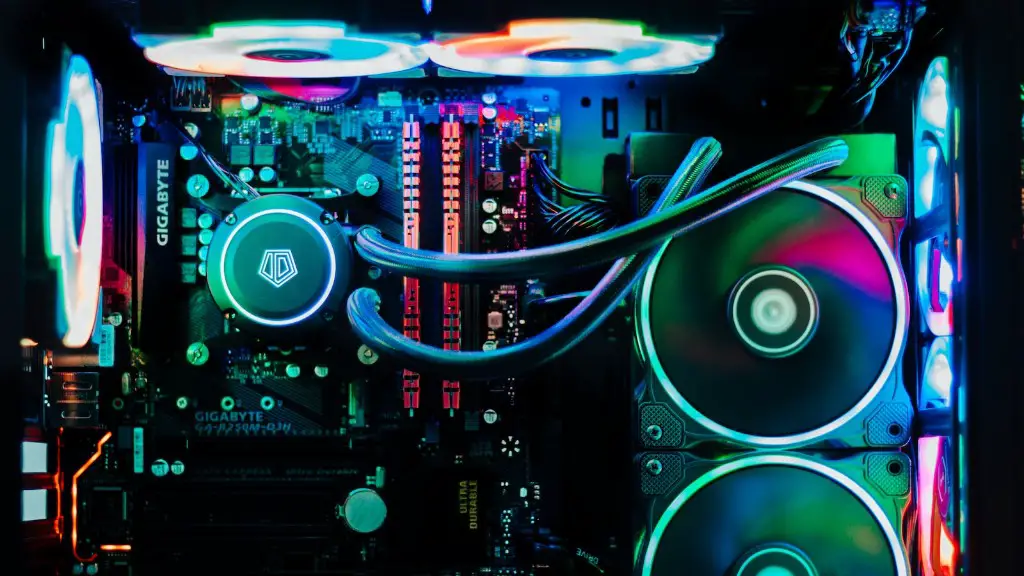
Installing a CD drive into a gaming PC is a surprisingly straightforward process. It doesn’t require any specialized technical knowledge; however, following the correct steps is important to ensure a proper installation. This guide will walk you through the entire installation process, from the necessary parts to the final connections.
Firstly, buy a CD drive and the necessary cables. You can purchase a CD drive at any retail or online electronics store. You need to make sure you buy the correct cables as well, so take a look at the specs of your existing components and make sure you get the right ones. Cables for internal CD/DVD drives are typically SATA cables, but some drive models require a different type.
Next, you’ll need to open your PC to fit the CD drive. Make sure to turn off the PC and unplug it from the power source before you start, to prevent any potential damage to your system. Remove the CD drive bay cover and unscrew the required screws. Be sure to keep track of the screws and their positions, in case you need to replace them after installing the CD drive.
After inserting the CD drive into the bay, secure it with the screws you removed earlier. Now connect the CD drive cables to the appropriate ports on the drive and the motherboard, then tuck away the cable in a way that won’t interfere with any other parts. You must also connect the drive to the power supply, or it won’t power up.
Finally, close up the PC and secure the cover. Boot up the computer and check to see that the CD drive is working correctly. If everything went according to plan, you should see the CD drive in the disk management panel, as well as your operating system’s file manager. Additionally, running a disk check from the disk manager should prompt a drive check.
Care and Maintenance
To ensure the longevity of your CD drive, you’ll need to take proper care of it. The most important aspect is to keep the drive and its surrounding area free from dust. Dust buildup can not only impede the drive’s performance but can even damage the hardware. It is also important to check for any loose screws regularly and ensure that the drive’s internal components remain secure.
You should also check the CD drive’s temperature every now and then, to make sure it is not overheating. Some CD drives don’t have a built-in heatsink or fan, so if the temperature becomes too high, you may need to buy additional components to keep things running smoothly.
In addition, make sure to keep the CD drive clean. Use a soft lint-free cloth to remove any dirt and dust, and avoid spraying any kind of cleaning liquids directly on the drive. Finally, avoid touching any of the drive’s internal components, as that may damage the drive.
Troubleshooting
If you experience any issues with your CD drive, there are a few steps you should take to diagnose the problem. Before assuming the worst and replacing the drive, try running the diagnostic tool included with the drive’s installation disc. This will go over your system’s installation, firmware, and other settings to see if anything is out of the ordinary.
If the diagnostic tool doesn’t give any clues, it may be time to open up the drive and see if any of the components are damaged. Make sure to keep track of what parts you remove and keep them safe, in case you need to replace them. Also be aware that some parts, such as the ROM chip, may be delicate and can be easily damaged.
If your inspection reveals that one of the parts is indeed faulty, you can purchase replacement parts online or from a local electronics store. Make sure to choose the exact same parts, otherwise things may not fit correctly and the drive won’t work.
If the replacement parts aren’t installed correctly or aren’t compatible, the drive may still experience issues. In this case, it is best to call in the professionals or take the system to a repair shop, as the problem could be more serious.
Reinstalling Drivers
If you start to experience errors and the CD drive stops working, it may be due to a missing or corrupted driver. In this case, you’ll need to reinstall the driver to get the drive working properly again. The exact steps will vary depending on what operating system you’re using, so make sure to look up the correct process.
In most cases, you’ll need to open the device manager and look for the CD drive. Right-click on it and select the “Properties” option. From there, you should be able to access the driver settings and install the driver from the list, either from the driver disc or from online resources.
Keep in mind that the driver and the firmware of your device may need to be updated from time to time, so make sure to look for any available updates and download them when needed. Installing the latest available drivers is a great way to keep your CD drive running smoothly.
Replacing or Upgrading the CD Drive
If the CD drive doesn’t show any signs of movement or it is experiencing other serious issues, it may be necessary to replace or upgrade the drive. If you plan to upgrade, make sure to check the drive you’re going to buy is compatible with your system, as some drives may not be supported.
Installing a new drive is almost exactly the same as the initial setup process. Disconnect your PC and open up the case, then remove the screws to take out the old drive. Install the new drive and replace the screws, then connect the power and data cables. After that, close the case and power up your system to see if the new drive is working.
If you’re replacing an existing drive, make sure to back up all your important data before you start. Additionally, you may need to reinstall your operating system, as the new drive may not be compatible with your old system. Some drives may require specific types of cables, so make sure to check the specs of the new drive before you complete the installation.
Updating the Firmware
Updating the firmware on your CD drive regularly will keep it running smoothly and make sure you get optimal performance. To update the firmware, you must first download the update file and then run the installation process. This may vary depending on your drive’s model, so look up the exact steps to follow.
Once you download the file, you must run the update process with your PC off and the drive disconnected. Depending on the drive, you may need to run the update while your computer is powered up. In any case, make sure to follow the instructions carefully and avoid any potential interruptions.
After the update is complete, double-check that you’ve correctly installed the latest version of the firmware. Once everything is in place, you can power up your PC and check that everything is working correctly. That’s all it takes to update the firmware of your CD drive.
Cleanup
Before you start using your CD drive, you should take the time to clean out any dust that may have accumulated over time. A quick wipe of the internal components will help keep your drive running properly and reduce the chances of any technical issues arising in the future.
You can use a canned air duster, available from most electronics stores, to clean out the dirt and dust. Be sure to use the duster in short bursts and at an angle to avoid blowing the dust into other components. Additionally, use a soft cloth to clean any stubborn dirt and make sure to never touch any of the drive’s internal components.
By taking the time to properly clean your CD drive, you can reduce the chances of experiencing any hardware issues. Also, make sure to always keep your drive away from any liquids, as excessive moisture can cause permanent damage.
