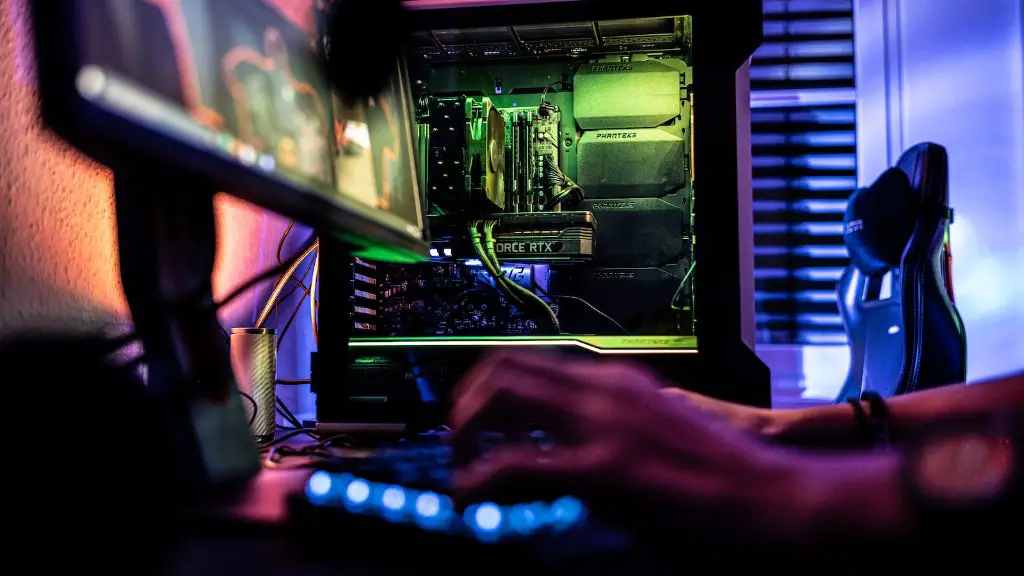
Making a gaming PC run faster can be an intimidating task. Fortunately, there are a few simple steps we can take that will help increase a gaming PC’s performance. Before we get started, it’s important to understand what’s causing the computer to slow down in the first place. Typically, this happens when the processor is overloaded or the system is running too many background processes. In order to improve performance, we’ll have to identify and address these issues.
The first step in making a gaming PC run faster is to update the drivers and software. Keeping your drivers and software up to date helps minimize performance drops by providing important system patches and bug fixes. Additionally, seeking out the latest and greatest drivers can provide noticeable boosts in performance. For optimal performance and stability, it’s important to update all drivers.
Next, disable all unnecessary processes. Many programs are set to run in the background by default, resulting in wasted resources. Disabling these processes can free up RAM and help the system run more efficiently. To change these settings, access the ‘Control Panel’ to look for ways to turn off or disable unwanted features.
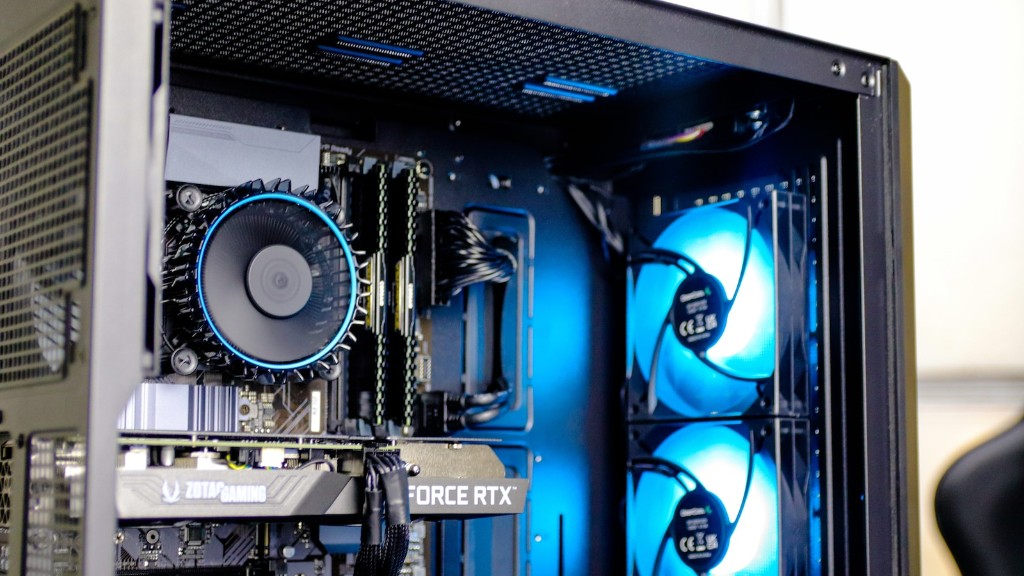
Thirdly, update your hardware. Over time, PC components wear out, so it’s important to replace them to keep your system running efficiently. For gaming PCs, this means investing in high-quality components that can handle high amounts of strain. Additionally, upgrading devices such as HDD and SSD can drastically reduce load times and help your gaming PC perform at its best.
Finally, clean out your system by using disk-cleaning utilities, such as ‘CCleaner’. Disk-cleaning utilities delete unwanted files and programs, freeing up disk space and allowing the system to run more efficiently. In addition, these utilities can help repair corrupted system files and reduce fragmentation.
Improving Network Performance
Network performance is essential for gaming PCs. To get the most out of your gaming experience, it’s important to optimize your network settings. Start by optimizing your router settings. This can be done by making sure WiFi is set to a reasonable level and choosing the correct network channel. Additionally, enabling WMM can help prioritize gaming traffic on the network.
Next, make sure your gaming PC is running the latest firmware. Updating firmware resolves compatibility issues and helps minimize lag. Additionally, disabling non-essential services such as iTunes, media servers, and remote access can help free up network resources.

If possible, connect your gaming PC directly to the router using an ethernet cable. Using an ethernet connection ensures the highest throughput, lowest latency, and minimal interference. Even with a wired connection, you can still optimize your settings by setting up a dedicated gaming network. This allows you to prioritize game traffic, giving it more bandwidth than other devices on the network.
Finally, make sure you are using the correct network adaptor. With the number of network adaptors out there, choosing the wrong one can result in poor performance. Look for network adaptors with low latency, high throughput, and support for the latest networking standards.
Cleaning the System
Cleaning the system is one of the most effective ways to improve performance. Over time, unwanted files and programs can accumulate, leaving your system sluggish and unresponsive. To get the most out of your gaming PC, it’s important to delete these files and programs. Start by uninstalling any unnecessary applications and games.
Next, defragment your hard drive. Hard drive fragmentation occurs when files are scattered around the disk, resulting in slower access times. To resolve this issue, you should use the built-in disk defragmenter tool in Windows. This tool reorganizes the files on the hard drive, allowing the system to access them faster.
Thirdly, use a registry cleaner. The registry is a database that stores important settings for the operating system. Over time, the registry can become cluttered with invalid entries, slowing down the system. Using a registry cleaner can help eliminate these problems and improve performance.
Finally, clear out your web browser. Browsers can become bogged down with cookies, cache, and extensions, resulting in slow loading times. To get the most out of your browser, make sure you regularly clear out any unnecessary information.
Finalizing the Build
Once all of the above steps have been completed, it’s time to finalize the build. There are a few things to consider before doing this. First, check that all components are working properly. Be sure to test the RAM, graphics card, and storage device. You should also check that the power supply is compatible with the other components.
Next, it’s important to make sure that the operating system is optimized for gaming. To do this, you can download the ‘Game Mode’ update from Microsoft, which automatically reduces system resources for gaming. Additionally, you should consider disabling visual effects, such as animations and shadows. This will free up resources for gaming applications.

Thirdly, if you are using an SSD for storage, make sure it is set up properly. SSDs require specific settings in order to maximize performance. Make sure the drive is aligned correctly, the block size is set to 4096 bytes, and that all necessary drivers are installed.
Finally, run a benchmark test to check your system’s performance. Benchmark tests provide an objective measure of performance and allow you to compare your system’s performance to others. Popular benchmark tests include 3DMark, Cinebench, and PCMark.
Configuring the BIOS
The BIOS is a crucial part of any PC, as it sets the stage for the entire system. To improve your system’s performance, it’s important to make sure the BIOS is configured correctly. Start by checking for any available updates. Newer updates typically contain bug fixes and performance boosts, so it’s important to keep your BIOS up to date.
Next, configure the boot order. Many motherboards allow you to set a priority for which device the computer should attempt to boot from first. If you plan to use an SSD or other storage device, make sure it is set as the primary boot device. This will help ensure your system boots quickly.

Thirdly, enable XMP profiles. XMP (Extreme Memory Profiles) allow you to maximize the performance of compatible memory modules. Look for the memory profile settings in the BIOS and make sure they are set to the highest possible values.
Finally, enable power-saving mode. Some modern motherboards have advanced power-saving capabilities built in. These can help improve battery life and reduce overall system temperatures. To enable these settings, look in the BIOS for the ‘Power Saving’ or ‘Cool n Quiet’ settings.
Making Adjustments
Making adjustments to the system is a great way to further improve performance. Start by tweaking the system settings. You can do this by going into the ‘System Preferences’ menu and adjusting the graphics and rendering settings. This can help improve performance in games that require a lot of processing power.
Next, consider overclocking. Overclocking is when you adjust the clock speed of the processor. Doing so can provide noticeable performance boosts in games, however, it should be done with caution. Overclocking can, in some cases, reduce the lifespan of the component.
Thirdly, optimize your game settings. Every game is different and has unique settings that should be tweaked in order to get the best performance. Whether it’s reducing graphics quality or turning off v-sync, optimizing your game settings can help reduce lag and provide a smoother experience.
Finally, use a game booster. Game boosters are programs that are specially designed to optimize games. They do this by disabling unnecessary processes, minimizing network delay, and allocating more resources to games. By using a game booster, you can get the most out of your gaming PC.
