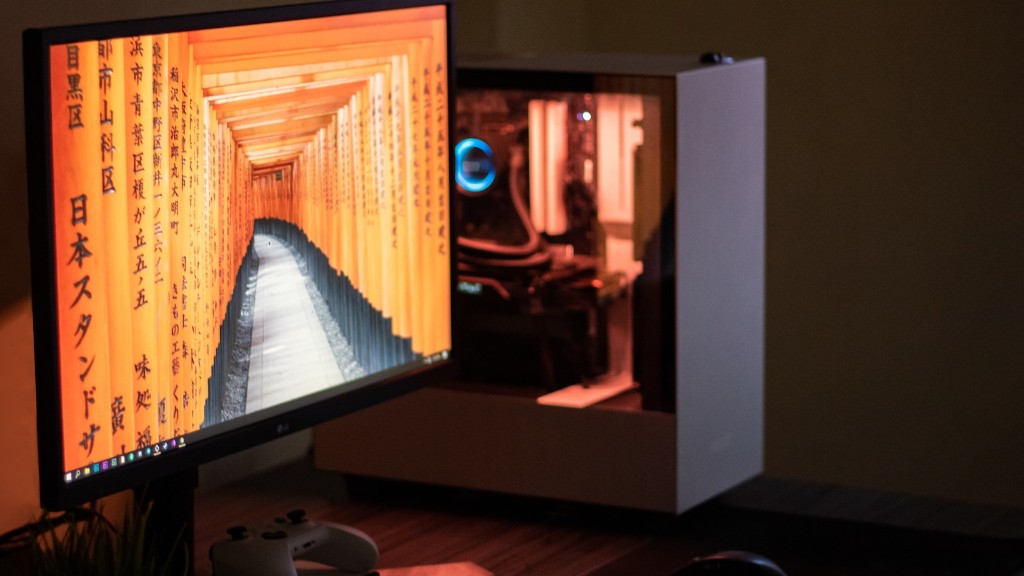
Starting off with a Gaming Pc is a great way to maximize your gaming experience. The good news is, setting up a Gaming Pc is easy to do. Here’s a handy guide to get you up and running in no time.
The first step in plugging in a Gaming Pc is to get the power cable. Depending on the make and model of your system, the cable may be included or you’ll need to buy it separately. Once you’ve got the power cable, connect it to the power supply. Then, plug the power cord into an outlet.
Next, it’s time to plug in your monitor. Use the right type of cable for your monitor; HDMI is the most common option these days. Connect one end of the cable to your monitor and the other to the Graphics Card on your system.
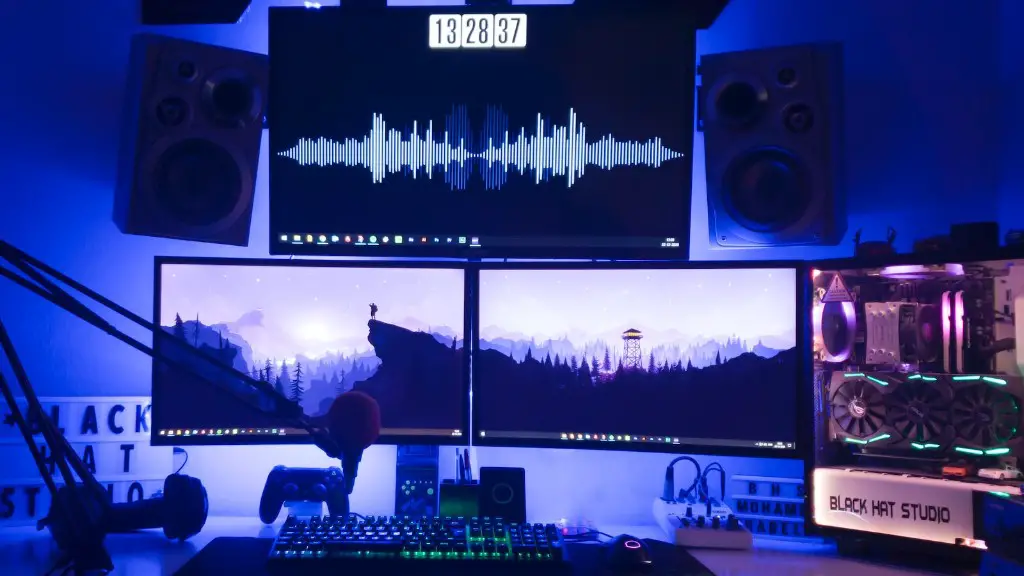
Next, plug in your peripherals. For example, connect any available USB cables to your mouse, keyboard and other devices. Make sure the USB connection is a 3.0 or higher. You may also need to plug in additional power cables, such as for a printer or other device.
Before you fire up your Gaming Pc, insert your operating system disk. Then, follow the onscreen prompts to complete the setup process. After that, you can install any additional software you need and start configuring your system as you like.
Finally, go ahead and press the power button. Hold down the button until your system starts up and you can see the boot menu. If your system displays any errors during startup, contact customer service for assistance.
That’s it! With the right peripherals, cables, and a little bit of assembly, you can easily get your Gaming Pc up and running in no time.
Troubleshooting A Gaming Pc
At some point, you may encounter some issues with your Gaming Pc. Here’s a quick guide to help you troubleshoot and get back on track as quickly as possible.
The first thing you should do is check your cables and connections. Make sure all of your power cables, peripheral cables and video cables are fully plugged in. Use your hands to double-check each connection.
Next, try rebooting your system. Press and hold the power button for a few seconds until your system shuts down. Then, press the power button to turn your system back on.
If that doesn’t help, try running your system in safe mode. To do this, press and hold the F8 key while your system is booting. Select the Safe Mode option and continue the startup process until it completes.
If you’re still having issues, it’s time to reach out to customer service. Most gaming systems come with a one-year warranty, so you may be able to get a quick replacement if you need it.
Finally, if you’re an experienced techie, you can try running diagnostics on your system. Check your system’s manual for detailed instructions or contact customer service for assistance.
Cleaning Your Gaming Pc
It’s important to keep your Gaming Pc clean. Over time, dust and dirt can build up inside your system, which can cause components to malfunction. Here’s a quick guide to help you avoid any problems down the line.
The first step is to unplug all the cables from your system. That includes the power cord and any peripheral cables. Make sure you remember to unplug the monitor and any other connections.
Next, use a can of compressed air to gently blow away any dust from the exterior and interior of your system. Make sure you use long, steady strokes to loosen stuck-on dust. Don’t use a vacuum cleaner, as this can damage the internal components.
After that, use a can of compressed air to blow away any dust that may have accumulated on the fan blades. Again, make sure to use long, steady strokes in order to clear away the dust.
Finally, use a soft cloth to gently wipe away any dust and dirt from the exterior of your system. This includes the monitor, any open vents, and any removable parts like the DVD drive.
That’s it! Following these four easy steps will help keep your system running smoothly and efficiently.
Upgrading Your Gaming Pc
At some point, you may want to upgrade certain components in your Gaming Pc. Doing so can help you improve the performance of your system and get even better performance out of your games. Here’s a quick guide to help you get started.
The first step is to decide which components you need to upgrade. Update your graphics card for better visuals and performance, or upgrade your processor or RAM for better overall speeds and loading times. Make sure to consult the system manual for specific details on compatibility.
Next, make sure you have the right tools for the job. The components themselves may come with specific tools or accessories, such as a screwdriver or radiator tube. Consult the system manual to determine the specific tools needed for your particular system.
After that, it’s time to install the new components. Make sure to follow the instructions in the system manual, and use the right tools. If you’re not comfortable doing the installation yourself, reach out to a technician for help.
Finally, make sure to update your system’s software and drivers. Consult the manufacturer’s website for the latest updates. This is important for ensuring that the new components are compatible with your system.
That’s it! You now have the skills and knowledge to upgrade your Gaming Pc as needed.
Updating Your Drivers
It’s important to keep your system’s drivers up to date. Outdated drivers can cause glitches, slowdowns, and even system crashes. Here’s a quick guide to help you keep your system running smoothly.
The first step is to check the manufacturer’s website. Most manufacturers release regular driver updates, so consult their website to see if any are available for your system.
Next, download the latest version of the driver software. This can usually be found on the manufacturer’s website, but you can also search an online database such as Driver Whiz.
Once you have the driver software, it’s time to install it. Make sure to follow the instructions in the system manual for detailed instructions.
If you have multiple components to update, consider using a driver updater tool, such as Driver Whiz. This will help you keep track of all the drivers on your system and ensure that they’re up to date.
Finally, make sure to back up your drivers before you install any updates. This will help you in case of any difficulties or issues down the line.
That’s it! Updating your drivers regularly will help keep your system running smoothly and efficiently.
