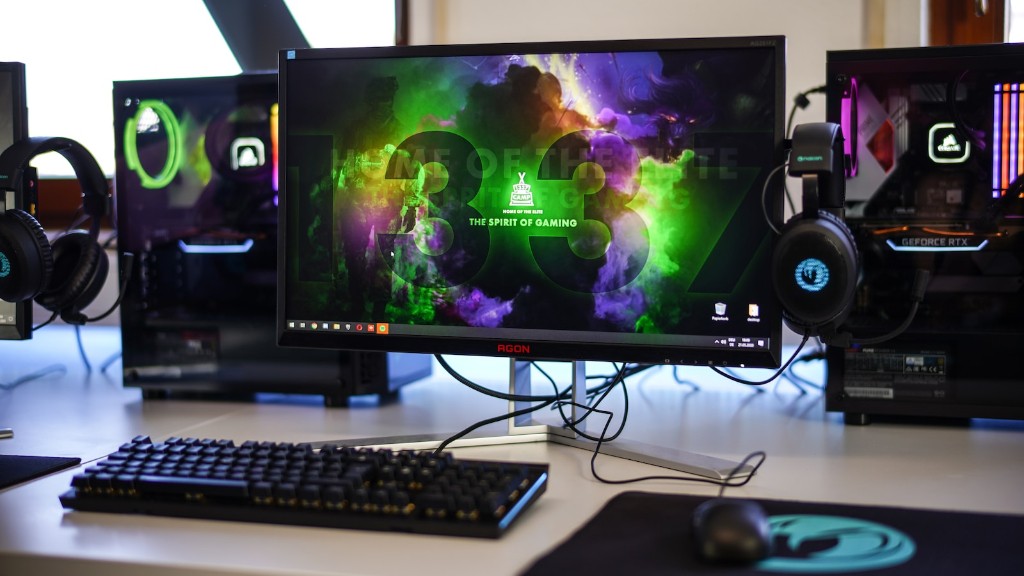
If you are looking to enhance your gaming experience with an extra monitor or two, the first step is to get it physically connected to your gaming PC. Doing so can be daunting if you’re not tech savvy, so we have put together this guide to make the process much easier. Here’s how to connect a monitor to a gaming PC.
The Set-Up Process
Before we get into the actual connection process, make sure that you have all the necessary pieces ready. While you’ll typically only need a monitor and your gaming PC, additional pieces may become necessary depending on the type of monitor you have and the ports available on your gaming PC. If you have an older monitor, it is likely that you’ll need an adapter. If you have a newer monitor, you may be able to use different types of cables to connect it to your gaming PC.
Additionally, if you’re working with multiple monitors, you may need additional items such as a splitter or stand, so make sure you are familiar with the type of monitor you have, the ports available on your gaming PC, and the products that can connect the two.
What Cables Should You Use?
Today, there are several types of cables that can be used to connect a monitor to a gaming PC. It is important to choose the right type of cable as some are higher quality than others. The two most popular cables are HDMI and DisplayPort. Both are capable of delivery quality images, but DisplayPort will typically deliver a better connection with higher bandwidth.
The VGA cable is also popular, but most monitors don’t come with them anymore. You can purchase them separately, though, which is why they’re still commonly used. DVI cables are also outdated, but still used for older monitors.
Connection Process
Once you have decided on the right cable to use, the next step is to connect the monitor and the gaming PC. Start by finding the connection ports on both the monitor and the PC. Typically, they are labeled clearly, so it should not be too difficult. On the back of your monitor, there may be several connection ports, depending on the type and size. These ports range from classic ports such as HDMI and VGA, to modern ports such as DisplayPort and USB-C.
You should then find the corresponding ports on your gaming PC. If you are using a laptop, it is likely that the majority of the ports are on the back. Insert the chosen cable into the monitor and PC ports. If you are using a newer monitor, the connection should happen automatically. However, if you are using an older monitor, you’ll likely need to go into your gaming PC’s settings to configure the connection.
Set Display Properties
After connecting the monitor and gaming PC, the next step is to set the different display properties. If you are using more than one monitor, you will have to decide how the monitors are displayed. This includes setting the resolution, frequency, and rotation of each monitor. You can also decide which monitor will be your primary display, as well as choose whether the displays should be mirrored or extended.
These settings are typically based on the display settings of your GPU, so make sure that your graphics card’s drivers are updated before attempting to adjust them. You can configure them in the settings of your GPU, or by simply right-clicking on any empty area of your desktop.
Windows System Settings
Finally, you should also adjust the system settings of Windows which will allow you to get the most out of your monitor. This can be done by opening the Settings app and adjusting the scaling of your display. Additionally, you can connect an external sound system, such as a separate speaker system or an all-in-one desktop soundbar.
You can make further adjustments in the Sound Settings of your PC. You can set the output device as well as configure the sound input and output of each application.
Conclusion
By following the steps outlined in this article, you should be able to get your monitor connected to your gaming PC in no time. Just remember to have all the necessary cables, products and settings on hand before attempting to make a connection. Once you have everything setup correctly, you’ll be free to enjoy your gaming experience with a brand new external display.
