
Building a non-gaming PC can be a very rewarding process, as it allows you to customize the hardware and components that best suit your specific needs and preferences. While there are many different steps in the process of building a PC, we’ll break down the main steps to help make the process easier.
First, you need to gather all the necessary components for your build. This includes the case, CPU, graphics card, hard drive, RAM, power supply, and other peripheral components, such as a keyboard, mouse, and monitor. Make sure to double-check that all components are compatible with one another before purchasing.
Once you have all the components, it’s time to prepare the case. Ensure that all the necessary ports, slots and openings are properly aligned, then insert the motherboard, CPU and RAM into the designated slots. Attach the power supply to the motherboard, ensuring that it is correctly connected, then attach the hard drive, fan and other components.
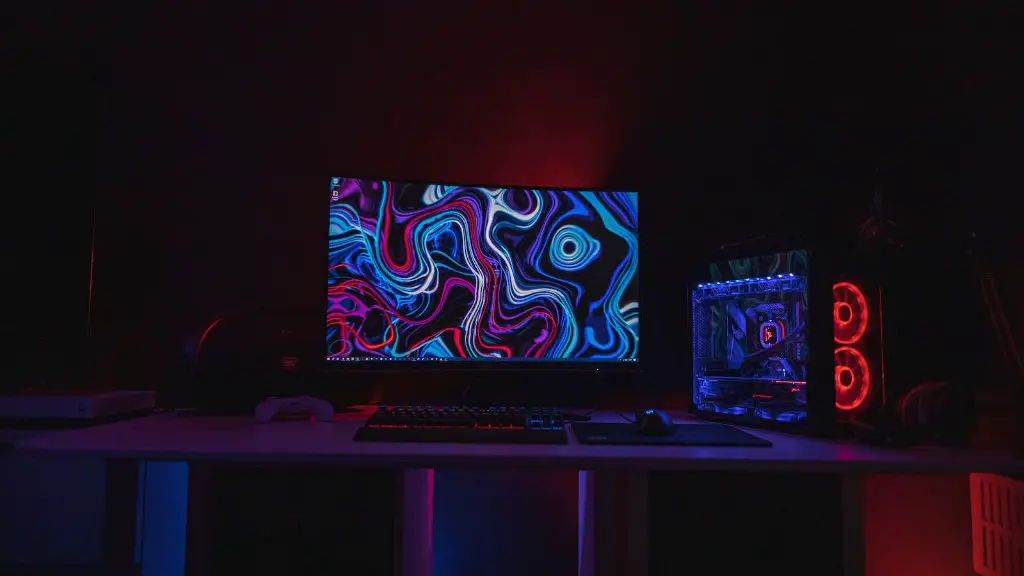
Next, connect the cables from the power supply to the other components as well as the power button on the motherboard, then secure the video card to the back plate of the case. Make sure all the cables are properly connected, and that all other components are securely mounted in the case.
When your hardware is in order, it’s time to install the operating system. Insert your Windows or Mac OS disc into the disc drive, and turn on the PC. Follow the on-screen instructions to install the OS, then insert other drivers and software that you require. Before powering on the PC for the first time, check all cables and connections to verify you have installed everything correctly.
Finally, it’s time to fire up your build. Press the power button, hold your breath and hope your PC turns on. If it does, you can now install your favorite apps, transfer data from your old PC, and enjoy your new custom-built non-gaming PC!
Identifying The Right Components
Before you can build a non-gaming PC, you’ll need to identify all the components that are necessary to create your desktop. This includes the case, motherboard, CPU, memory, hard drive, optical drive, graphics card, power supply, and other peripheral items. For each component, you’ll need to determine the type, size, and other key specifications that are required for you system’s performance.
When selecting components, you should have a clear idea of what purpose your computer will be primarily used for. If it’s mostly for office work, then you won’t need a powerful graphics card or a lot of RAM. However, if you’re using the computer for graphic design, video editing, or other intensive tasks, you will need to select components that can handle the demands of that type of software.
When selecting components, it is important to stay within your budget. You can still select high-quality components, but there is no sense in paying for components you don’t need. Do your homework and compare prices, then choose the components that best fit your needs and budget.
Finally, you’ll want to make sure all the components you choose are compatible with one other. Most components are designed to be used with certain CPUs or motherboards, so be sure to read the specifications before making your purchase.
Installing The Operating System
After you have all the components installed, the next step is to install the operating system (OS). Before you do so, it’s important to make sure all your drivers, patches, and other essential updates are installed. This will help ensure your computer is able to take advantage of your hardware and runs as efficiently as possible.
Once your computer is up-to-date, it’s time to install the OS. Depending on the type of OS you choose (eg. Windows, Mac OS, Linux, etc.), the process may vary, but generally you’ll need to insert the disc into your drive and follow the on-screen instructions. Be sure to go through each step thoroughly and make sure to keep all the discs you’ve used for future reference.
Installing the OS also includes installing additional third-party software, such as antivirus and anti-malware programs to keep your PC safe from online threats. Make sure to research each program you install, as some may include preselected settings that you may want to turn off.
Once all the software is installed, you’ll have to configure any additional settings you may have. This may include setting up printers, wireless routers, or other peripherals. Again, this can vary depending on your OS, so make sure to take your time and read the instructions provided with each software in order to configure the settings correctly.
Testing And Optimizing Performance
Now that the hardware and software are installed, you’re ready to test your system and optimize its performance. To do this, you’ll first need to make sure all the components are firmly connected and the power button is in the on position. Then, start up the computer and allow it to finish its initial startup sequence.
Once the startup is finished, you can begin testing your system. This may include running benchmarking tools that will test the performance of your hardware and software components. It is also important to test the system’s networking capabilities by browsing the web, streaming video, or playing an online game.
If you identify any performance issues while testing your build, you may need to adjust some of the settings or install additional drivers to optimize its performance. Additionally, you may need to make sure your system is clean and free from dust and debris. Make sure to keep your system up to date by running regular maintenance, such as scanning for viruses and updating software.
Finally, you may want to adjust the thermal levels of the components. This may involve purchasing additional cooling fans, or repositioning some of the components to ensure proper airflow. You also may need to update your BIOS to the latest version if you want certain components to run better.
Optimizing For Specific Use Cases
When building a non-gaming PC, you may want the system to be optimized for specific tasks, such as graphic design, video editing, or programming. To achieve this, you’ll need to choose components that are designed to handle the specific tasks your are trying to complete.
For graphic design and video editing, you’ll need a powerful processor, as well as plenty of RAM, a dedicated graphics card, and possibly even a dedicated SSD for fast storage. Additionally, if you are using the PC for programming, you may need to select components that will allow you to run specific languages or other software that may be required for coding.
When selecting components for any specific task, make sure to read all the reviews and other information available in order to get a clear picture of how each component will work together. Additionally, research how each component fits into your overall budget, as some tasks may require more components, while others may need less.
When choosing components to optimize the system’s performance for specific tasks, you may be tempted to choose the most expensive parts available. However, it is possible to obtain high-quality components at an affordable price. You can still get the performance you need, just be sure to do your research and shop around for the best deals.
Installing & Cleaning Up
Once you have all the components installed, the last step is to clean up the case. This includes removing any cable ties, zip-ties, or any other material that may be blocking the airflow inside the case. Additionally, you may need to purchase custom screw caps or other accessories to insure a neater and cleaner look for the inside of the case.
You should also take the time to clean up any dust or debris that may have gathered’ inside the case. This can be done by using a vacuum or compressed air to remove any dust and dirt. Additionally, make sure to regularly clean the fans and other components to ensure that they are running as efficiently as possible.
Finally, you may want to purchase a thermal paste to help keep the components cool. This paste helps transfer heat away from the components and helps keep them from overheating. Make sure to follow the directions provided with the paste to ensure that you are applying it correctly.
