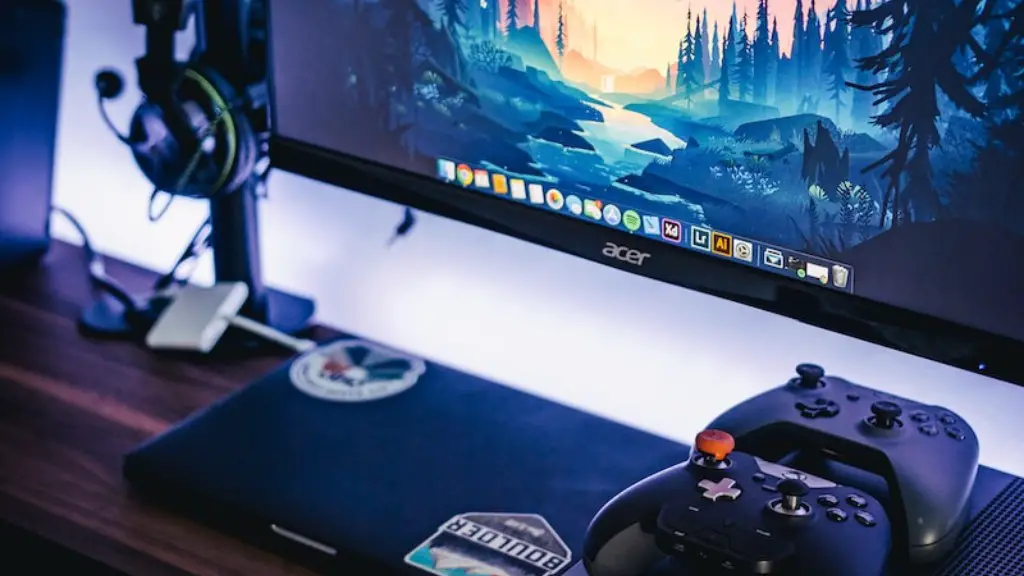
Building a gaming PC can be a daunting task. But, with a bit of research, preparation, and the right components, it doesn’t have to be. Here’s what you’ll need to get started: Motherboard, CPU, RAM, GPU, Storage, PSU, and Case.
The motherboard is the foundation of your gaming PC. It connects everything inside the PC, so it has to be compatible with the components you select. Look into chipsets that support the type of processor(CPU) you want to use and make sure any other components you plan on using will work with the chipset.
Your processor is the ‘brain’ of the PC and will determine how powerful your system is. There are a variety of different processors on the market to choose from. Consider your budget, the type of games you’ll be playing, and the graphics card you want to use for the graphics processor, to help you decide which processor to get.

RAM, or random access memory, is used by your PC to store information currently in use. This information may range from game levels you’re playing, to video streams you’re watching. It’s important to get enough RAM to support all the applications you plan on running.
Your graphics processing unit (GPU) is responsible for generating the visuals on your screen. The type of GPU you choose will depend on which games you plan on playing, your budget, and the resolution of your monitor.
Your PC needs a place to store all the data you create. Today, the most popular storage options are either a Solid State Drive (SSD) or a Hard Disk Drive (HDD). SATA SSDs offer fast speeds and great performance, while HDDs are more affordable and offer more storage space.
Finally, you’ll need to pick a power supply unit (PSU) and a case. Your PSU will provide power to all your components and the case will wrap it all up and keep it safe. When selecting the PSU, pay attention to its wattage and the number of connectors it has. Also, look for a case with features that suit your needs, like extra cooling fans or an easy to remove side panel.
Motherboard Socket Considerations
When choosing the right mother board, the socket type and processor type need to match. The CPU socket is a part of the motherboard where the CPU plugs in. Typically the processor is bought after the motherboard is chosen, so you need to make sure the CPU’s socket type is compatible with the motherboard’s socket type.
For example, the LGA 1151 processor uses a socket type called LGA 1151, and this means that the CPU must match the same socket type. Different motherboard socket types can also use similar processor types, so it’s worth doing a bit of research on the different types of sockets and processor types to make sure you get the right combination.
Motherboard socket types do change over time, so you need to make sure you buy a processor that’s compatible with the current version of the socket. For example, the LGA 1151 socket has been around for a while, but is now replaced by the LGA 1200 socket.
It’s also important to make sure the other components, such as RAM and graphics cards, are compatible with the socket type. Some motherboards may have more than one socket type, but you should ensure they’re all compatible with each other to make sure your gaming PC runs as smoothly as possible.
CPU Coolers

An important consideration when building a gaming PC is to ensure that you have adequate cooling. Too much heat can cause the PC to become unstable and can damage components. That’s why it’s important to get a good cooling system to keep your PC running smoothly.
The most popular choice for a CPU cooling system is a liquid cooling system, which uses a liquid to absorb heat from the CPU. The liquid then circulated through a radiator to dissipate the heat.
Another option is an air cooling system, which uses a fan to draw air in and over the CPU, cooling it off. Both options effectively cool the CPU, and it really depends on your budget, preferences, and the size of your case as to which would be best for you.
It’s also worth mentioning that some motherboards may come with pre-installed CPU fan and cooling systems, which can save time and money. Some motherboards even come with a built-in liquid cooling system, so these are worth checking out if you want a more efficient cooling system.
No matter whether you choose a liquid cooling system or an air cooling system, make sure it’s reliable and offers plenty of ventilation to keep your PC running cool.
Case and Cabling
When it comes to the case, you want to make sure it’s big enough to fit all the components you plan on using. It also helps to look for a case that is easy to open and close, as this will make it easier to add or replace components, if necessary.
Another thing to consider when picking a case is whether it has any extra features. For example, some cases may have dust filters to prevent dust from getting inside the PC. If you’re building a compact PC, it’s worth looking for a mini-ITX case that will fit the components you plan on using.
The cabling is also important. You’ll need to make sure the cables you use are long enough to reach from the PSU to where the components are located. Also, try to use braided cables for better airflow, which will help keep the components cooler.
Finally, take some time to plan out your cable routing. This will make it much easier to connect all the components, and it can also help improve the airflow in your case. Organized cabling will also make it easier to access the components, should you need to replace or upgrade them in the future.
Operating System and Drivers
Once the hardware is all installed, you can move on to the software side of things. The first thing you’ll need to do is install the Operating System (OS). Popular choices include Windows 10, MacOS, and Linux, so you can choose whichever one best fits your needs.
Once the OS is installed, you can then start installing the drivers for each of the components. The drivers are small pieces of software that let the Operating System communicate with the hardware, and without them the hardware won’t be able to perform at its best.
You can either download the drivers from the manufacturer’s website, or use an automated driver update tool to make sure everything is up to date. It’s also important to keep an eye on the manufacturer’s website for any new updates or patches for the hardware or OS, as these can improve the performance of the hardware or fix any bugs that may be present.
After the drivers are installed, it’s time to start installing your games and any other programs you plan on using. This can be done either manually or through an online store like Steam or GOG, depending on your preference.
Peripherals
Finally, you’ll need to pick out some peripherals such as a monitor, keyboard, mouse, and any other input/output devices you plan on using. It’s best to do some research on the type of devices you plan on using, as some games may require different types of peripherals.
For example, some games may require a gaming mouse with lots of extra buttons or a joystick for flying games. Similarly, some games may require a monitor with a high refresh rate for a smoother gaming experience.
Finally, it’s also worth considering the total cost of all your components before you get started. A gaming PC can be pretty expensive, so make sure you research the different components and calculate the total cost before you purchase anything.
