
For many PC gamers, one of the most important aspects of their rig is the amount of RAM they have installed. More RAM can mean the difference between a system that struggles to run the latest games and one that breezes through them with ease.
Installing RAM is relatively simple and only takes a few minutes. In this guide, we’ll show you how to do it.
If you’re planning on doing any serious gaming on your PC, you’re going to need to install some additional RAM. Your computer’s standard RAM just won’t cut it when it comes to gaming, as you’ll need the extra memory to run the heavy duty graphics and other processes associated with gaming. Here’s a quick guide on how to install RAM in your gaming PC:
1.first, you’ll need to purchase the correct type and amount of RAM for your system. When choosing RAM for gaming, you’ll want to look for a high speed and low latency.
2.once you have your RAM, open up your computer’s case. You’ll then need to locate the RAM slots on your motherboard.
3.Carefully insert the RAM into the slots, making sure that the RAM is properly seated and secured.
4.Close up your computer’s case, power on your PC, and you’re ready to start gaming!
Can I just add RAM to my PC?
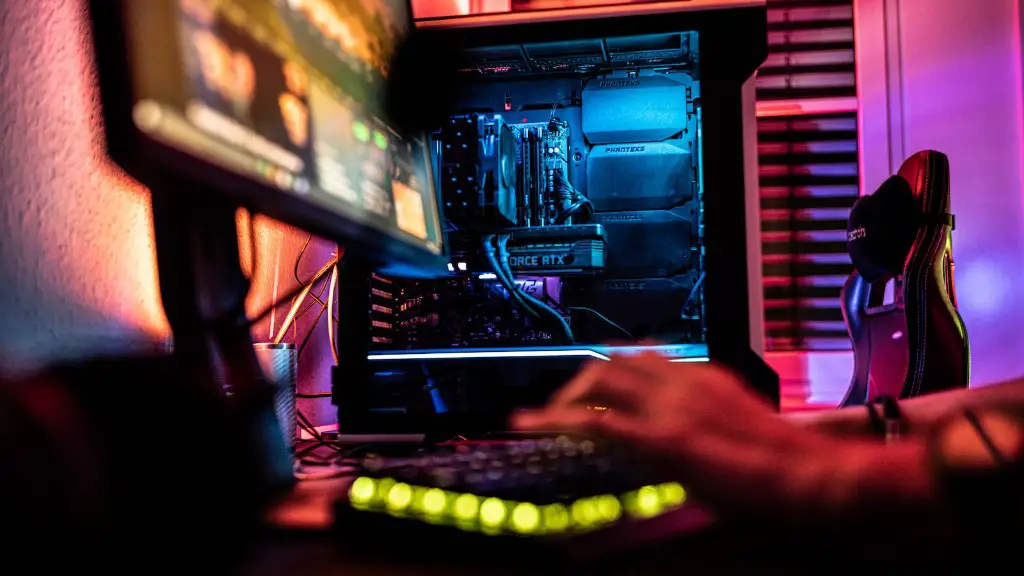
If you’re looking for a quick and easy way to improve your computer’s performance, expanding its Ram is a great option. It’s a relatively inexpensive upgrade that can make a big difference to speeds, and can even breathe new life into older machines.
There are typically four RAM slots on a motherboard. If you have a single RAM stick, its position is usually the A2 slot. If you have two RAM sticks, you should use the A2 & B2 or 2 & 4 positioning, meaning the slot which is furthest away from the CPU socket and the other that’s one position away from it.
Can I install RAM by myself
Upgrading your PC’s RAM is a relatively easy process for most computers. You’ve done your homework and know how much RAM you have, how much your computer can handle, and the type of RAM chip you need to buy for your machine. Next, you’ll need to purchase the RAM and grab a couple of tools. With these things in hand, the upgrade should take no more than a few minutes.
Line up the gap on the bottom of the ram with a notch in the slot on the motherboard. And gently set the ram into place. Make sure that the ram is properly seated in the slot. And then push down on the ram until it is fully seated in the slot.
Will adding more RAM increase speed?
RAM is a type of computer memory that is used to store data and programs currently being used by the processor. It is generally faster and more efficient than other types of computer memory, such as virtual memory.
If you have installed new RAM and you want to check that it is working properly, you can open the Task Manager and go to the Performance tab. Under Memory, you should see the total amount of RAM that you have installed. If everything is working properly, you should see an increase in the amount of RAM that is being used.
Do I put RAM in slot 1 and 3 or 2 and 4?
There is no hard and fast rule when it comes to the number of slots for dual channels. It is generally accepted that two and four slot configurations are optimal for most cases. However, it is always best to consult with your motherboard manufacturer to see what is recommended for your specific setup.
If you have a motherboard with four RAM slots, it is likely that you will want to install your first RAM stick into the slot labelled 1. A second stick should go into Slot 2, which is not next to Slot 1. If you have a third stick, it would go into Slot 3, which will actually be between Slot 1 and Slot 2.
Can I insert RAM in any slot
Ram is a type of computer memory that can be installed in any of the four slots available on a motherboard. As long as you’ve correctly plugged in the RAM and the slot is not defective, the computer will recognize the installed module(s).
When installing new RAM, be sure to wear an anti-static wristband or ground yourself periodically to avoid static electricity damage.
How do I know if my RAM is installed correctly?
If your computer is having issues with its RAM, it may be helpful to run the Windows Memory Diagnostic tool. This will restart your computer and check the RAM module for errors. After the check, you can see a report on your screen about the status of your RAM. If the check has found a problem, the report will tell you what to do.
In order to install new memory modules, you will need to gather some supplies and clear off your installation space. Make sure you are working in a static-safe environment, and shut down your desktop computer. Unplug the power cable and hold the power button for 5 seconds. Open the case and ground yourself. Then, remove the existing memory modules and install the new ones.
What happens if RAM is not properly installed
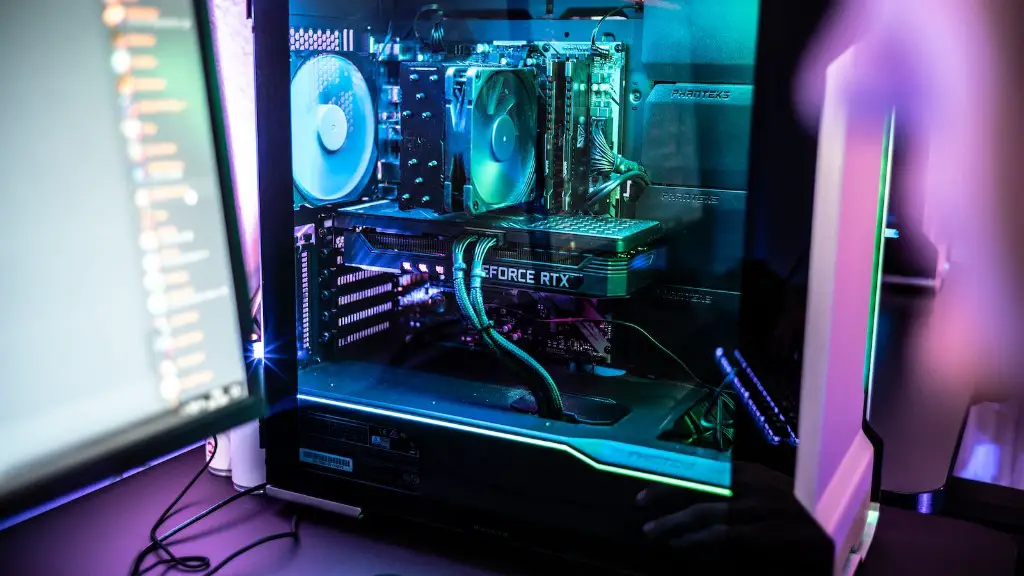
If one or two memory slots on your motherboard are not working properly, it can hinder your RAM performance and damage your memory stick in the long run. Be sure to check your motherboard regularly to ensure all slots are working properly.
It is important to remember that RAM is keyed so that it will only go into the correct slot on a compatible motherboard. It is not possible to connect RAM the wrong way, so if you are unsure about which slots to use for multichannel memory, it is best to consult your motherboard’s manual or ask a qualified technician. However, if you don’t use the optimal set of slots, the RAM will still work in single channel mode and no harm will be done.
Which slots to install RAM DDR4?
You don’t need to install memory sticks in the DIMM slots with the same color. The blue slot installation is the combination of A2+B2. If you want to insert 4 memory modules, then all of them will be plugged in.
32GB of RAM is becoming increasingly popular amongst gamers for its ability to provide enhanced gameplay with little to no lag. For anyone looking to get the most out of their gaming experience, 32GB is the way to go. Not only does it provide a better gaming experience, but it also allows for other activities to be done in the background without affecting performance, like livestreaming or using Chrome, system software, or Spotify.
Warp Up
1. Power down your computer and unplug all cables.
2. Remove the case cover and locate the empty RAM slots.
3. Insert the RAM into the empty slots, making sure to line up the notch on the RAM with the notch in the slot.
4. Once the RAM is in place, gently press down on the top of each RAM module until it clicks into place.
5. Replace the case cover and reconnect all cables.
6. Power on your computer and check to make sure the RAM is recognized.
Installation of RAM in a gaming PC is a simple process that can be done by following a few steps. First, locate the RAM slots on the motherboard. Second, insert the RAM into the slots. Third, secure the RAM in place with the latches. Fourth, connect the power supply to the RAM. Fifth, boot up the PC and enter the BIOS to ensure that the RAM is recognized. Last, install the drivers for the RAM.