Setting Up the Keyboard
Before you can make your gaming keyboard light up, you have to set it up correctly. First, check the instructions that came with your keyboard. They should provide all the information you need to connect your device properly to the computer. If you don’t have the instructions, try consulting the manufacturer’s website.
Once your keyboard is connected successfully, you want to install the software required for it, such as the driver and any extra programs that may come with it. Make sure you follow all the instructions and complete the installation, then switch your keyboard on with its designated on/off switch. Once you’ve connected the keyboard, you’re ready to make it light up.
Programming the Lights
Programming the backlit LEDs and other lights is necessary to customize your keyboard. Different gaming keyboards have different software for programming, so refer to the instructions that came with yours. Most gaming keyboard software will allow you to assign colors to individual keys, establish multi-color lighting sequences or create an RGB-customized configuration.
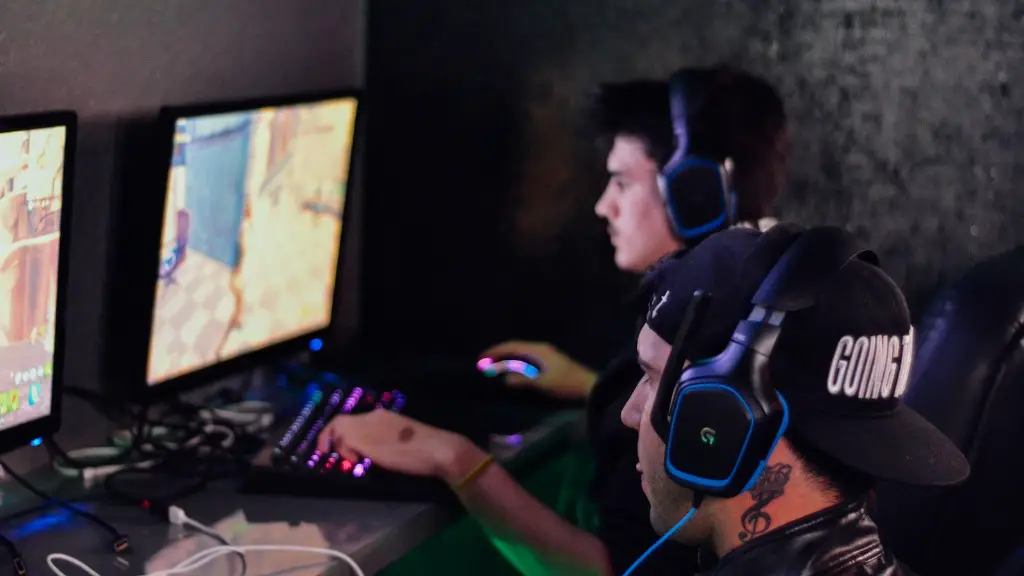
Usually, you can select between presets or create your own. For example, some keyboards may have a preset option such as a ‘Link’ mode that shuffles the colors across your keyboard in a pleasing pattern. Some even have a ‘Breathing’ mode which simulates a slow breath by having the light switch in-between different colors. There is a lot of scope to customize, so have fun with it!
Your keyboard may also come with additional software for other functions, such as macros, game profiles and remapping keys. Make sure you look through these before you start customizing the lights of your keyboard.
Power and Cooling Considerations
One of the most important considerations when customizing the lights of a gaming keyboard is the power and cooling. The maximum brightness of your lights affects how much power your device will consume, which in turn will affect the temperature of the keyboard’s internals. If the device isn’t cooled adequately and the temperatures become too high, components may fail.
Always try to use low and medium brightness settings on your keyboard unless you absolutely need higher settings. That way, you can ensure that power consumption levels are kept to a minimum. Also, make sure you follow all the instructions and guidance given by the manufacturer and use any additional cooling measures they may recommend.
Other Tips

When customizing your gaming keyboard lights, you should also not forget about practical concerns. For instance, make sure your light settings don’t distract you while gaming. It’s also a good idea to make your keyboard as simple as possible, especially if you’re playing in a tournament setting. The fewer choices and settings you have, the less chance there is of distractions.
If you want to keep your keyboard temperatures low, here’s another tip. Make sure your device is well ventilated. This will help no end, especially if the manufacturer has included extra venting into the device. Try and avoid keeping your keyboard near other heat-generating devices, and keep it away from any direct sunlight.
Customizing with Peripherals
You can also customize your keyboard with external peripherals and accessories. For example, many gaming keywords allow you to customize the lights with external LED strips connected to the keyboard. This can create some pretty impressive lighting effects.
You can even customize the keyboard’s base color or texture to make it distinctive. There are specialized tools for doing this, such as wrapping materials, combination spray/wipe liquids and removable adhesive coverings. Make sure you pick colours and patterns that make sense in relation to your gaming style and setup.
Making the Keyboard Stand Out
Speaking of customizing the look of your gaming keyboard, you can also make it stand out by incorporating casing materials into the design. For example, if you’re a fan of a particular team, you can purchase a special keycap set or casing based on the colours and logo of that team. You can also purchase illuminated keycaps with different shapes, sizes and designs.
And, of course, if you’re handy with a paintbrush, you can customize the keyboard however you see fit. Painting the casing in any design will allow you to truly customize the look of the keyboard so it stands out from the crowd.
Tailoring Settings
The final step when making your gaming keyboard light up is to tailor the final settings to your preferences. Different gaming keyboards have different systems for adjusting settings, so refer to your instruction manual. Generally, though, most gaming keyboards will have a menu setting where you can adjust brightness and contrast levels as well as color palates.
You can also adjust setting for audio as some gaming keyboards come with integrated audio. Make sure you also adjust the polling rate so it’s suitable for the type of games you’ll be playing. Depending on the keyboard and software, you may also have the option to adjust additional settings such as macros, game profiles, application management and more.
Using Custom Mapping Software
Finally, some gaming keyboards have custom mapping software, that allow you to create fully mapped out environments. These can be used to program your keyboard’s lighting, audio, mouse and other components to respond to specific in-game actions. You can customize the lighting of your keyboard to surprise yourself or your opponents in games, as each action requires a different lighting pattern.
Depending on the game, you may also be able to program different keys for different characters. This allows you to quickly change characters mid-game if you need to, by simply tapping a designated key. Be sure to adjust the brightness and contrast settings so they don’t distract you during the game.
Keyboard Conflicts
It’s also important to note that some keyboard gaming software will conflict with other installed applications. Make sure you check if the applications you have installed will interfere with the gaming software and key mapping. Installing apps that conflict with one another may reduce the responsiveness of your keyboard, or even cause it to become unresponsive.
Also, keep in mind that software conflicts can occur when switching between games or apps. It’s a good idea to shut down all unnecessary applications when playing a game, especially complex or networked ones. That way, you’re less likely to encounter conflicts and ensure your gaming keyboard works as smoothly as possible.
