Dust Removal
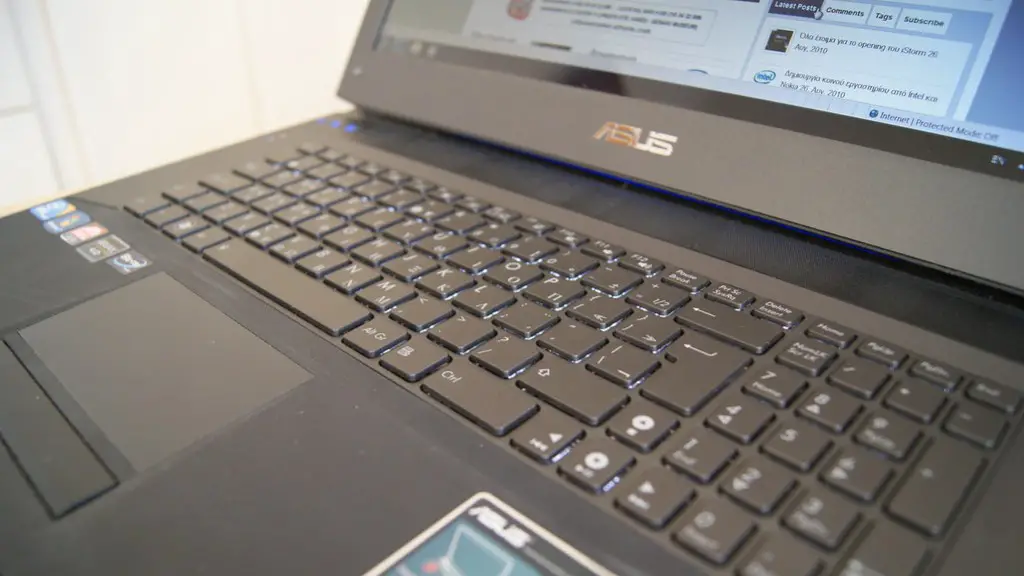
Cleaning your HP Pavilion gaming laptop regularly is critical to ensure that your device remains in top condition. One of the first steps to cleaning a laptop is to get rid of excess dust. Dust can cause your laptop to overheat, which can lead to severe damage and shorten its life. To start, turn off and unplug the laptop. Laptops can easily be dusted with an anti-static cloth or compressed gas. For a more thorough clean, use a damp cloth or alcohol wipes. Be sure to use a gentle pressure to avoid damage to your laptop’s sensitive surface.
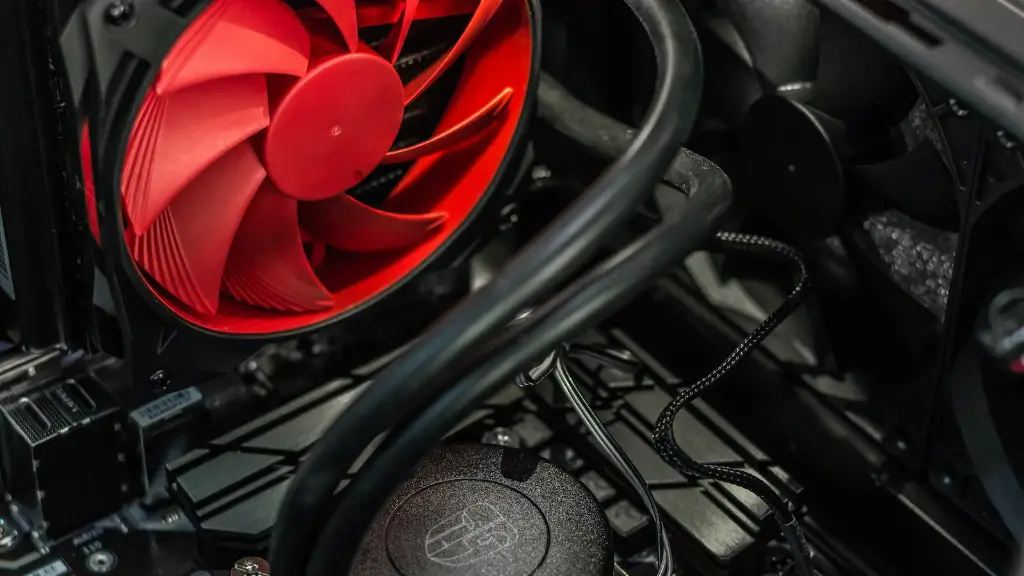
After wiping down the laptop, you should also consider removing the dust from the fan and heat sink. The fan and heat sink are necessary components which allow the laptop to function properly and cool itself down while it works. To remove the dust, use a can of compressed air. While holding the can of air at an angle, gently spray the fan blades and heat sink grilles. Make sure to not aim the air directly at the fan blades to avoid damaging them.
Keyboard Cleaning
The next step is to clean the keyboard. Dust, food particles, and liquids can accumulate on the keyboard over time, which can make it difficult for the keys to register. Unplug the laptop and use a vacuum with a brush attachment to gently remove dust and debris from the keyboard. To clean individual keys, use a cotton swab dabbed in alcohol and lightly swipe it across the keys. To clean between the keys, use a new q-tip dipped in alcohol and gently insert it in between the keys.
Afterwards, clean the palm rest. This is the portion of the laptop that your wrist rests on while typing. To clean your palm rest, use a damp cloth and lightly wipe it down. Be sure not to use too much pressure to avoid damaging the laptop.
Screen Cleaning
The final step to cleaning a laptop is to take care of the screen. Screen cleaning is a delicate process, so caution is advised. To start, turn off the laptop and unplug it from the wall. Use an anti-static cloth to gently wipe away dust from the screen.
For a more thorough clean, lightly dampen the cloth with distilled water and use it to wipe away any smudges or fingerprints from the screen. It is important to be mindful of the pressure applied to the screen. Excess pressure can damage the screen and reduce the life of your laptop.
UV Light Disinfection
Another way to ensure a clean laptop is to use a UV light disinfection device. This device is equipped with powerful cleaning auto-sterilizing LED lights that provide a clean deep clean. Once you turn it on, it will automatically identify and disinfect every corner of the device and leave no germs or dirt behind. This is a great option if you want to keep your laptop clean and germ-free.
Software Cleaning
Software cleaning should not be neglected when cleaning an HP Pavilion gaming laptop. Keeping the software updated is a must to avoid malicious programs and viruses which might attack your laptop. Make sure to keep the operating system up to date and regularly scan for potential issues. Additionally, deleting any unnecessary programs will ensure your laptop runs smoothly, as more programs installed means more memory usage.
Battery Maintenance
When dealing with laptops, battery maintenance is essential. To maintain your laptop battery life, make sure to unplug the laptop when it’s not in use and discharge the battery completely every 20-30 days. Additionally, avoid exposing the battery to extreme temperatures or direct sunlight. If it gets too hot, it could potentially reduce the battery life of your laptop.
Power Saving Tips
Finally, you can increase the life of your HP Pavilion gaming laptop by following some power-saving tips. Make sure to adjust the screen brightness when the laptop is in low light and turn off the Wi-Fi and Bluetooth functions when not in use. Furthermore, if you plan on not using your laptop for an extended period of time, consider putting it into sleep mode or turning it off instead of leaving it idle. This will help to preserve your laptop’s battery and keep it in top condition for longer.
Overheating Prevention
The temperature of your laptop is another factor to consider to ensure its longevity. An overheating laptop can damage its internal components and can cause it to slow down or become unreliable. To avoid this issue, make sure to keep the laptop away from direct sunlight, keep it on a flat surface, and use a laptop cooling pad or fan. Additionally, cleaning the laptop regularly and removing dust as explained above can help to prevent the laptop from overheating.
Keeping Clean
Cleaning your HP Pavilion gaming laptop ought to be a regular occurrence. Keeping it tidy and dust-free will help the machine run smoothly and last longer. Besides the cleaning steps outlined above, make sure to protect the laptop with a cover or sleeve when transporting it, as dirt and dust particles can easily enter the laptop and potentially damage its internal components. As long as you keep your laptop clean and protected, it will remain in top condition for a longer time.
