Hardware Issues
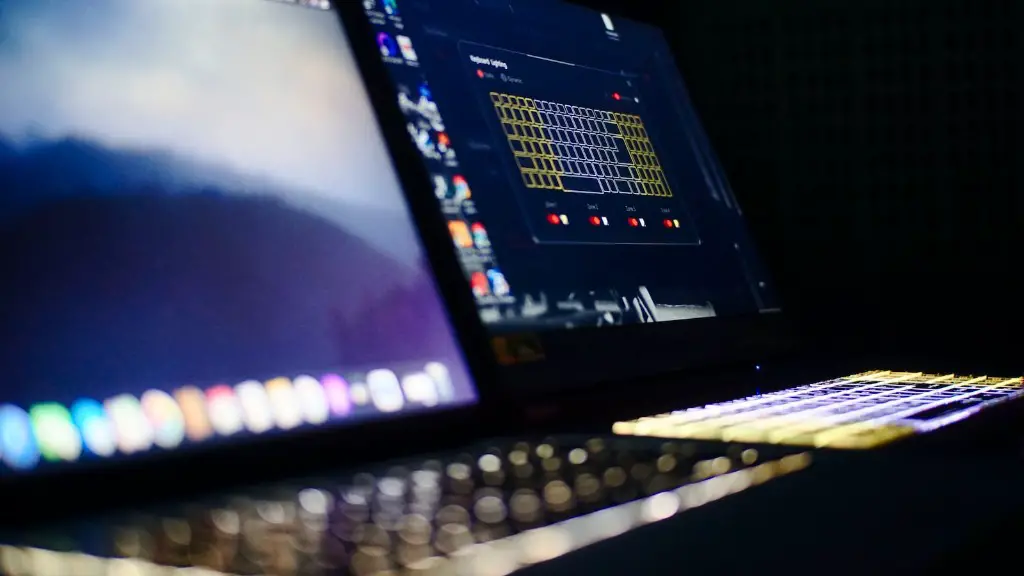
Getting your gaming laptop to perform at its best may have more to do with the hardware than anything else. Overheating, memory, hard drive space, and even the battery can all affect your laptop’s performance. Here are some of the things that an experienced technician can check to diagnose a performance issue.
The internal hardware of your laptop can be put under tremendous strain when you are gaming regularly. Therefore, it’s important to make sure that the cooling system is working properly, and the fan is not blocked. Overheating can cause your laptop to lose power and, worst case scenario, crash. Additionally, make sure that the RAM amount is suitable for gaming, as it affects the overall responsiveness of the laptop.
Checking the hard drive space also plays an important role in performance. The hard drive stores information and applications, and if it’s constantly working at full capacity because of lack of space, the laptop will underperform. Slow loading times, freezing, and stuttering can all be symptoms of having too few storage capacity.
Lastly, make sure that the battery is functioning properly and not draining abnormally quickly. While it may be an obvious fact, having a laptop that needs to remain plugged in all the time while playing can make the experience less enjoyable.
Defragmenting
Fragmentation occurs with the repetitive use of your hard drive. Over time the hard drive becomes cluttered with data, which causes the laptop to run slower. If the hard drive of your laptop has not been defragmented for a long time, we recommend you do it as soon as possible. Defragmenting the hard drive is relatively easy and can be done in a matter of minutes.
Background Programs
Background programs can hinder your gaming performance if you have too many of them running simultaneously. These programs can take up a lot of memory space and are usually running in the background without your knowledge. The best way to free up memory and get rid of unnecessary applications is to access the task manager and disable any programs that you don’t need at that moment or uninstall them completely.
Other Issues
It may also be the case that your laptop is too old to handle the type of game that you are trying to play. Consider upgrading the hardware of your laptop if necessary or investing in a better one that can handle the strain of gaming. It is also possible that your laptop is not compatible with the version of the game you are playing.
Software Updates
Often times, software updates can help optimize your laptop for gaming. All the new updates for your laptop’s operating system, as well as for the game you are playing, should be installed in order to take advantage of the most up-to-date optimizations and fixes. Making sure that all your applications are up to date is an essential step in gaining the most out of your laptop.
External Peripherals
Using external peripherals, such as an external hard drive, a game controller, or a gaming mouse, can help your laptop’s performance. For example, when you plug in a controller, your laptop may automatically make certain changes to allow your gaming experience to be smoother.
Gaming Boosters
There are certain software boosters and applications that promise to offer the best performance to gaming laptops, although they may not be suitable for all of them. If none of the above options worked, you could give these programs a try and see if they improve your laptop’s response time. Nevertheless, make sure to research these programs thoroughly and be aware of any potential risks they may bring.
Time and Patience
Finally, if your laptop is underperforming due to any of the above factors, fixing the issue may take some time and patience. It may require a dedicated time investment from you to explore the exact causes and devise a strategy to improve your laptop’s performance. Keep in mind that not all issues can be solved simply, some of them require a deeper analysis of the system, so be patient and try to troubleshoot step by step.
