When it comes to gaming, optimization is key. Having the right hardware is important, but getting the most out of it requires tweaking its settings and keeping your computer clean and up to date. If you’re noticing lag, glitches, or slowdowns in a game you love, it may be time to investigate why your gaming laptop lags and to work towards fixing it.
If you’re struggling with your laptop’s performance in a game, it helps to take a step back and identify possible causes of the problem. These can include hardware issues, software problems, or even personal factors like your playing style or skill level. It’s easy to jump on various forums, Reddit threads, and tech-savvy friends for advice on the problem, but the best way to diagnose and fix the issue is to take a look at the data yourself.
The first place to start is to check for viruses or malware that might be weighing down your laptop. A good scan should tell you whether you have a malicious invader on your machine, which could be slowing down your gaming performance. Additionally, be sure to check other software applications running in the background and disable any that are unnecessary. This helps to free up extra processing power, allowing your laptop to better focus on the game you’re playing.
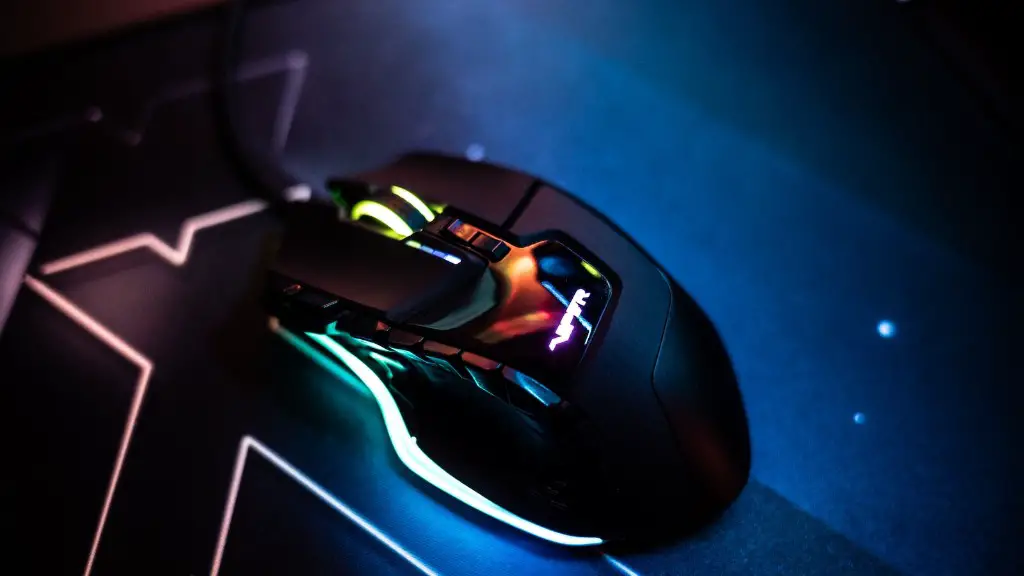
You should also ensure that your laptop is running on the best settings, particularly when playing more graphically-intensive games. Take a look at the graphics settings for the game and lower your resolution, quality, and other settings if you’re struggling to play nicely. Additionally, check your laptop’s temperature and make sure your cooling system is functioning properly – when the laptop overheats, it can start to lag.
Last but not least, changing how you interact with your laptop can make significant improvements. If you’re on a wireless connection, try to switch over to a wired one if it’s available. If you’re playing with other players online, reducing the server ping can be very useful in reducing lag. If your game is struggling to maintain a steady frame rate, try using a faster refresh rate if the option is available.
Identify What’s Impacting Storage Space
If your laptop isn’t functioning at its peak performance, one of the possible causes could be a lack of storage space. Having too many digital files stored, storage hogging software like antiviruses and games, or simply too many unnecessary programs could be using up too much of your laptop’s RAM, causing it to be sluggish. It’s important to identify what’s causing the issue and to delete any unnecessary documents, programs, and files in order to free up more space.
Additionally, depending on your laptop, you may be able to upgrade your hardware. If it’s an older machine and the memory, disk drives, or graphics cards aren’t as powerful as they once were, consider upgrading to a more modern model. Although this requires drive, investment, and understanding which components require replacing, it could be precisely what your laptop needs to reach peak performance.

Of course, if you’re dealing with an ideal gaming laptop that’s relatively new, costs a bit more, and with all the performance settings at their max, it’s overkill to try upgrading the machine. In this case, the best solution will be to switch to a software or service that can work with your existing model and make it faster or more streamlined.
Monitor & Optimize Performance
Utilizing monitoring software like MSI Afterburner to keep track of your laptop’s performance and temperatures is a great way to ensure its performance doesn’t take a dip while gaming. Keeping an eye on your laptop’s temperatures ensures that you don’t suffer suddenly due to overheating, and keeping your hardware drivers, OS updates, and other software up to date will help you squeeze the most performance out of your laptop.
It may also help to try different graphics options, such as switching to a different graphics processor. Depending on your laptop’s specs, you may be able to use two GPUs and switch between them as needed in order to maximize performance. This is a great method for players looking to get the most out of their laptops.
Consider Good Habits and Cooling Solutions
Finally, introducing or maintaining good habits when it comes to using your laptop can mean the difference between smooth performance and sluggishness. It’s best to always keep the laptop clean and dust-free with regular maintenance, and avoid placing it in direct sunlight or extreme temperatures as much as possible. Also, making sure you never overfill or exceed the laptop’s maximum RAM capacity can make sure its performance stays consistent.
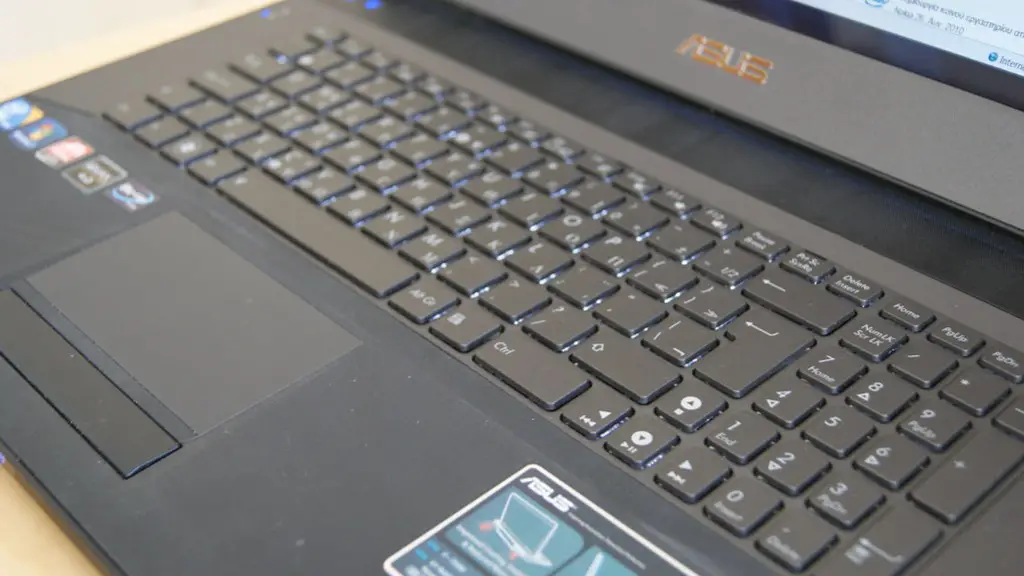
It’s also important to keep your laptop well-cooled in order to prevent any overheating issues. Investing in a good cooling pad or laptop stand can help provide your machine with an extra level of protection and a more stable environment in which to perform. Additionally, a good cooling pad can be a great way to improve your laptop’s gaming performance by giving it more room to breathe and reducing the amount of heat being generated.
Install Relevant Software
Software can make a huge difference when it comes to optimizing your PC for gaming or keeping its performance up to date. It’s important to use only the software you really need for gaming, and to make sure it’s regularly updated. Additionally, it helps to use software such as gaming boosters and task managers to help in the management of programs and making sure you’re getting the most out of your hardware.
Useful programs like MSI Afterburner allow you to keep an eye on your CPU and GPU usage, temperatures, fan speeds, and more – this allows you to easily monitor your laptop’s performance and adjust settings if needed. Additionally, programs such as Game Booster and Game Optimizer allow you to make real-time adjustments to the game’s graphics settings so that you can optimize visuals and keep your frame rate up.
Examine Running Processes
Exploring the processes that are used to run your games is a great way to optimize your laptop’s performance. Disabling or killing unnecessary processes or ones that are using up too much of your RAM can help speed things up and prevent interference with the game. You can use programs such as Process Explorer to identify and view list of processes running in the background, select and end any that are causing interference, as well as restart your laptop after making any changes.
Additionally, a program such as Task Manager can help speed up your computer and reduce lags. By scanning through the programs open and running on your laptop and allowing you to manage them more easily, it can help free up more processing power to use when gaming, as well as close apps that are taking up too much memory.
Prioritize and Troubleshoot
If you’re struggling with performance, it’s important to focus on the most important pieces of software or hardware first. This could include overclocking your graphics card or processor, as well as troubleshooting any programs or processes that you may be using to play games. It’s also essential to keep in mind that gaming laptop lags can potentially be caused by a number of different things, so it’s worth taking some time to troubleshoot each possible source.
For instance, if you’re suffering from an issue with a specific game, take a look at the game’s settings and chat with other players online to determine what could be causing the issue. If your hardware is the suspect, it’s worth checking out hardware maintenance and drivers. Taking the time to prioritize and troubleshoot the different components of your gaming laptop can help you figure out what is and isn’t working, and provide you with the necessary information to fix the problem.
Improve Graphics & System Updates
Besides software and hardware fixes, you can also improve your laptop’s performance by making sure your drivers and OS updates are up to date. Buying a laptop that is already equipped with up-to-date drivers and OS will help ensure that the laptop is ready to go.
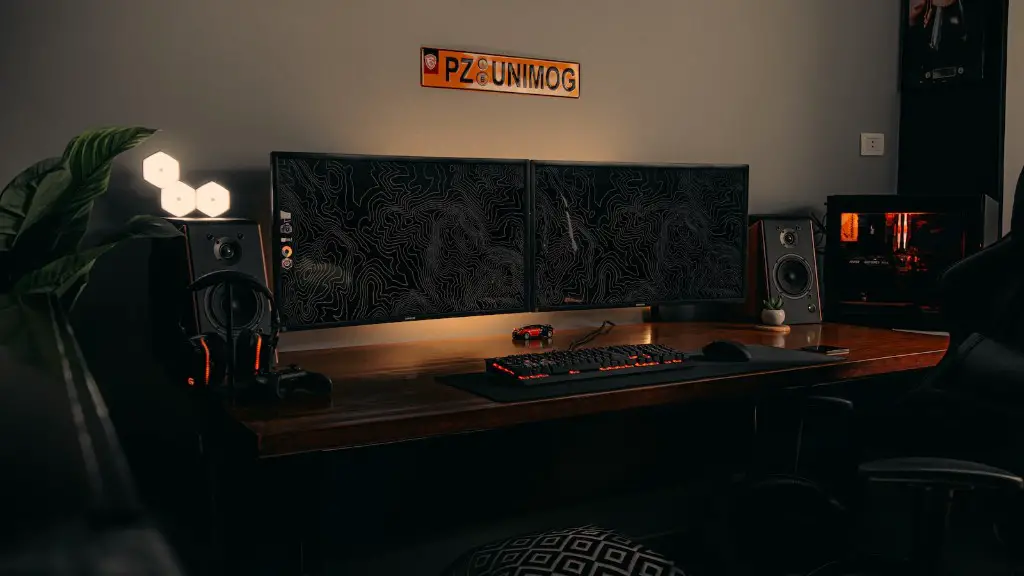
Additionally, “graphics modding” can be a great way to get a much-needed boost in performance. This involves making modifications to a game’s graphics settings, such as switching between “ultra” and “medium” settings or adjusting textures. Although it’s not for everyone, experimenting with graphics modding and pushing the boundaries of your laptop’s capabilities can help you squeeze better performance out of it.
Check Your Network Connection
If you’re having trouble playing online games and experiencing extreme lag, you may be dealing with a weak or unreliable Internet connection. In this case, it’s worth testing your connection speed and looking for ways to boost it. If you have a slow connection, try investing in a good wireless router that can broadcast data more quickly. Additionally, you can use tools like Pingify and Packet Bee to further diagnose network issues and to identify and fix any problems you may have.
If you’re experiencing lag or other performance issues, it’s important to remember that it’s not always something that can’t be fixed. Taking the time to troubleshoot each aspect of your laptop’s hardware and software can be very useful in revealing what is causing the issue and how to address it. From running scans and updates, to investing in cooling solutions and upgrading hardware, there is much that can be done to fix your gaming laptop’s lag.
