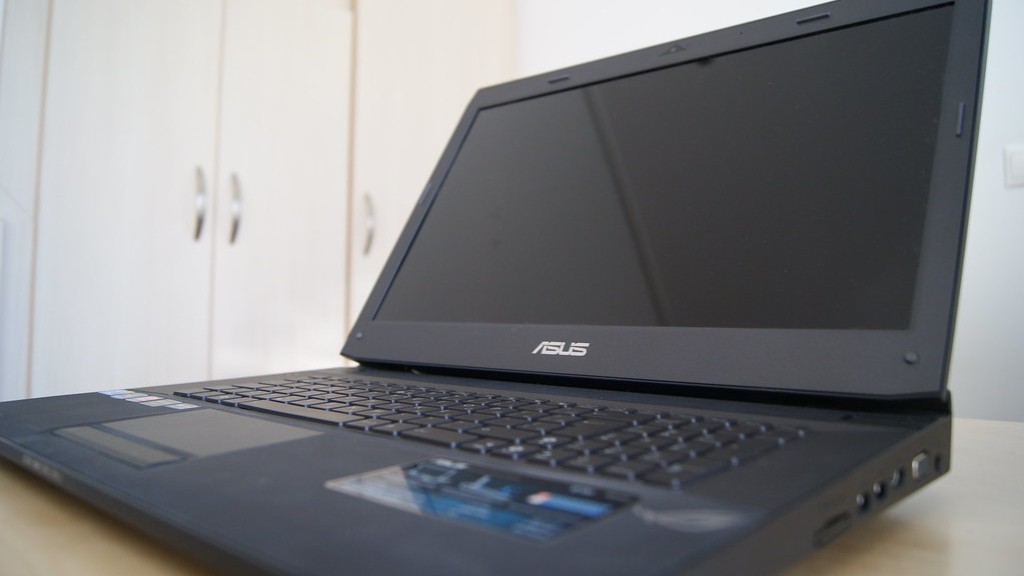
So why does your gaming laptop get so hot? We all know that our laptops can get hot when we’re playing games, but why is this the case? In this article, we’ll explore the reasons behind why gaming laptops can overheat, what the risks are if they do and how to minimise the chances of overheating.
Firstly, when you’re playing a game, a lot of your laptop’s resources are used. You’re pushing the graphics and processing power of the laptop to its limits. This generates a lot of heat, which is why your laptop gets hot. The more recent and high-end the game you’re playing, the higher the risk of your laptop overloading and becoming too hot.
Every gaming laptop is designed differently, so how much heat it can withstand is going to vary from machine to machine. It’s therefore important to read up on the laptop’s specifications and make sure that the laptop you choose is designed to be able to handle the level of gaming you want to do. Some laptops are designed to play less intense games and are therefore not able to cope with more demanding games.
Another factor that could be causing your laptop to overheat is how well it is ventilated. All laptops have vents to allow air to flow in and out, but if these are blocked by dust, dirt or debris, the airflow is going to be reduced, making it harder for the laptop to stay cool. You should regularly check to make sure that the vents are clean and clear.
Similarly, your laptop could be overheating because the cooling system isn’t working properly. Over time, dust and dirt can build up in the fan and heatsinks, which prevents them from working as efficiently as they should. You should regularly give your laptop a thorough clean to keep it in good shape.
All modern gaming laptops have some form of temperature monitoring built in, so you should be able to view the temperature at which your laptop is running. Use this to see if your laptop is running too hot and, if it is, check the vents and cooling system to see if they are the problem.
Finally, if you’re playing your games on maximum settings, you may need to lower the settings to stop the laptop from getting too hot. Lower the resolution, the graphics settings and other performance settings to see if this reduces the temperature.
Reduce Screen Brightness
It may be worth taking steps to reduce the brightness of your laptop’s screen. As you may know, the brighter the screen, the more power your laptop is using, and this means it’s more likely to get too hot. By lowering the brightness, you should be able to help stop your laptop from overheating.
Additionally, you can also reduce the backlight of the LCD screen as this will help to reduce the heat output. While this isn’t as effective as reducing the brightness of the screen, it can still be a good way of making sure your laptop isn’t getting too hot.
There are lots of ways to reduce the brightness of your laptop’s screen, and you should consult the manual or the manufacturer’s website to see what options are available. On some laptops, you may have the ability to adjust the brightness manually. Alternatively, you may be able to install a third-party app or software to adjust the brightness.
Get A Cooling Pad
If you’re looking for a more permanent solution, then investing in a cooling pad for your laptop may be a good idea. Cooling pads are designed to be placed underneath your laptop in order to reduce the amount of heat that builds up. They use fans and other cooling technology to keep your laptop’s temperature down and make sure it doesn’t get too hot.
There are lots of different types of cooling pads available, and you should do some research to find out which one is best for your laptop. Generally, though, they are all fairly easy to use and should be plug-and-play. The cooling pad should reduce the temperature of your laptop significantly and also reduce the noise that it makes while doing so.
Most cooling pads come with adjustable feet, so you can adjust the angle of your laptop while it is standing on the pad. You should experiment with the different angles to find out which one works best for you. Some cooling pads also have extra USB ports, so you can connect extra devices if you need to.
Optimise Your Laptop
Finally, another useful way of keeping your laptop from getting too hot is to make sure you keep it optimised. Make sure your laptop runs the latest version of the operating system and that all hardware drivers are up to date. This will help to ensure your laptop runs as efficiently as possible and won’t overheat when running games.
Additionally, you should make sure you don’t have any unnecessary background processes running. Remove any programs or apps that you don’t need and make sure your laptop only has the programs and games you actually use installed. You should also turn off any extra features such as Bluetooth and Wi-Fi if you don’t need them.
Finally, if you’re a PC gamer then you should make sure you have the right PC gaming accessories to help your laptop stay cool. This could include cooling fans, exhaust fans and even liquid cooling systems to help reduce the temperature of your laptop when you’re playing games.
Keep The Battery Cool
Another thing to consider is the temperature of your laptop’s battery. When using your laptop for gaming, it is likely that the battery will become very hot. This could cause the battery to degrade over time and cause it to fail prematurely.
To help keep the battery cool, you should try to avoid leaving your laptop plugged in for long periods of time. Laptop batteries are designed to last for a certain amount of time when they’re unplugged, and if they’re left plugged in for too long, they could start to overheat.
Similarly, you should try to avoid using your laptop on soft surfaces and surfaces that could block the airflow such as blankets and cushions. This could prevent the laptop from being able to cool down properly and lead to overheating.
Finally, you should consider investing in a laptop stand which will give your laptop improved airflow and help to keep it cool. Laptop stands are designed with this purpose in mind and are a great way of prolonging the life of your laptop’s battery.
Laptop Overheating Warnings
It’s important to keep an eye on your laptop’s temperature so you can take action if it starts to get too hot. Most laptops will have some form of temperature monitor built-in, but if yours doesn’t then you should consider investing in a dedicated temperature monitoring app or program.
You should also keep an eye on your laptop’s fan speed. If the fan is working extra hard to try to keep your laptop cool, then it’s a sign that it is struggling to keep it at a safe temperature. This means you should consider reducing the load on your laptop or taking it for a service.
Additionally, make sure to check your laptop’s warranty to see what it says about overheating. Depending on the warranty terms, you may be able to get your laptop repaired or replaced if it fails due to overheating.
Finally, if your laptop does overheat, do not panic. Turn it off as soon as possible and give it time to cool down before you switch it back on. Do not attempt to cool down your laptop with a fan or any other means as this could cause further damage.
