The electronics market has seen the rise of both gaming PCs and consoles in recent years. With many different varieties of devices available to gamers, it’s no wonder one of the more common questions asked is “Can you play PS4 on gaming monitor?”. The answer to this question is quite complex.
In short, the answer to this question is yes: you can play PS4 on gaming monitor. However, a gaming monitor typically serves a different purpose than your average flat-screen display. A gaming monitor is made with the intention of providing an enhanced gaming experience, with features that can improve the experience like resolution, refresh rate, and response time.
These features help to provide a smoother gaming experience than you can achieve with a regular monitor. Some gaming monitors are also designed to be more reliable, since many games put greater demand on the graphics card and processor. This ensures a higher level of performance, particularly if the graphics card is high-end.
The easiest way to play your PS4 on a gaming monitor is to purchase an HDMI-enabled monitor with a 1080p resolution or higher. You’ll need to connect the HDMI cable from your PS4 to the monitor. Most modern gaming monitors come with an HDMI port built-in, but if not, an HDMI adapter can allow you to connect your PS4 to the monitor.
Another option is to connect your PS4 to a TV. Many modern TVs come with HDMI ports, allowing you to easily connect your console to the TV. You may also be able to use a wireless connection if your TV is wireless-compatible. This is useful if you don’t have an HDMI cable or adapter handy, or if you want to play your PS4 at a larger viewing distance.
As with any gaming device, it’s important to make sure your computer or TV is compatible with your PS4. Check your device’s specifications and make sure your system can support the gaming monitor or TV you’re planning to purchase. This will ensure a smooth gaming experience with minimal lag or other performance issues.
Advantages of a Gaming Monitor
One of the biggest advantages of a gaming monitor is the resolution. Many gaming monitors come with resolutions of up to 4K, allowing your games to look better than ever. This can be especially important for competitive gaming, allowing you to see more on your screen and be better prepared for any surprises your opponents might have.
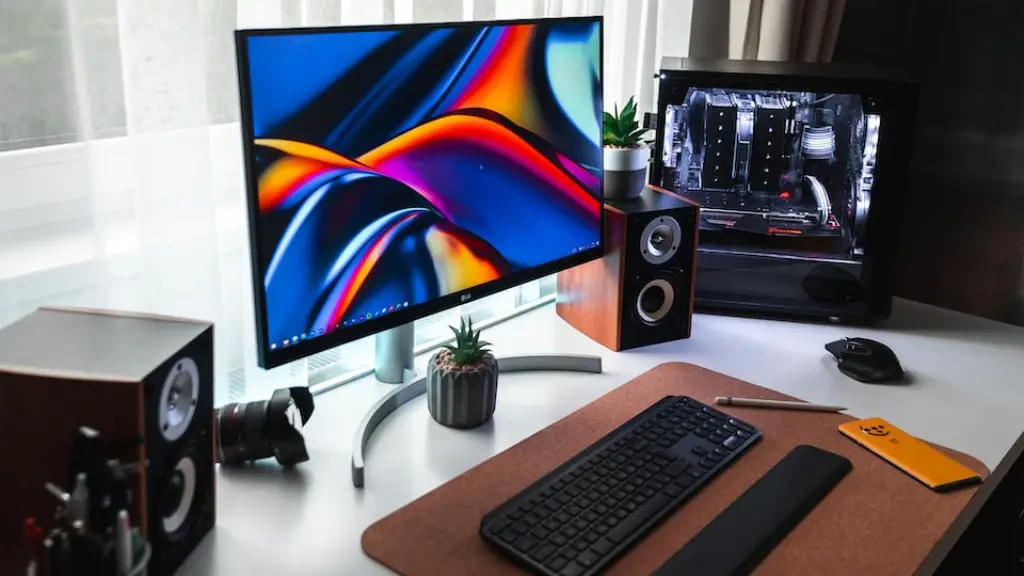
Another benefit is the refresh rate, which is the rate at which the monitor refreshes the image you’re seeing. This can help reduce “screen tearing”, a type of graphical artifact which can throw off your gameplay. Higher refresh rates can also reduce the amount of input lag you experience while playing. This can be especially crucial for fighting games, where fast reflexes are crucial to success.
Response time is another important feature of gaming monitors. This is the amount of time it takes for a pixel to change from one color to another, and lower response times usually lead to smoother gameplay. Lower response times can also be helpful for photographers and videographers, allowing for better image quality and less motion blur.
Finally, gaming monitors are designed to be more reliable than regular monitors. Since the graphics card and processor in gaming PCs can be pushed to their limits, it’s important to have a monitor that can handle the strain without burning out or displaying errors. This can be beneficial to both competitive gamers who need quick and accurate responses, and streamers who need to broadcast their gaming sessions without any hiccups.
Connection Types
Connecting your PS4 to your monitor can be done in a few different ways. As mentioned before, one of the most popular choices is to use an HDMI cable to connect the console to a gaming monitor. This will give you the best performance and resolution, and can be done easily with any modern gaming monitor.
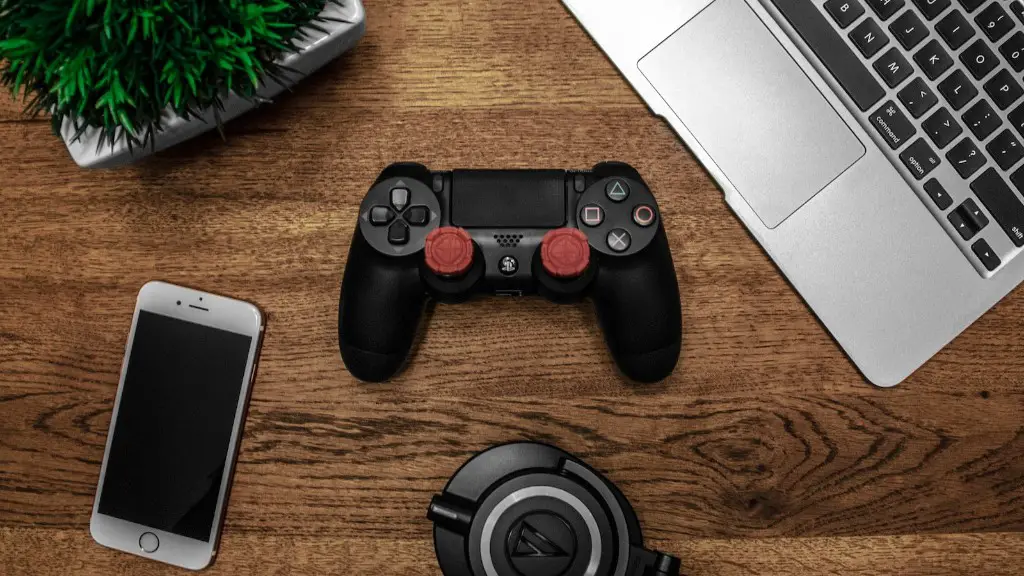
If you don’t have an HDMI port on your monitor, you can use a DisplayPort-to-HDMI adapter. This will allow you to connect your PS4 to a monitor that doesn’t have an HDMI port, such as some older monitors. This type of connection won’t provide the same performance as an HDMI connection, but it should be more than enough for casual gaming.
If you want to use a wireless connection, you can connect your PS4 to a TV or monitor that has wireless capabilities. This allows you to play your games without having to worry about cables and wires, allowing you to play at a larger viewing distance. This can be useful for streaming and watching movies on your TV or monitor.
If you’re connecting to an older monitor, you may need to use an S-Video or component video connection. This type of connection has been around since the mid 2000s, and while it won’t provide the same resolution as an HDMI or DisplayPort connection, it should be more than enough for older games.
Graphics Card
A gaming monitor can only be as good as the graphics card in your computer, so it’s important to make sure your graphics card can handle the games you wish to play. If your graphics card isn’t powerful enough, you won’t be able to take full advantage of the monitor’s features.
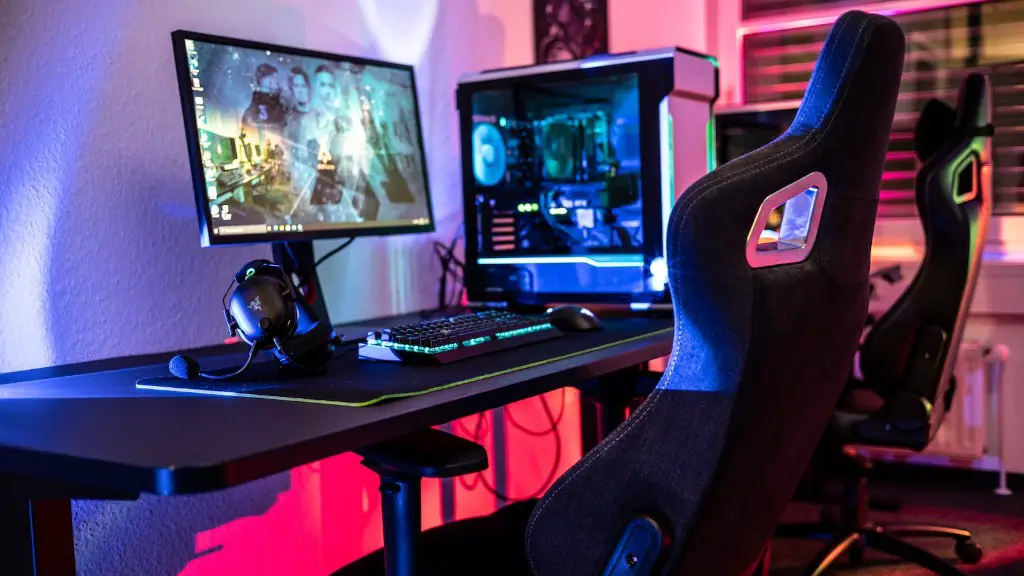
If you’re using a gaming PC, make sure the graphics card can handle the resolution and refresh rate of the gaming monitor. You should also make sure the graphics card can keep up with the games you wish to play, particularly if you enjoy playing competitively. Higher-end graphics cards like theNVIDIA GeForce RTX series can provide excellent performance for gaming and streaming.
If you’re using a console, make sure it has enough processing power to handle the games you want to play. The newest Sony PlayStation 5 andMicrosoft Xbox X consoles are capable of supporting 4K resolution, as well as up to 120 frames per second in some games.
Game Support
When connecting your PS4 to a gaming monitor, it’s important to make sure that the games you wish to play are compatible with the monitor. Most modern games should support resolutions of at least 1080p, and some may even support 4K resolution.
In terms of refresh rate, make sure your games support the refresh rate of your gaming monitor. Most modern games should support 60 frames per second, but some may support higher rates, such as 120 or 144 frames per second. Check the game’s website or documentation to make sure it supports the monitor’s refresh rate.
Finally, make sure your gaming monitor is compatible with your TV or monitor. If it’s an older monitor, you may need to use a different type of connection, such as an S-Video or component video connection. If your monitor is relatively new, it should come with an HDMI port.
Tips for Gaming on a Monitor
It’s important to keep a few tips in mind when gaming on a monitor. First, make sure the monitor’s refresh rate and resolution are compatible with the game you’re playing. This will ensure the best possible performance and visuals.
Second, make sure the monitor’s response time is compatible with the game you’re playing. Lower response times provide smoother gameplay, and can often be the difference between winning and losing a competitive match.
Finally, make sure the gaming monitor is compatible with your device. If you’re using a PC, make sure the graphics card can support the monitor’s resolution and refresh rate. If you’re using a console, make sure it can support the resolution and refresh rate of the monitor.
