Setting up an LG Ultragear gaming monitor can be a daunting task for even the most experienced gamers; however, it doesn’t have to be. With just a few basic steps, you can have your gaming monitor up and running in no time. In this blog post, we’ll walk you through the steps of setting up an LG Ultragear gaming monitor so you can get gaming in no time.
First things first: determine what type of connection you will be using. LG Ultragear gaming monitors come with DisplayPort, HDMI, and USB-C ports, so you’ll need to decide which type of cable you’ll be connecting to your system. For most gamers, HDMI will be the most common choice.
Next, attach the monitor to your system. This can be done by plugging the appropriate cable into the monitor and then connecting it to the correct port on your system. Once everything is connected, you’ll need to power on your monitor. To do this, press the power button located on the bottom of the rear of the monitor.
Once the monitor is powered on, it’s time to set the resolution. The resolution will determine how sharp and clear your gaming experience will be. To adjust the resolution, use the on-screen display or the menus on the side of the monitor to find the correct resolution for your system.
The next step is to adjust the refresh rate. The refresh rate is how often your monitor updates itself, so it’s important to make sure it’s properly set. To adjust the refresh rate, use the on-screen display or the menus on the side of the monitor.
You’ll also need to adjust the brightness and contrast of the monitor. To do this, you can use the on-screen display or the menu options on the side of the monitor. Taking a few moments to adjust the brightness and contrast will make a huge difference in your gaming experience.
The last step is to adjust the color settings. Adjusting the color settings will help your games look as realistic as possible. To adjust the color settings, again use the on-screen display or the menu options on the side of the monitor.
Calibrating Your Ultrawide Monitor
Once your LG Ultragear gaming monitor is set up and the color and other settings are adjusted, you’ll want to calibrate your ultrawide monitor for optimum performnce. Calibrating your monitor may seem like a daunting task, but if you follow a few simple steps, you can have your monitor calibrated in no time.
First, you’ll want to select the right preset for your gaming monitor. Selecting the right preset is crucial, as it will ensure your monitor is performing at its optimum level. Some popular presets include FPS, RTS, and Racing.
Once you have selected the right preset for your monitor, you’ll want to adjust the brightness. You’ll want to adjust the brightness until it is just right – too bright or too dark will both negatively affect your gaming experience. The brightness should be set to the point where you can still easily make out all the details of the games you’re playing.
The next step is to adjust the contrast. This setting will help to make sure all the colors look as realistic as possible. Again, make sure not to set it too high or too low. After adjusting the brightness and contrast, you’ll want to move on to the last step of calibration.
The last step is to adjust the color settings. This step is essential for making sure that your games look as realistic as possible. Again, use the on-screen display or menus on the side of the monitor to adjust the red, green, and blue values until they are just right.
Once you have adjusted all the settings, that’s it: your LG Ultragear gaming monitor is now calibrated and ready for gaming. Following these simple steps will help to ensure that your games look as immersive and realistic as possible.
Tweaking Additional Settings
While calibrating your monitor is an essential part of getting the most out of your games, there are some additional settings that you can adjust in order to further enhance your gaming experience. These settings can be found in the menu of the monitor.
First, you’ll want to adjust the response time of your monitor. The response time is how quickly the monitor will transition from one image to the next. This setting should be set as low as possible; however, if you find that the image is blurry, you should increase the response time slightly.
Next, you’ll want to adjust the refresh rate. The refresh rate is how often the monitor is redrawing the image. This can have a huge impact on your gaming experience, as a higher refresh rate will ensure that your games look and feel smoother. You’ll want to set the refresh rate as high as your system can handle.
Finally, you’ll want to adjust the overdrive setting. The overdrive setting is how quickly the monitor adjusts the image. This setting can help to ensure that all the transitions and movements in your games look smooth and lifelike. However, be careful not to set this setting too high, as this can cause image artifacts and ghosting.
By adjusting these settings, you’ll be able to get the most out of your gaming experience. Be sure to experiment with the settings and find a setup that works best for you.
Adding Monitor Features
While you can get the most out of your LG Ultragear gaming monitor by simple calibrating it, there are some additional features that you can take advantage of in order to enhance your gaming experience. These features can be found in the menu of the monitor.
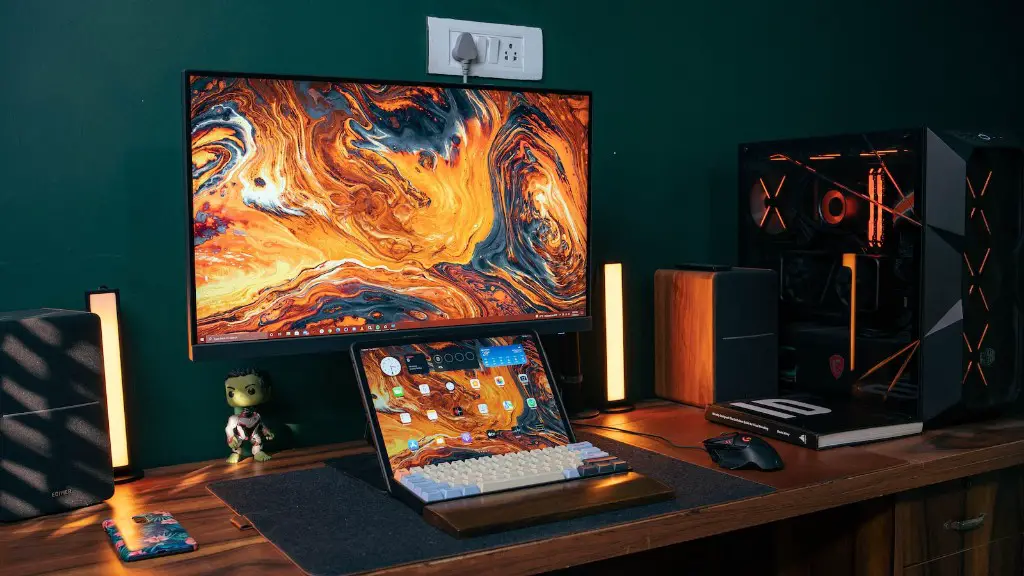
First, you’ll want to enable the Black Stabilizer. The Black Stabilizer will help to enhance the darker parts of your game so that you can easily spot enemies in the shadows. You can adjust the intensity of the Black Stabilizer settings to your liking.
The next feature you may want to enable is the Dynamic Action Sync. This feature will help to improve your gaming experience by reducing input lag. This will ensure that your actions in your game are being sent as quickly as possible to ensure you have the most responsive gaming experience possible.
The last feature you may want to enable is the Crosshair, which will display a crosshair in the center of your monitor to help with aim in your games. This feature can be especially helpful in first-person shooter games where precision aiming is key.
By enabling these additional features, you’ll be able to take your gaming experience to the next level. Be sure to experiment with the settings and find a setup that works best for you.
Using Game Mode
In addition to calibrating your monitor, you may want to take advantage of the game mode setting. The game mode setting will help to ensure that your gaming experience is as immersive and responsive as possible. This setting can be found in the menu of the monitor.
When you enable the game mode setting, your monitor will automatically adjust the image settings to ensure the best gaming experience possible. It will also reduce the display’s input lag and blur, making your games look sharper and smoother.
The game mode setting can be adjusted for individual games. You can select from a range of pre-set options or customize the settings for a specific game. Selecting a pre-set option will make sure that your games look as good as possible, while customizing the settings will ensure that your monitor is set up perfectly for the specific game you are playing.
By taking advantage of the game mode setting, you’ll be able to further enhance your gaming experience. Be sure to experiment with the settings and find a setup that works best for you.
Conclusion
Setting up an LG Ultragear gaming monitor doesn’t have to be an intimidating process. By following the few simple steps outlined in this blog post, you can have your gaming monitor up and running in no time. After that, you can customize your monitor’s settings in order to further enhance your gaming experience. By taking advantage of the features and settings discussed here, you’ll be able to take your gaming to the next level.
