Connecting a gaming monitor to a laptop is a good way for gamers to improve the performance of their systems. It is relatively simple to do and involves connecting a cable from the gaming monitor to the laptop. Here are the steps to follow in order to successfully connect a gaming monitor to your laptop.
Firstly, determine what type of connection the gaming monitor and laptop need. Different gaming monitors and laptops may require different cable types in order to work together. Most gaming monitors will accept either a DisplayPort, HDMI, or USB-C connection, while laptops may vary. Check your laptop and monitor to see what type of connection they require.
Next, get the right cable for the connection. If your laptop and gaming monitor require the same type of cable, you can pick up the correct cable in any electronics store. Your laptop and gaming monitor may require different cables, in which case you’ll need an adapter to make the connection. Be sure to get the right cable for your devices.
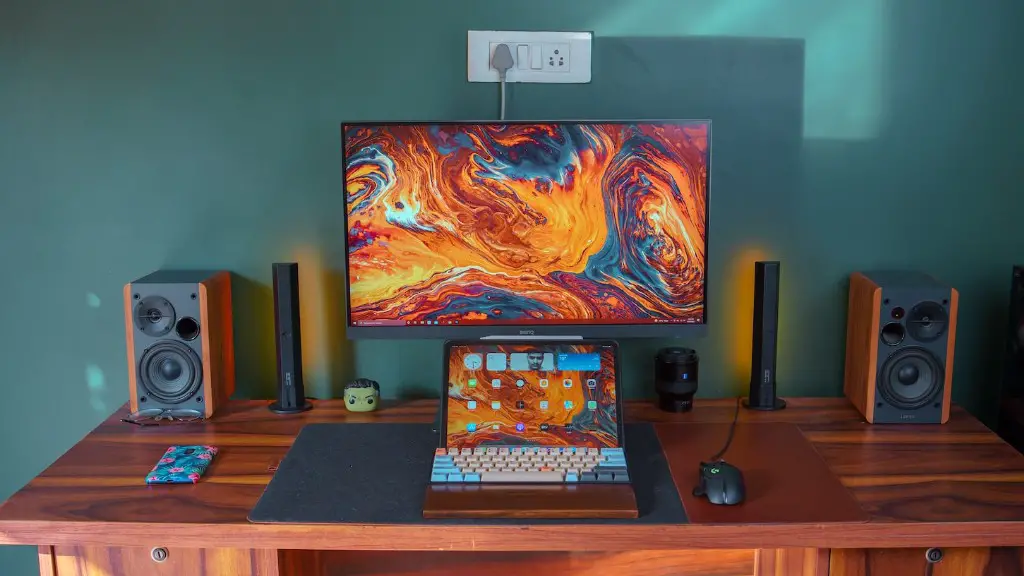
Once you have the right cable, it’s time to make the connection. First, ensure that both your laptop and gaming monitor are powered off. Connect one end of the cable to the laptop’s port, then connect the other end to the monitor. If you have an adapter, connect the cable to it first and then plug the adapter into the laptop or monitor.
The next step is to configure your laptop to recognize the gaming monitor. Open the settings page on your laptop, then find the display settings page. Here you can configure details such as the resolution, refresh rate, and other features. After configuring the settings, save the changes.
Finally, turn on the gaming monitor and laptop. The gaming monitor should turn on, displaying the image from the laptop. You can now start playing games on your laptop using the connected gaming monitor. Enjoy your better gaming experience!
Connecting A Gaming Monitor: Tips And Tricks
These steps form the basic procedure for connecting a gaming monitor to a laptop. Here are some tips and tricks to help you get the most out of your gaming experience.
First and foremost, make sure the cables you use are good quality and up to the job. Poor quality cables can cause signal loss and introduce noise into the transmission, reducing the quality of your gaming experience. Look for cables that are labeled as high quality, or aim for gold-plated cables.
Next, ensure that your laptop’s graphics settings are optimized for your monitor. You can usually find settings related to color settings, brightness, and contrast, as well as other display settings. Make sure these are adjusted correctly to get the best out of the connected gaming monitor.
You should also make sure that your laptop is capable of pushing the resolution, frame rate, and other features that the gaming monitor is capable of. Many gaming monitors are capable of running at higher settings than most laptops. Make sure your laptop can keep up with the settings you’re trying to use to get the most out of your gaming.
Finally, consider buying an updated graphics card for your laptop. A dedicated graphics card will greatly improve the performance of your laptop when playing games on the connected gaming monitor. Even if you don’t have an expensive gaming laptop, a dedicated card can still provide a noticeable improvement to your gaming.
Advantages Of Connecting A Gaming Monitor To A Laptop
Connecting a gaming monitor to a laptop provides a number of advantages. Firstly, a gaming monitor often has features such as a higher refresh rate and resolution that the laptop’s built-in display may not be able to provide. A gaming monitor also offers gamers a larger field of view and more accurate color reproduction, both of which can be important for a competitive gaming experience.
Secondly, gaming monitors often have low input lag, which is the time difference between when you do something and when it appears on the screen. Low input lag makes for a better gaming experience, as the inputs you make will be reflected on-screen with minimal delay. Other features such as the option to quickly change brightness settings and special gaming modes can also improve your gaming experience.
Limitations Of Connecting A Gaming Monitor To A Laptop
While there are many advantages to connecting a gaming monitor to a laptop, there are also some limitations. Firstly, most laptops don’t have powerful enough graphics cards to push all the features that a gaming monitor may be capable of, such as higher frame rates and resolutions. This may mean that the graphics settings that the laptop is able to output are not as good as they could be.
Another limitation is that the laptop’s screen is still active when connected to the gaming monitor. This means that your laptop’s battery will drain faster, reducing the time you can play on battery power. You can disable the laptop’s display in the display settings of your laptop in order to reduce this power drain.
Considerations When Connecting A Gaming Monitor To A Laptop
Before connecting a gaming monitor to your laptop, there are a few things to consider. Firstly, ensure that both your laptop and monitor are compatible with each other. Different gaming monitors and laptops require different cables and adapters, so make sure you have the right ones for the job.
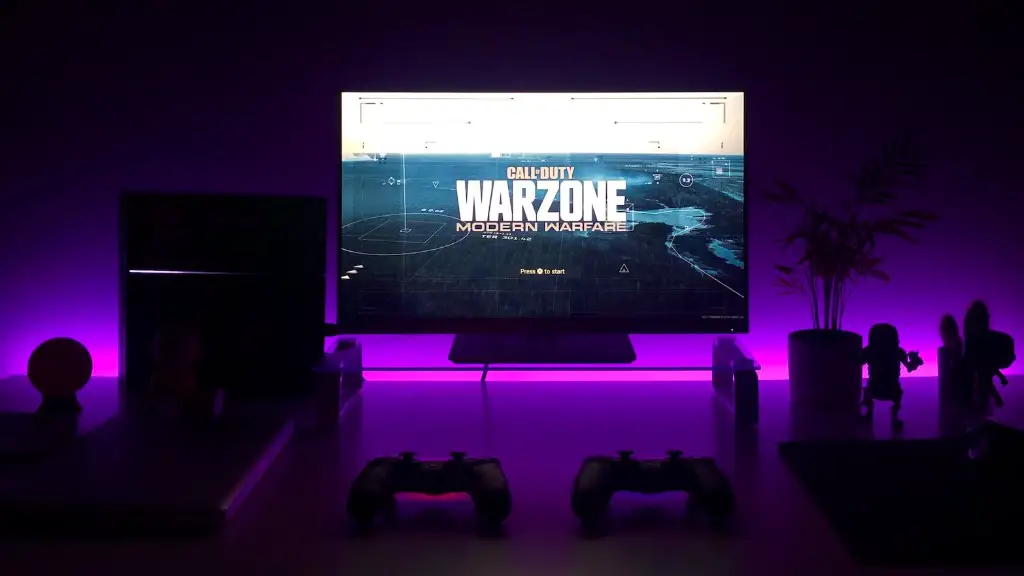
You should also make sure you buy the right cables and adapters for the job. Look for cables that are labeled as high-quality, preferably with gold-plated connectors. Make sure that they are the right length and type for your setup, as using the wrong type of cable could damage the devices.
FAQs About Connecting A Gaming Monitor To A Laptop
Here are some frequently asked questions about connecting a gaming monitor to a laptop.
Q: Can I connect a gaming monitor to my laptop?
A: Yes, as long as both your laptop and gaming monitor have the appropriate ports and cables for the connection. Look for connection ports such as DisplayPort, HDMI, or USB-C and buy the appropriate cables for the job.
Q: Will connecting a gaming monitor increase performance?
A: It depends on the laptop and gaming monitor. Generally speaking, connecting a gaming monitor to your laptop can decrease input lag and improve image quality, thus providing a better overall gaming experience.
Q: Can I connect my laptop and gaming monitor using an adapter?
A: Yes, if your laptop and gaming monitor require different cables, then you may need an adapter. Make sure you get the right type of adapter for the job — there are adapters to connect DisplayPort and HDMI, DisplayPort and USB-C, and more.
