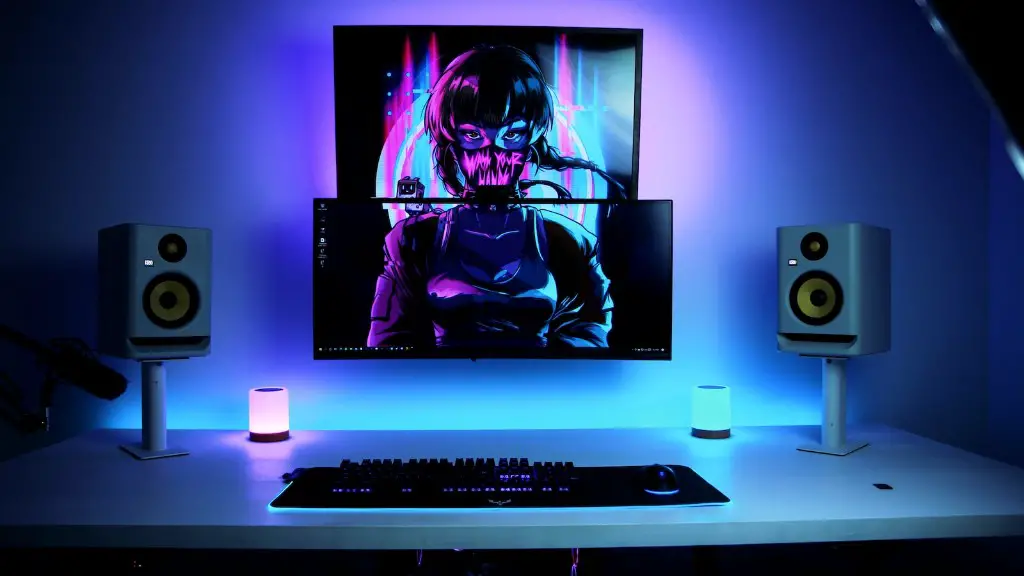
Connecting your gaming PC to a monitor differs depending on what type of output you have. The easiest and simplest way to connect is through HDMI, as HDMI is both audio and video capable, and will usually carry 4K video. Also, when using HDMI, the connection is reversible, meaning you don’t have to worry about plugging in the wrong end into the wrong port on your PC. Once you have acquired the correct cable, plug one end into your monitor and one end into your PC. Depending on whether you have a dedicated graphics card or an integrated graphics card, the ports may be different. After that, turn on both the PC and Monitor, and then select the HDMI port as the monitor output source.
If your computer is equipped with an HDMI port, then connecting it to your monitor is a piece of cake. First, you’ll need to get an HDMI cable. Make sure the cable is built to meet 4K standards, as this is the highest common resolution of monitors. Once you have the right cable, connect the two ends of the HDMI cable. Plug one end into the HDMI port on your PC, and the other end into the HDMI port on your monitor. Turn both the PC and the monitor on, and then you should be ready to go.
Another way to connect your PC to your monitor is through DisplayPort (DP). It’s similar to HDMI in that it is both video and audio capable, but it usually supports higher refresh rates than HDMI. You will need to get the appropriate type of DisplayPort cable for the connection type you have in your PC and monitor. Connect one end of the cable to the DisplayPort on your PC, and the other end to the DisplayPort on your monitor. Select the DisplayPort as the output source for your monitor, and you should be ready to go.
For older PCs or monitors without HDMI or DisplayPort, you may have to use a DVI or VGA connection. You’ll need to acquire an appropriate cable, as they are not universally compatible. If you are using a VGA connection, you need to connect the cable to the VGA port on both your PC and monitor, then select the VGA port as your monitor’s output source. For DVI, it’s similar, but you may need to acquire a different type of adapter depending on what type of ports your PC and monitor have.
If all else fails, you can also connect your PC to your monitor wirelessly. This may require the purchase of additional hardware, such as a wireless dongle or a wireless networking card. However, using multiple wireless displays, you can play on multiple screens at once. Also, wireless connections may be more reliable than the wired connections mentioned above, as wireless displays don’t have to contend with interference from other cables or devices.
Connecting your PC to your monitor may seem daunting at first, but with a little preparation and the right tools, it can be done quickly and easily. Find the port type that your monitor and PC both have in common, and use the appropriate cable or adapter to get the job done. The best part is, once the connection is made, you should be able to enjoy the added performance of your gaming PC.
Connecting Different Types of Outputs
There are several different types of outputs that can be used to connect a gaming PC to a monitor. HDMI is the most common, and usually supports the highest resolutions and refresh rates of any connection type. DisplayPort is very similar to HDMI, but usually supports higher refresh rates. DVI and VGA are considered lower resolution connection types, but have been in use for years, and are backwards compatible with some older equipment. Lastly, you can use a wireless connection to avoid the hassle of cables altogether.
Setting Up Your Monitor
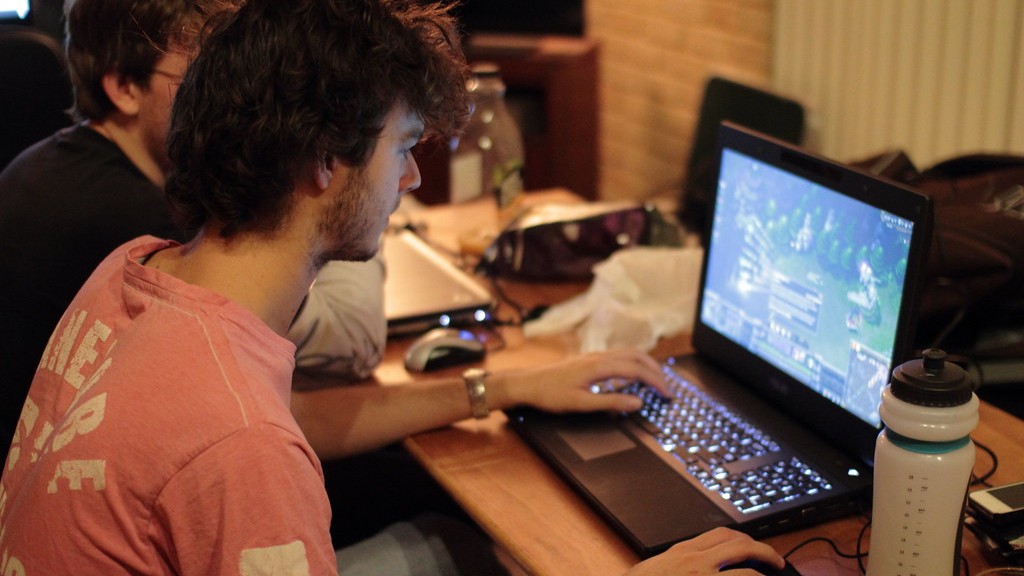
Once you have decided on a connection type and made the necessary connections, you need to set up your monitor. Generally, this means setting the resolution and refresh rate you want the monitor to display. You can usually do this through your graphics card’s settings menus, the monitor’s physical menu buttons, or sometimes even through Windows itself. It is important to note that some lower resolution connection types, such as VGA, may be limited to a certain resolution or refresh rate. Also, some monitors may not be able to display certain resolutions or refresh rates depending on their design.
Using Multiple Displays
If you want to connect multiple monitors to your gaming PC, you have a few options. If you are using HDMI, DisplayPort, DVI, or VGA connections, then you can use multiple cables to connect multiple monitors. If your PC supports multiple displays, then you should be able to select the resolution and refresh rate that each monitor displays. You can also use a wireless connection to connect multiple monitors, either wirelessly or through a wireless adapter.
Sync Issues
When connecting multiple displays to your gaming PC, there is a possibility that the displays may be out of sync. This means that one display may be displaying a different refresh rate than the other. If this is the case, you may have to manually adjust the refresh rate of each display to get them to sync properly. You can usually do this through your graphics card’s settings menus, or through the monitor’s physical menu buttons.
Power Issues
Another issue you may come across is power distribution. When connecting multiple monitors to your gaming PC, you may find that your graphics card is not powerful enough to drive all the screens at maximum resolution and refresh rate. If this is the case, you can try reducing the resolution or refresh rate of one or more of the displays. You can also try connecting the monitors to different ports on your graphics card if possible, or adding an extra power supply if necessary.
