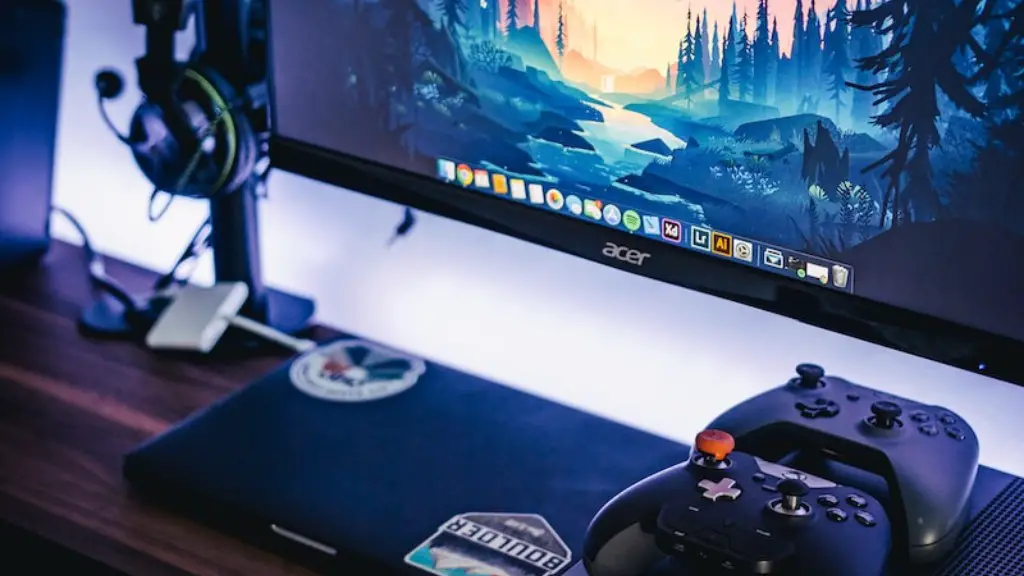
For gamers who want to get the most out of their gaming PC, the key is to optimize your settings. There are a few basic steps to take to maximize performance and reduce lag. First, check your hardware. Make sure your processor and graphics card are up to date and running at their optimal settings. Be sure to install the latest drivers and update your operating system. Second, adjust your network settings. Most games support LAN and online gaming modes, with the latter perhaps providing the best performance. Adjust settings to boost your connection speed and decrease latency. Third, set your in-game options to the highest specifications. This includes resolution, view distance, shadows, textures, and effects. Fourth, install game-enhancing applications like MSI Afterburner, RivaTuner, or GeForce Experience.
Finding The Right Game
Most importantly, find the right game. Not all games utilize your gaming PC’s resources in the same way. When looking for a game that’s meant for your machine, look for system requirements. It’s important to get a game that’s made with the same quality hardware as your PC. Also look for reviews of the game. That way, you can be sure you’re choosing a game that will truly tax your machine as much as you’d like.
Optimizing Space
When optimizing the performance of your gaming PC, it’s important to consider the amount of space on your hard drive. Allowing too many applications and games to accumulate on your PC can cause the computer to slow down. Clear up space on your hard drive by regularly deleting old files or uninstalling programs that you don’t use. Make sure your hard drive has at least 20% space remaining for optimal performance.
Maintaining Temperatures And Speed
Your gaming PC’s temperature also affects its performance. Keep an eye on your system temperatures with a tool like Real Temp. If you notice your processor’s temperature rising too high, try upgrading your cooling system with a liquid-cooling system. And to keep your processor’s speed high, install a system optimizer like Glary Utilities. This optimizer can help mitigate RAM usage, boost CPU speed, and eliminate junk files.
Upgrading Components
You may also want to consider upgrading components of your gaming PC. Investing in an SSD drive can improve loading times and increase overall speed. Additionally, look into upgrading your RAM, processor, and graphics card. Though this may be costly, these upgrades can give your gaming PC quite a boost in performance. Keep an eye out for any sales or discounts on these components.
Keeping It Clean
Finally, be sure to maintain your system’s cleanliness. Videocardz recommends cleaning your system’s components with compressed air at least once every two months. Cooler Master advises cleaning out the interior components, like the motherboard and fan, with mild soap and water. Make sure to dry the parts thoroughly to avoid any electric shorts.
Using Multiple Monitors
Investing in multiple monitors can also make a huge difference in your gaming experience. Multiple monitors can significantly improve your gaming performance and make playing the latest games more enjoyable. Additionally, having more space can make it easier to multitask and switch between windows quickly. Consider investing in multiple monitors if a full surround-sound setup isn’t in the budget.
Updating Drivers
Software and hardware drivers need to be updated regularly to keep your gaming PC running smoothly. Hardware drivers are the key software components that allow your hardware to communicate properly with other components. When your drivers are up to date, they help ensure your hardware is functioning at its peak performance. In addition, updating your drivers can help resolve any graphic or sound problems that may affect your gaming experience. You can update your system’s drivers quickly and easily through your device manager.
