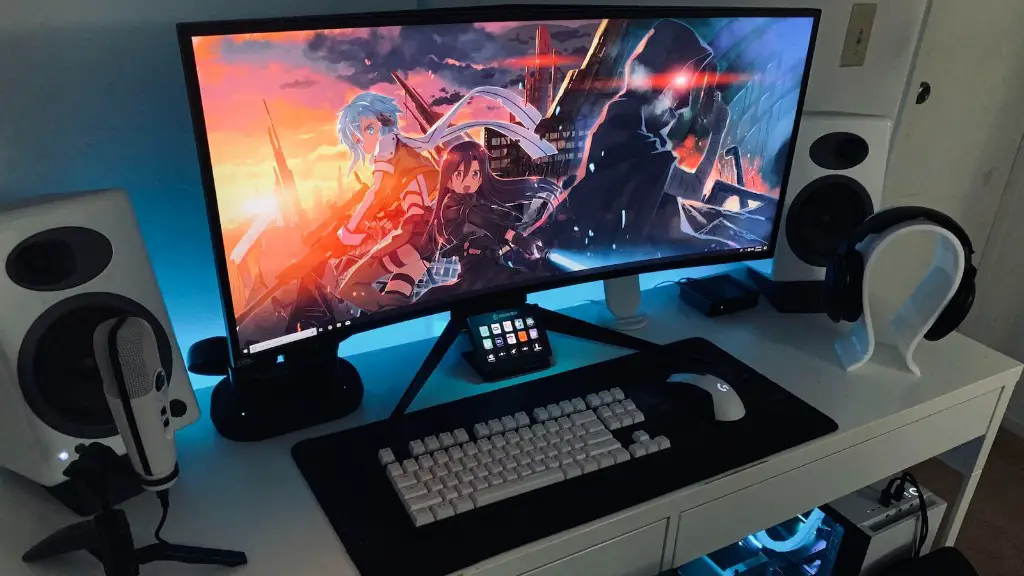
Plugging a laptop into a gaming monitor is totally feasible, and it can provide a great gaming experience. It’s important to note that keyboards and gaming mice are still going to be needed for most gaming purposes, as many games require more complex input than just click and drag with a trackpad. Also, even if the laptop and monitor support it, the graphics card in the laptop usually isn’t powerful enough to provide a gaming-level experience with a large monitor. That being said, there are plenty of reasons to consider plugging a laptop into a gaming monitor.
For starters, it’s cost-effective. A gaming monitor is way more expensive than a laptop monitor, but it still can be used with a laptop to get an improved gaming experience. Plus, a gaming monitor provides superior graphics capabilities and a larger viewing size – something that can’t be achieved with the laptop alone. In addition, since they’re designed to be more resilient, there’s less chance of running into technical issues that might arise with a laptop and monitor.
Another advantage to plugging a laptop into a gaming monitor is the convenience. When you’re playing a game on a laptop, you generally need to be hunched over the laptop to see the screen and to reach the keyboard. With a gaming monitor, you can remain in a comfortable position in a chair and still be able to see the game. This isn’t just more comfortable, it’s also better for your body.
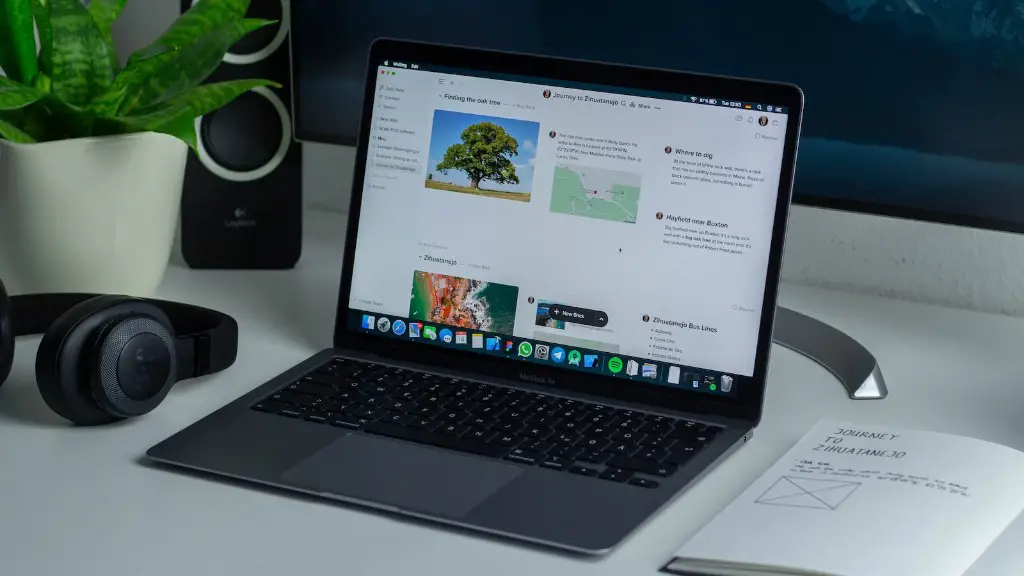
Moreover, the gaming monitor provides better visuals for gaming. With higher resolution and better color rendering, it’s easier to make out details and get a better overall experience. It also makes it easier to multitask: with a laptop, you need to switch between applications, but with a gaming monitor you can have multiple windows open side-by-side, making it easier to jump between tasks.
Finally, another major benefit to plugging a laptop into a gaming monitor is the potential for extra features. Many gaming monitors have extras like game-specific preset controls, G-Sync, FreeSync, and more. These features provide a unique advantage to gamers and can enhance the overall gaming experience.
Different Modes of Connecting
Depending on the laptop and monitor in question, you typically have two main options for connecting the two. The most popular is HDMI, which can also be used for connecting external monitors to a laptop that doesn’t have a dedicated port for external monitors. HDMI is a great choice for gamers as it can carry both audio and video, and it doesn’t require additional cables.
Alternatively, you can use DisplayPort. Like HDMI, DisplayPort can carry video and audio, but it’s preferable for gamers as it’s faster and doesn’t require additional cables. That said, it’s important to make sure the laptop and monitor support DisplayPort as not all do.
In addition, some newer gaming monitors have USB Type-C ports that can be used with USB-C equipped laptops. This makes it easier to connect the two without requiring another cable. However, not all gaming monitors have a USB Type-C port, so make sure you check before buying.
Finally, wireless connections are also an option. This requires a laptop with a Wi-Fi card and a gaming monitor with built-in Wi-Fi. It’s convenient, but wireless connections can be prone to interference and won’t provide the same level of performance as a wired connection.
Display Settings
Once your laptop and monitor are connected, you’ll need to make sure that the display settings are correct. On Windows, this can be done by going to the appropriate settings and changing the resolution and refresh rate. It’s important to note that if you’re using a gaming monitor, you should check the manual for the recommended settings, as some monitors may not work at their full potential when connected to a laptop.
Once you’ve changed the settings, you may need to adjust the scaling and positioning of the image. Depending on the size of the laptop and the monitor, the image on the monitor may appear distorted or too large. To fix this, you can go to the display settings and adjust the scaling and position manually.
In addition, many gaming monitors have special gaming preset that can be used to improve the visuals for gaming. That said, these presets don’t always work well with laptops, so you may want to experiment to see which one works best for you.
Finally, some gaming monitors also have motion blur reduction features that can help reduce motion blur in fast-paced games. However, these features may not work with some laptops, so you should check the manual beforehand to make sure.
External Graphics Cards
If the laptop’s integrated graphics card is inadequate for your needs, then you may want to consider using an external graphics card. This requires a laptop with a Thunderbolt 3 port and an external GPU enclosure that can accommodate the graphics card you need. Unfortunately, external graphics cards are expensive, but they can drastically improve the gaming performance of your laptop when connected to a gaming monitor.
It’s also important to note that some laptops may not support external graphics cards, so make sure to check if yours does before you invest in an external GPU enclosure.
Furthermore, the external graphics card will need to be powered by an external power supply, typically from a wall outlet. Some laptops also need to be connected to the wall before the external GPU can be recognized by the laptop, so make sure to double-check the manual for your laptop for more details.
Finally, you’ll also need to install the necessary drivers for the external GPU. The drivers can be found on the manufacturer’s website, and the installation instructions vary by manufacturer.
Cooling and Heat Management
An important aspect of plugging a laptop into a gaming monitor is cooling and heat management. Laptops are typically not as well-ventilated as gaming PCs, so it’s important to make sure they stay cool. This can be accomplished by ensuring that the laptop is kept away from any direct sunlight and making sure there’s enough airflow around it.
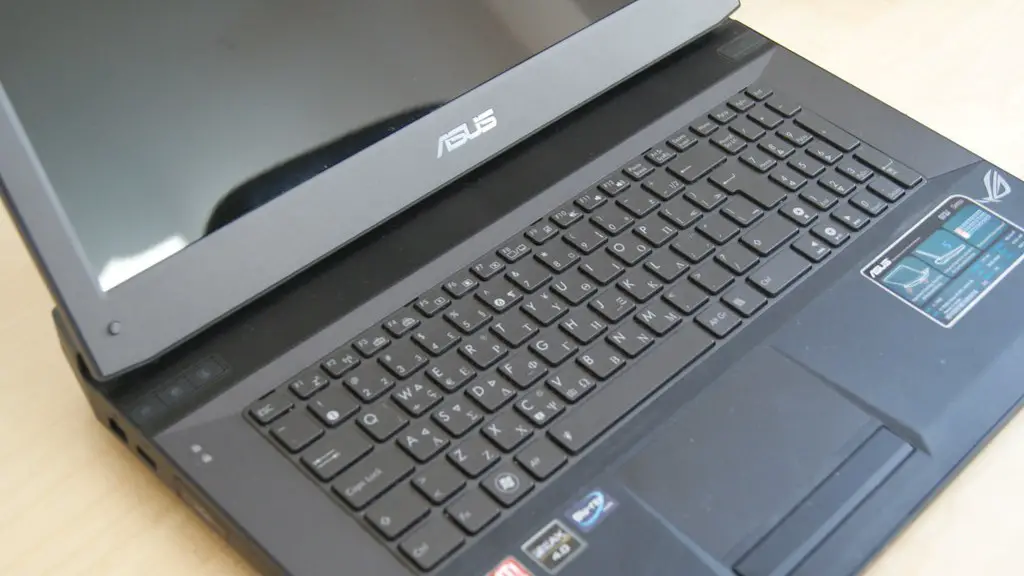
In addition, gaming laptops can get pretty hot when running games for long periods of time. To combat this, you can invest in a cooling pad or cooling stand to help keep the laptop cool. Alternatively, you can try undervolting the CPU or GPU to reduce heat, but this is usually only recommended if you know what you’re doing.
It’s also important to make sure that the monitor is properly ventilated. Most gaming monitors have vents on the back and sides, so make sure they are unobstructed and have enough room to vent out the hot air. Also, if you’re using an external GPU enclosure, make sure it has adequate cooling to prevent the equipment from overheating.
Conclusion
Plugging a laptop into a gaming monitor can provide a great gaming experience with improved visuals and a larger viewing size. Depending on the laptop and monitor, there are different ways to connect the two, such as HDMI, DisplayPort, or USB-C. In addition, you’ll need to make sure that the display settings, external GPU, and cooling and heat management are all set up correctly in order to get the best gaming experience from your laptop monitor combo.
