Gaming PCs need regular cleaning to ensure optimum performance. Dust, dirt, and debris can accumulate in the system, which can cause cooling and other issues that can lead to reduced performance. Here is how often you should clean your gaming PC and what actions you should take to keep it running in top condition.
It is recommended to clean your gaming PC at least every three to six months. If the system is exposed to extreme dust conditions, cleaning should be done more often, such as every month. Cleaning should include removing dust and debris from exterior PC cases, taking off the PC cover and cleaning the inside, checking temperatures and cable connections, and cleaning cooling fans.
Start by cleaning the exterior of the case with a can of compressed air. Holding the can approximately six inches away from the case and using a gradual side-to-side motion, spray the inside and outside of the case. Do not directly aim it at one area for too long or you risk damaging components inside the case. Make sure to get in the vents and other areas where dust can accumulate.
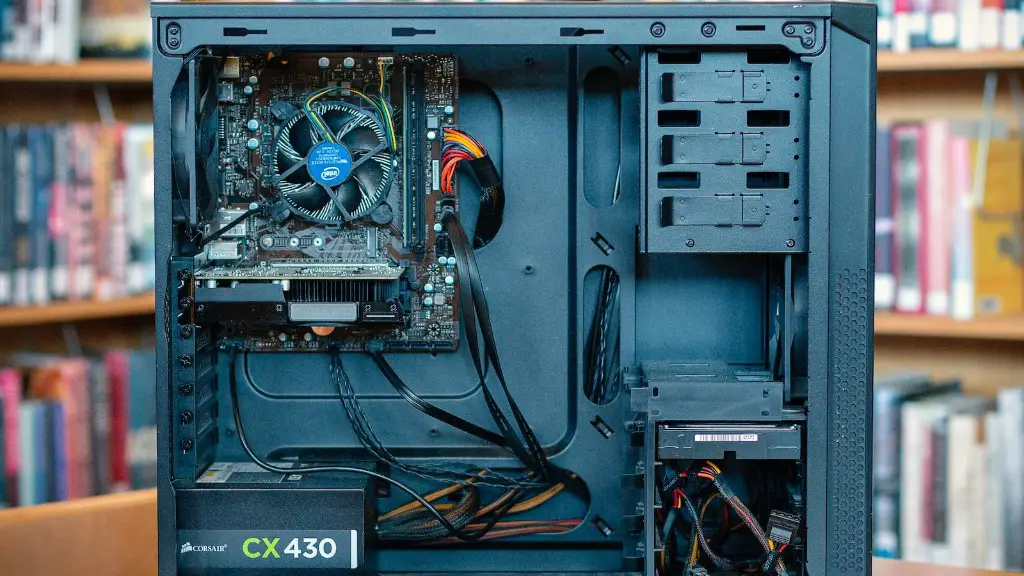
Next, open up the case. Disconnect all cables and remove any expansion cards. Clean the inside of the case with a can of compressed air held at the same distance. Make sure to get in all crevices, corners, under and between components and PCIe slots. To clean special components, use isopropyl alcohol and Q-tips, taking care not to damage any components.
Check the temperature of the system. Anything going above the recommended temperature range could indicate overheating or cooling problems and may require a simple fix, such as cleaning the fan or putting fresh thermal paste on the CPU. If temperatures are still high after cleaning, it’s best to consult a technician.
Firmly reconnect all cables and ensure they are tightly secured, and reinsert any expansion cards. Ensure that all cooling fans are connected and spinning at the correct speed. Finally, replace the PC cover and make sure it is firmly in place, giving it a gentle shake to make sure it is secure.
Restart the PC and make sure it is running as expected. If performance or temperatures seem off or there are any other issues, it is recommended to contact a technician.
Questions to Ask When Cleaning a Gaming PC
When cleaning a gaming PC, it is important to ensure that the system is in top condition. This means checking temperatures and cable connections, as well as ensuring that fans are all connected and spinning correctly. Here are some questions to consider when taking care of your gaming PC.
First, what is the recommended temperature range for your gaming PC? This specific information should come with your system or be available online. As you are cleaning the system, it is important to keep an eye on temperatures. If temperatures begin to climb above the recommended range, it can indicate a cooling issue that needs to be addressed.
Second, are all the cables connected correctly and tightly secured? Loose cables can result in performance issues, so make sure that all connections are tight and secure before putting the PC cover back on.
Finally, are all the cooling fans connected and spinning correctly? A lack of airflow can cause overheating, and it’s best to check that each fan is functioning correctly and spinning at the right speed.
Cleaning Supplies Needed for Gaming PC
When cleaning a gaming PC, you will need to have certain supplies on hand. Here are some of the essential items needed when keeping a gaming PC in top condition.
First, have a can of compressed air handy. This is a great tool for removing dust and debris on the exterior of the PC case and the interior. It is important to hold the can at least six inches away from the case and use a gradual side-to-side motion to make sure that no damage is done.
Second, you will need some isopropyl alcohol and Q-tips. This is for cleaning any special components that need extra care, such as RAM, GPU and CPU. As you are cleaning certain components, make sure to use isopropyl alcohol and Q-tips, taking care not to damage any components.
Third, you will need a cloth to wipe down the exterior of the case before putting the PC cover back on. Make sure to use a soft cloth, as a rough one may cause scratches or other damage.
Finally, if temperatures are still high after attempting to clean the system, it is always a good idea to consult a technician. They can check the system in more detail and have the knowledge and experience to advise the best course of action.
When to Replace Components in Gaming PC
In addition to cleaning your gaming PC, there may come a time when certain components need to be replaced. Here are some of the signs that indicate it’s time to replace a component.
One of the most common indicators is when performance begins to suffer. If you are experiencing in-game lag or an overall decrease in performance, this might mean that certain components are outdated and need to be upgraded.
Next, look for warning signs from the system itself. This can include signs such as unusual fan noise, abnormal temperatures, and more. If any of these warning signs are present, it may be time to replace certain components.

Finally, if the system is out of warranty and you have been using it for a number of years, it might be time to upgrade. Certain components, such as GPUs, have a lifespan and will need to be replaced after a few years.
Tips for Cleaning Gaming PC
When cleaning a gaming PC, there are a few general tips to keep in mind. The most important one is to take your time. Cleaning should be done slowly and methodically to make sure each area and component is properly taken care of.
To ensure there is no damage done to any components, it is best to document your cleaning process. Taking photos and making notes can help you to remember how to put everything back together correctly, as well as provide a reference for following up on any issues that arise.
Also, be wary of static electricity. All components are susceptible to static shock, so it is important to always discharge static electricity before touching any components. Wearing anti-static gloves and using an anti-static mat to place components on while cleaning can help to mitigate this risk.
Finally, it’s always a good idea to consult a technician if temperatures remain high or any other issues arise. They can check the system in more detail and advise the best course of action.
