Building a gaming PC from scratch is not as difficult as it may seem at first. With the right knowledge and tools, anyone can assemble a powerful gaming rig of their own. This tutorial walks through the entire process of building a gaming PC. We will start with the basics of choosing a case, then progress to selecting a motherboard, processor, RAM, storage, and other components. Finally, we will show you how to assemble the PC and install drivers and programs.
First things first, you’ll need to decide on a case. Choose a case that will support all the components that you plan to install, as well as have room for good airflow. It’s best to choose a mid-tower or full-tower case for your gaming PC, as they will have the most space and options for fans, water-cooling, or other accessories outside of the core components.
Once you’ve chosen a case, the next component to select is the motherboard. When picking a motherboard, make sure it has enough slots for the processor, RAM, and other components. It’s also a good idea to select a motherboard that has extra ports in case you want to add extra components at a later date. Don’t forget about compatibility; make sure the motherboard matches the processor, RAM, and other components you plan to buy.

Once you’ve chosen a motherboard, the next step is to choose a processor. This is where things get tricky. There are so many processors out there, and it can be hard to decide which one is best for gaming. Generally, you should pick a processor with as many cores as possible and a high clock speed. 8 cores are ideal, and a clock speed of at least 4.5GHz will ensure the smoothest experience when it comes to gaming.
For your RAM, you’ll want to go with at least 8GB of DDR4 RAM. You can go higher if you want, but 8GB will be enough for the vast majority of gamers. Make sure the RAM is compatible with your motherboard, as well.
For storage, you’ll want to purchase a hard drive with enough space to accommodate your gaming needs. A 1TB hard drive should be plenty, but if you need more, you can always add in a 2TB or even a 4TB hard drive.
Finally, you’ll need a good power supply for your gaming PC. It’s important to pick a good power supply that is reliable and provides enough wattage for your setup. Go with a PSU that has at least 500 watts of power, and make sure to look for a unit with modular cabling.
Assembling the PC
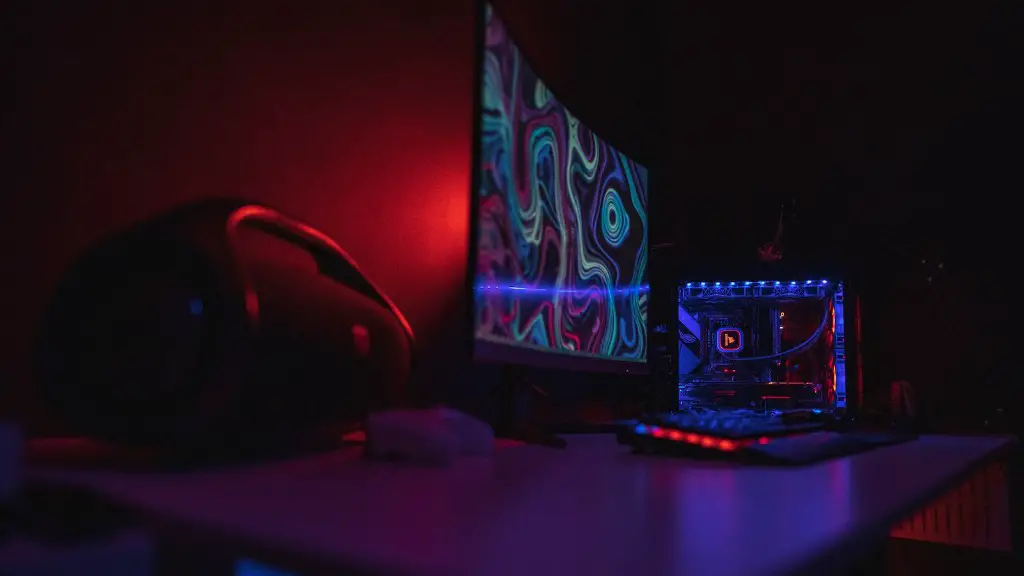
Once you’ve gathered all the components, you’re ready to assemble the PC. Start by installing the motherboard into the case, making sure to ground yourself first to avoid any static electricity shocks. Once the motherboard is in, it’s time to install the processor. Make sure to thoroughly read the instructions that come with the processor and follow any instructions for specific sockets.
Next, install the RAM into the relevant slots. Make sure you double check the compatibility of the RAM with your motherboard. Once the RAM is installed, it’s time to install the power supply. Place it in the case and plug in all the cables, being extra cautious not to overload any outlets.
Now install the storage devices, such as hard drives and/or solid-state drives. Make sure to properly connect all the power and data cables prior to powering on the PC. Then, install the video and audio cards. Again, be sure to double-check the compatibility to ensure everything is running properly.
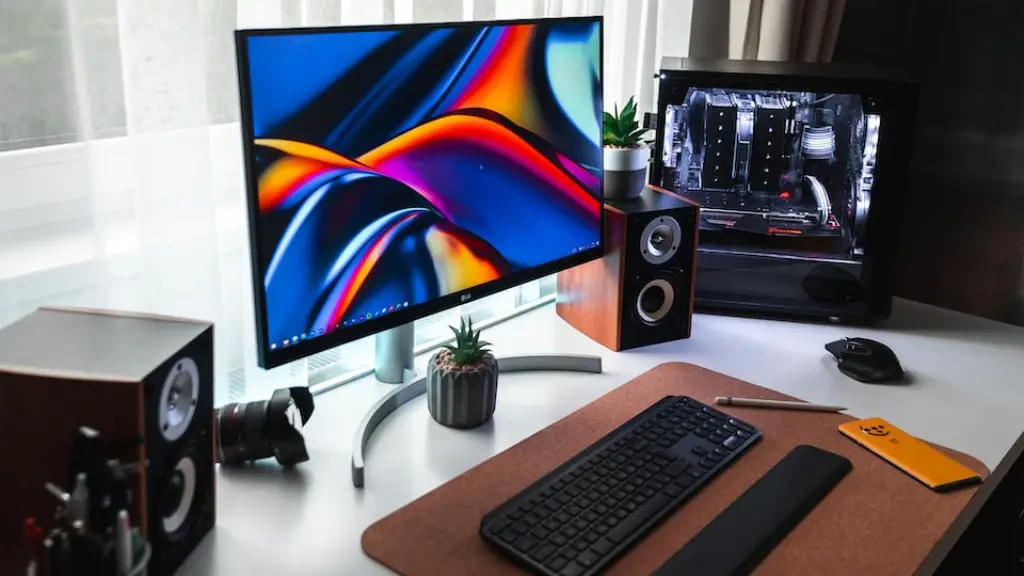
The final step before powering on the PC is to connect all the necessary peripherals. This includes monitors, keyboards, mice, gamepads, etc. Once all the components and peripherals are hooked up, double-check the connections and plug in the power supply, then power on the PC.
You’re now ready to install the drivers and programs necessary for the PC – like operating system, audio, video, and game drivers. Once everything is installed, you can customize your gaming PC as you like.
Installing Drivers and Programs
Now that your gaming PC is assembled, it’s time to install the necessary drivers and programs. Start by downloading the latest drivers for the motherboard, processor, graphics card, and other components. Install those drivers first, then move onto the other programs like the operating system and any additional software you may need.
It’s a good idea to install the latest drivers for all components, as that is key to having a smooth gaming experience. Once all drivers and programs are installed, be sure to reboot the PC and double-check that everything is working correctly.
Also, be sure to keep all drivers and programs updated. This can be done periodically from within the OS or from the respective company’s website. It is an important step towards ensuring your gaming PC’s performance stays optimized.
Finally, it’s important to protect your gaming PC from malware and other threats. Invest in some anti-virus and anti-malware software, and run scans periodically. This will help keep your system secure and running smoothly.
Setting up the OS
Although the OS is already installed on your gaming PC, there are some configurations and settings that may need to be changed first. Start by personalizing the look of your desktop, and then connect to available networks and/or the internet.
You may also want to customize the operating system environment and install any additional programs – like web browsers, media players, and the like. Don’t forget to set up the power options; you’ll want your gaming PC to have maximum performance when playing games.
Finally, adjust the settings of individual games so they run smoothly and look the way you want. This includes setting framerates, disabling certain effects, and/or tweaking other settings. Once everything is adjusted and running as it should be, you’re ready to start gaming!
Troubleshooting
If you encounter any issues while building your gaming PC, there are a few steps to take first. Double-check the cables and connections, and make sure everything is secured properly. It’s also important to make sure the various components and peripherals are compatible with one another.
If you’ve connected all the parts correctly but the computer still isn’t working, you may need to reset the BIOS. To do this, unplug all the power cables, open up the case, and locate the small “clear CMOS” jumper. Move it to the reset position and then plug everything back in and try again.
If your PC is still having problems after resetting the BIOS, it’s possible there may be a problem with one of the components – like a bad motherboard or processor. Try switching out the suspect components with known good ones and see if the problem persists.
Finally, if you’re still having no luck solving the issue, you may need to seek help from a professional. Many computer repair shops offer services to help diagnose and repair a variety of hardware issues.
Maintenance
Now that your gaming PC is up and running, it’s important to maintain it properly. Keeping your system routinely updated is essential for optimal performance. Make sure to install updates for the operating system, drivers, and other programs at least once a month.
It’s also a good idea to clean out the inside of the PC every so often. Dust builds up inside the case and can interfere with the performance of the components. Use a can of compressed air to blow out any dust and dirt.
Periodic malware and virus scans are also important. This can be done with a variety of free and paid programs, and will help keep your PC free of viruses and other threats. Finally, don’t forget to shut down regularly and allow the PC some rest time.
Conclusion
Building a gaming PC doesn’t have to be a daunting task. With the right parts, knowledge, and tools, anyone can assemble a powerful gaming system of their own. This tutorial has outlined the steps for building a gaming PC from case selection to installation and setup. The key takeaway is to research thoroughly and double check everything before purchasing parts. Good luck!
