Building a gaming PC is a huge undertaking and can be quite intimidating for newcomers in the PC gaming scene. Disassembling a gaming PC is no easy feat either, and requires some meticulous planning and attention to detail. Here are 7 steps to help you disassemble your gaming PC.
Step 1: Unplug all cables from the PC. This includes powering off the PC and unplugging it from the wall before you start any work. Remove all cables, connectors and USB devices connected to the PC. Don’t forget to unplug any external storage media like hard drives and optical drives.
Step 2: Open the casing. Depending on what kind of PC you have, the casings may be secured with either screws or clips. Make sure to have a small screwdriver on hand to unscrew all the screws. If your PC has panels, open them one at a time by pressing the clips that hold the panels in place.
Step 3: Unplug all the components from the motherboard. This includes the CPU, GPU, RAM, HDD, and all other components. Make sure to use the appropriate tools and to lay all the components out in an organized fashion for easy reference. Be sure not to break any of the components.
Step 4: Carefully remove the heat sink and CPU cooling unit. This should be done with caution as these components can become damaged easily. Make sure to use a high quality thermal compound when you attach new components to the motherboard.
Step 5: Disconnect all the power cables from the power supply. This includes all the SATA, Molex and PCIe connectors. Make sure to keep the cables organized and bagged separately so you can easily reconnect them in the future.
Step 6: Carefully remove the power supply from the case. Make sure that you wear protective gloves and avoid touching other components as you remove it. Also make sure to unplug all the power cables from the power supply to prevent shorts.
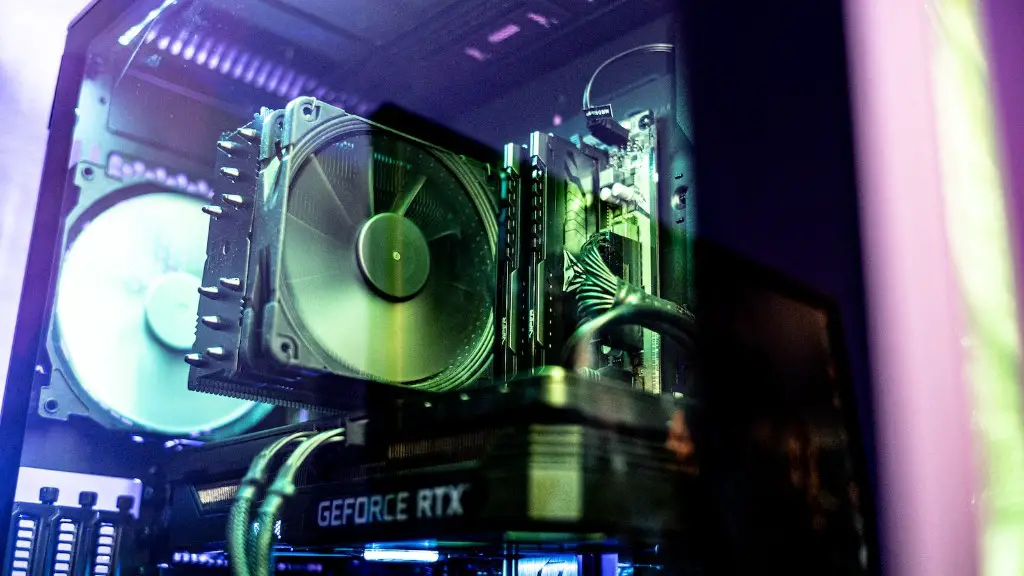
Step 7: Remove the motherboard from the case. Make sure to keep the form factors of the motherboard and case in mind when you do this. Also, be very careful when handling and removing the motherboard as they are sensitive components.
Installing A CPU & GPU
Installing a CPU and GPU is an involved process and requires patience and attention to detail. Make sure to use the appropriate tools when handling and installing these components.
Step 1: Secure the CPU socket cover. Make sure to take off any protection casing and screws and properly secure the socket cover before you insert the CPU.
Step 2: Insert the CPU into the socket. Make sure to use the proper alignment for your socket type and ensure that the CPU is properly inserted and secured with the appropriate latch. Take extra care when handling the CPU as it can easily be damaged.
Step 3: Secure the CPU heatsink and fan. This is an important step as the heatsink and fan keeps the CPU from overheating. Make sure to use a high quality thermal compound when installing the fan and heatsink and properly secure them with the appropriate screw or clip.
Step 4: Install the GPU into the appropriate slot. Make sure to use the correct type of slot for your model of GPU and verify that the GPU is securely inserted into the slot.
Step 5: Secure the GPU to the case. Make sure to use the correct screws and screws to firmly secure the GPU in place.
Step 6: Connect the power cables to the GPU. This includes PCIe power cables as well as any Molex connectors that are needed. Make sure to connect these properly to ensure adequate power delivery to the GPU.
Step 7: Connect the necessary cables to the GPU. This includes the display cable, HDMI or DVI cable, as well as any other needed cables.
Replacing And Upgrading PC Components
Replacing and upgrading PC components is a fairly simple process, but it requires some basic knowledge of PC hardware. Here are 7 steps to help you replace and upgrade your PC components.
Step 1: Research compatible components for your PC. Make sure to research which components are compatible with your PC make and model before spending money on upgrades.
Step 2: Purchase compatible components. Make sure to purchase reliable components from an authorized retailer and stay away from cheap, unbranded components.
Step 3: Open your PC case. Make sure to check the manual or online guide to find out what kind of screws are needed to open your case.
Step 4: Unplug all the components. Make sure to unplug all the cables, connectors and USB devices connected to the PC.
Step 5: Remove the existing components. Carefully remove the existing components from the motherboard and make sure to disconnect the power cables from the power supply.
Step 6: Insert the new components. Make sure to use the appropriate tools for installing the new components and ensure that they are inserted and secured properly.
Step 7: Reassemble the case. Carefully put the case back together, making sure that all the screws are tightened.
Troubleshooting Tips & Tricks
Troubleshooting a gaming PC can be a challenging task, especially for newcomers. Here are 7 tips and tricks to help you troubleshoot your gaming PC.
Tip 1: Check the power cables. Make sure that all the power cables are plugged in properly and the outlet is working.
Tip 2: Check the BIOS settings. Make sure to check the BIOS settings for any possible problems that might be causing the issue.
Tip 3: Check the drivers. Make sure to check all the drivers for any possible issues. This includes checking for any updates that may be available.
Tip 4: Use diagnostic tools. Make sure to use diagnostic tools to help identify any potential problems with the components.
Tip 5: Check the temperature. Make sure to check the temperature of the components. If the temperature is too high, you might need to upgrade your cooling system.
Tip 6: Check the RAM. Make sure to check the RAM for any potential problems that might be causing the issue.
Tip 7: Verify the connections. Make sure to check all the connections and inspect them for any potential issues.
Connecting External Devices & Accessories
Connecting external devices and accessories is an important part of gaming PC setup. Here are 7 steps to help you connect external devices and accessories to your gaming PC.
Step 1: Connect the device or accessory cables to the appropriate ports. Make sure to use the correct type of cable and port for each device.
Step 2: Connect the necessary power cables to the power supply. This includes PCIe power cables as well as any Molex connectors that are needed.
Step 3: Install any necessary drivers. Make sure to install any necessary drivers for the device or accessory.
Step 4: Check the device’s compatibility. Make sure to confirm whether the device or accessory is compatible with your system.
Step 5: Connect the device to the PC. This can be done through USB, HDMI, or other ports depending on the device.
Step 6: Configure the device’s settings. Make sure to adjust the device’s settings in order to optimize the best gaming experience.
Step 7: Optimize your gaming experience. Make sure to adjust the game settings in order to optimize your gaming experience.
Protecting Against Viruses & Malware
Protecting your gaming PC against viruses and malware is an essential part of keeping your system secure and running optimally. Here are 7 steps to help you protect your gaming PC.
Step 1: Install an anti-virus program. Make sure to install a reliable anti-virus program to protect your system from malicious programs.
Step 2: Keep your system updated. It is important to keep your system up to date with the latest security patches and updates.
Step 3: Install a fire wall. Make sure to install a reliable firewall to protect your system from malicious traffic.
Step 4: Avoid suspicious websites. Make sure to avoid visiting any suspicious websites that may contain malicious programs.
Step 5: Be wary of emails. Make sure to be cautious of emails from unfamiliar senders and to avoid clicking any suspicious links.
Step 6: Perform regular security scans. Make sure to perform regular security scans to identify any potential problems.
Step 7: Implement secure user authentication. Make sure to implement secure user authentication to protect your system from unauthorized access.
