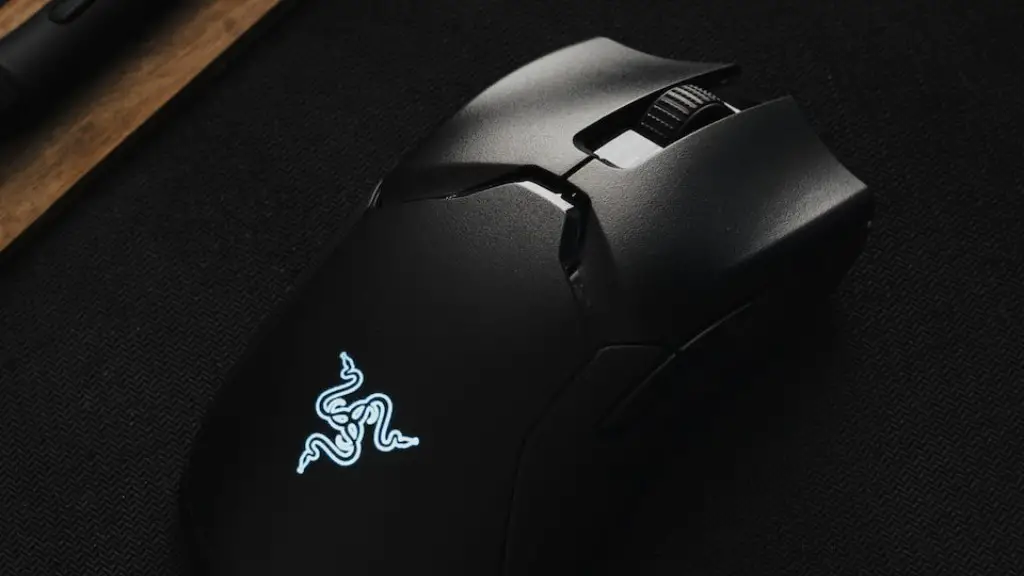
Although many gaming mice come with an installation CD, it is actually not necessary to use the CD in order to install the mouse. In most cases, the mouse will work just fine without any additional software. However, if you want to take advantage of any advanced features that the gaming mouse may have, you will need to install the provided software. Below are instructions on how to install a gaming mouse without the installation CD.
Most gaming mice come with a driver installation CD. However, it is not necessary to install the drivers from the CD in order to use the mouse. Drivers can usually be downloaded from the manufacturer’s website. Once the drivers are downloaded, they can be installed by double-clicking on the file and following the instructions.
How do I manually install a mouse?
Remember to connect the USB cable from the mouse to the computer. If you are using a USB port hub, connect the mouse cable to that. After the mouse is connected, the computer should automatically install the drivers and provide basic functionality.
Today’s operating systems no longer require drivers for standard mouse interoperability. If your computer has a standard one or two button mouse and uses a current version of the operating system, you don’t need any special drivers to use your mouse.
Does gaming mouse need software
If you’re looking to get the most out of your gaming mouse, you’ll want to make sure it has software support. This will allow you to reprogram buttons and quickly adjust sensitivity. Even if the mouse doesn’t have built-in software support, it may still have some programmable features. Either way, it’s worth taking advantage of any software support that’s available to you.
To pair your mouse to your PC, first turn on your mouse. Then, press and hold the pair button on the bottom of the mouse until the LED light starts to flash (about 5 seconds). On your Windows 10 PC, select Connect if a notification appears for your mouse, then wait for it to get set up.
How do I install a gaming mouse driver?
In order to open Device Manager, go to Start > Run, and type in “devmgmt.msc”. Once Device Manager is open, locate the “Mice and other pointing devices” section and expand it. This will show you all of the mice that are currently connected to the computer.
If your laptop has a USB port, then you should be able to use a USB mouse with it. Just plug the mouse’s USB cable into the port and restart your computer. The cursor should move in response to your mouse movements.
Why won t my mouse work?
If your mouse and/or keyboard become unresponsive, it is likely that the batteries are dead or dying and will need to be replaced. Alternatively, it is also possible that the drivers for these devices need to be updated. In either case, you should take steps to resolve the issue as soon as possible.
If your USB mouse does not work, it may be due to corrupt USB port drivers. You can try restoring Windows to a previous point when the USB mouse did work, or uninstalling and reinstalling the USB port drivers.
Why is my PC mouse not working
If your wireless mouse isn’t working, the first thing to check is whether it’s out of juice. For battery-powered ones, open up the battery bay of your mouse and swap in some fresh batteries to see if that resolves things.
The Logitech Options software is not required for the mouse to work, but it does provide some additional features and benefits like FLOW and the ability to reprogram the buttons.
How do you connect a mouse without a chip?
You can connect a Bluetooth device to your computer in a few simple steps:
1. Press and hold the Connect button on the bottom of the mouse
2. On the computer, open the Bluetooth software
3. Click the Devices tab, and then click Add
4. Follow the instructions that appear on the screen
There are a few things you should consider before buying a gaming mouse:
1. Playstyles: The gaming mouse requirements depend on the type of game that you play. For example, if you play FPS games, you will need a mouse with a high DPI and CPI.
2. Type of Sensor: Wired or Wireless? This is a matter of preference, but wired mice are generally more accurate and have less lag than wireless mice.
3. DPI and CPI: These are two important factors to consider when choosing a gaming mouse. DPI (dots per inch) is the mouse’s sensitivity, while CPI (counts per inch) is the number of steps the mouse takes per inch.
4. Weights: Some gaming mice come with weights that you can add or remove to adjust the feel of the mouse. This is again a matter of preference, but some people find that adding weights makes the mouse feel more solid and better balanced.
5. Grip Style: This is how you hold the mouse. Some people prefer to hold the mouse with their palm, while others prefer to use a claw grip. There is no right or wrong answer, it all comes down to what feels more comfortable for you.
How do you connect a wired mouse
Most wired mouses are USB-based and require a USB port to operate. The USB port provides power and digital data to the mouse.
If you want to connect a Bluetooth device to your Windows 10 computer, you’ll need to go to Settings > Devices > Bluetooth & other devices and select Add Bluetooth or other device. For a Mac, you’ll need to put your wireless mouse into pairing mode and select the Apple icon, then choose System Preferences > Bluetooth.
Why is my wireless mouse not showing up?
There are a few reasons why your wireless mouse might not be working. It could be due to batteries that are low in power or need to be replaced, or it could be that the receiver is plugged into a port that is not working. If you’re not sure what the problem is, you can try troubleshooting by replacing the batteries or checking the receiver.
It’s important to keep your device drivers up to date to ensure that your devices are running smoothly. Here’s how to update a device driver:
1. In the search box on the taskbar, enter device manager, then select Device Manager.
2. Select a category to see names of devices, then right-click (or press and hold) the one you’d like to update.
3. Select Search automatically for updated driver software.
4. Select Update Driver.
Conclusion
1) Log into your computer as an administrator.
2) Locate the mouse that you want to install the gaming software for and right-click on it.
3) Select “Update Driver Software.”
4) In the next window, select “Browse my computer for driver software.”
5) From there, you will need to find the directory where the installation files for the gaming mouse are located.
6) Once you have found the directory, select it and then click “OK.”
7) The installation process should begin and once it is finished, you will need to restart your computer.
It is not necessary to use the installation CD that comes with a gaming mouse in order to install it on a computer. The process is simple and can be done without any extra software.