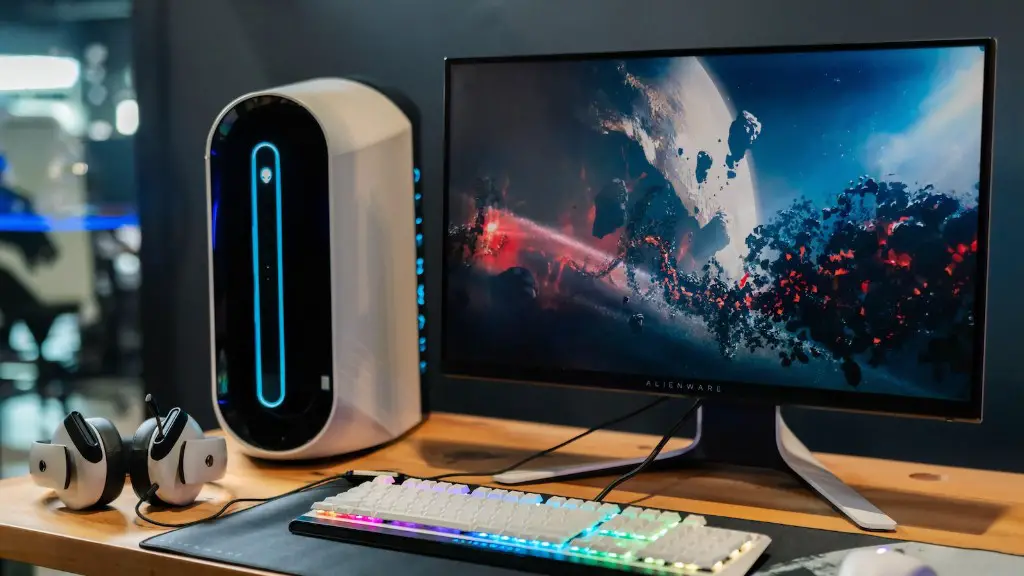
Plugging a gaming PC into a monitor is not a complicated process. However, there is a significant amount of technology involved that requires an awareness of the components and accessories necessary to complete the task. Understanding the parts involved and how to connect them together is essential in order to ensure a successful gaming experience. In this article, we will discuss the steps required to plug a gaming PC into a monitor.
Gather the Necessary Components
Before plugging your gaming PC into a monitor, you’ll need to gather the necessary components. At a minimum, this includes a power cable for your PC, a display cable for the monitor, and any applicable connectors. If the monitor requires a manual setup, this may require additional components. Additionally, be sure to check if the monitor requires a power adapter, as this will also need to be purchased and connected.
Connect the Cables
Once the necessary components have been gathered, the next step is to connect the cables. To do this, start by connecting the power cable to the back of the PC. Next, connect the display cable(s) to the back of the PC and the monitor. Depending on the type of monitor, this may require connecting additional adapters or connectors. Once all of the cables have been connected, make sure the monitor is turned on.
Install the Drivers
The next step is to install the necessary drivers. Since the monitor will be used to view games and other visual elements, it is important to ensure the monitor is compatible with the PC. To do this, visit the manufacturer’s website and download the latest drivers. Be sure to follow the instructions carefully and make sure all the drivers are compatible with the PC model.
Configure the Display Settings
Once the drivers are installed, the next step is to configure the display settings. This is done by accessing the ‘Display Settings’ menu on the PC. Here, you will be able to adjust the brightness, contrast, and other settings. Depending on the monitor, there may be additional settings to adjust as well. Make sure to save the settings once they have been adjusted to your liking.
Test the Monitor
Once the display settings have been adjusted, the next step is to test the monitor. To do this, launch a game or other visually intensive application and observe how the monitor works with the PC. If the monitor and PC are not performing as expected, make sure to double-check the cables and the display settings. You may also need to uninstall and reinstall the drivers.
Conclusion
By following the steps outlined in this article, you should now have a better understanding of how to plug a gaming PC into a monitor. It is important to understand the components and accessories involved in order to ensure a successful gaming experience. Once all of the steps have been completed and everything is working as expected, you can now enjoy a great gaming experience.
