The gaming monitor setup process includes multiple steps, from choosing the best monitor to physically setting it up. Any passionate gamer should learn how to set up their gaming monitors correctly for the best gaming performance. Ensuring the monitor is ready for full gaming immersion is the first step to an enjoyable gaming experience. This step-by-step guide will walk you through the setup process.
Firstly, decide which monitor suits your needs. This is a critical step because it sets the stage for future gaming and performance. Look out for specifics such as refresh rates, adaptive technology, and resolution. Refresh rates and adaptive technology determine how quickly and smoothly the image is transferred from the monitor to your eyes. Consider your gaming budget, as higher-end monitors are more expensive and provide more features for gaming. Secondly, measure the space available and decide where your gaming monitor will be placed.
Thirdly, acquire necessary cables. Make sure to have a HDMI or VGA port so that your gaming console is compatible with your monitor. The next step is to actually place the monitor and plug in the cables. Make sure the monitor is securely mounted and positioned the right way to prevent any accidental mishaps or damage. Plug the other end of the cables into the gaming console and power up the monitor.
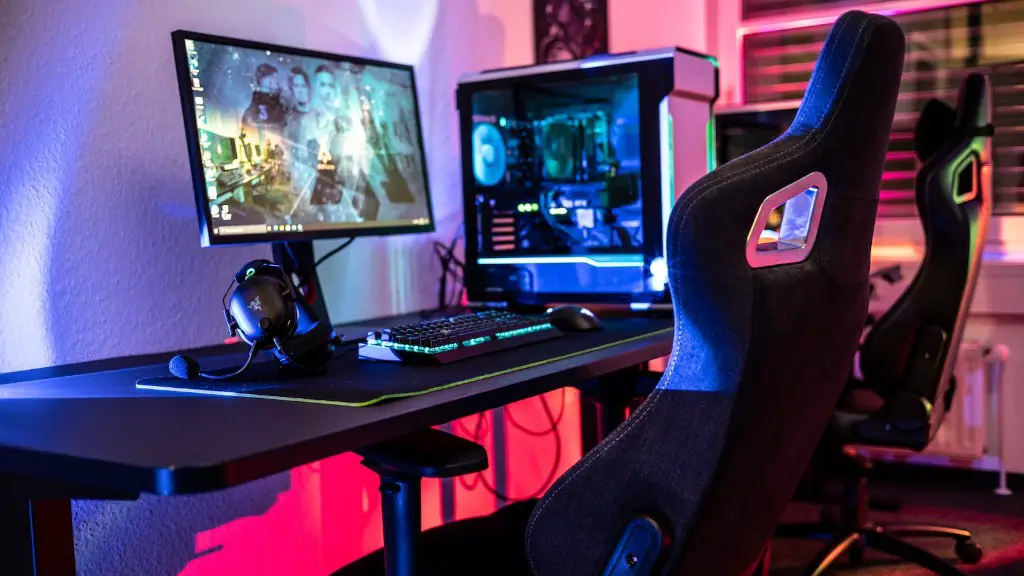
Once the monitor is powered up, setup the screen resolution. This is necessary for the monitor to provide visuals. Configure the settings, so they match the recommended size and frequency. You should be able to adjust the monitor’s brightness, contrast and other settings to your liking. Make certain all the cables are plugged in properly and the game can be accessed from the monitor. Lastly, download the drivers and software, if applicable.
Gaming Monitor Calibration
Calibrating your gaming monitor is a crucial step as this will bring out the best visual quality in the gaming experience. Monitor calibration helps you adjust the basic setting on the display, in order to receive a uniform and accurate color in the visuals. It is important these settings are adjusted for best visuals, which makes for fully immersive gaming.
Games are not personalised to each monitor’s settings. Therefore, games will appear differently on different screens. It is recommended to get the settings right to enjoy the game better. It’s recommended to use a colorimeter or specialised software to do the calibration adjustments.
After calibration, the red, green, and blue (RGB) levels should be adjusted as needed. Each colour should be equal and it’s best to go through each setting to make sure everything looks right. However, if you don’t have any colourimeter or specialised software, you can use a test pattern. This allows you to ensure that sharpness, brightness and contrast are correctly set by using a black, white and gray-scale pattern.

Another recommended step is to switch off the fancy advanced aftermarket settings that come with the display, like trumotion, motion sharpness and any other motion enhancing features. It’s best to turn off those settings, as they usually cause artifacts in the image and make it difficult to gauge the true fidelity of the graphics.
Advanced Setup Features
Advanced users can adjust their gaming monitors in further detail by using additional tweaking features. But bear in mind that these are best done after calibration as calibration sets the base for all other additional adjustments. Most gaming monitors offer these additional visual tweaks.
Gamma is the relationship between grey levels and it’s best to leave the setting at its default value. Color temperature, however, is the measure of the color of white. A lower color temperature will have a warmer feel, whereas a higher temperature will have a cooler feel. There are pre-set color temperature levels that can be used for gaming. Hue and saturation are other visual adjustments that can be used when needed.
Sharpness should be used slightly as it can introduce digital artifacts. But too much sharpness is counter-productive, as it introduces noise into the image. Lastly, configuring the gamma to its native value is important; as this usually provides the best balance between white and black. It produces an image with depth and detail, on the screen.
Using Input Lag Reduction
It’s important to reduce input lag to make sure the game runs smoothly and accurately. The higher the input lag, the greater the delay in monitor response time. Reducing the input lag helps with game performance and makes gaming more enjoyable. Some gaming monitors have dedicated settings for input lag but if not, then you should lower the brightness to its minimum. This helps reduce the input lag.
Monitor response times and refresh rate will also affect input lag. If it’s more than 30ms, it will cause noticeable lag. Refresh rate for gaming monitors should be at least 60 Hz. This reduces the time taken for the monitor to refresh the image after processing. If a monitor has a higher refresh rate, like 90 Hz or 120 Hz, it will refresh the image faster and reduce the input lag.
There are usually dedicated settings in gaming monitors to reduce input lag. Turn on these settings, such as overclocking, as they can slightly reduce input lag. Input lag can also be lowered by disabling any post-processing features. This includes features like dynamic contrast and noise reduction, as they slightly increase input lag.
Active Sync & Free Sync
AMD FreeSync and NVidia G-SYNC are two technologies that reduce screen tearing and provide better gaming performance. Both technologies allow gamers to enjoy smoother frames, better colours and a more immersive gaming experience. Both technologies have been around for a while, so choosing one all depends on what your GPU/monitor supports.
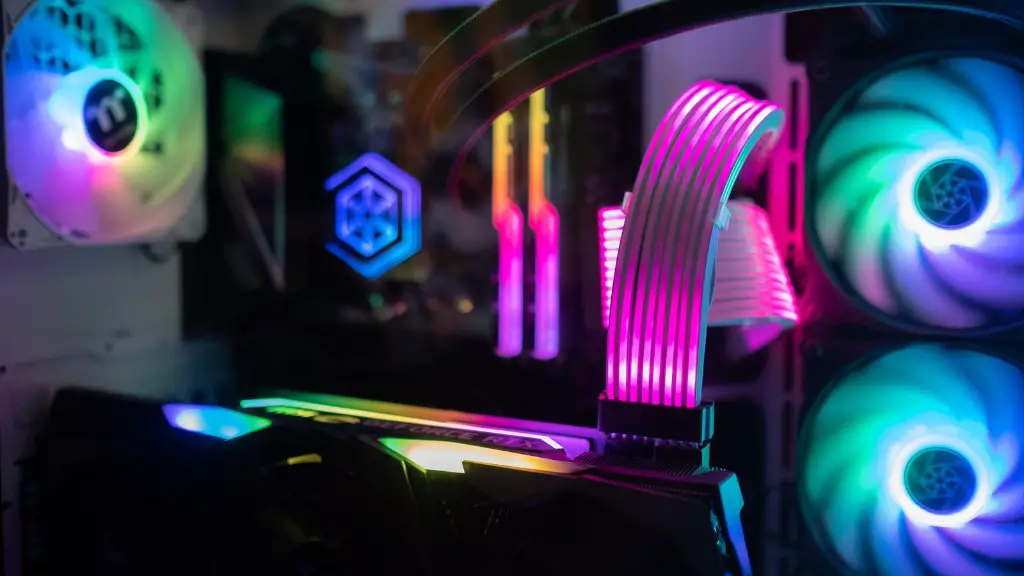
G-SYNC monitors get their signal from the GPU card, and the monitor synchronizes with the GPU. FreeSync works similarly, but the display connects to a different port than the GPU. This way, the display refreshes faster and provides smoother visuals, reducing input lag.
Both technologies provide a smooth and seamless gaming experience with wider colour gamut, minimal motion blur and faster response times. If your monitor and GPU are already compatible with these technologies, then you can benefit from smoother and faster gaming.
Utilizing Preset Gaming Modes
Many gaming monitors now come with picture presets. These presets offer a great way to enjoy different gaming genres at the best image quality possible. These presets improve image quality and color accuracy, ensuring clear and consistent visuals. Different games will require different picture settings and so this mode can be switched on or off as needed.
Preset gaming modes are perfect for gaming on the go as you don’t have to set the settings every time you switch games. This way, you can enjoy the best image quality in every game. Additionally, some monitors come with ‘low blue light’ which reduces blue light emissions from the monitor and prevents any strain on the eyes.
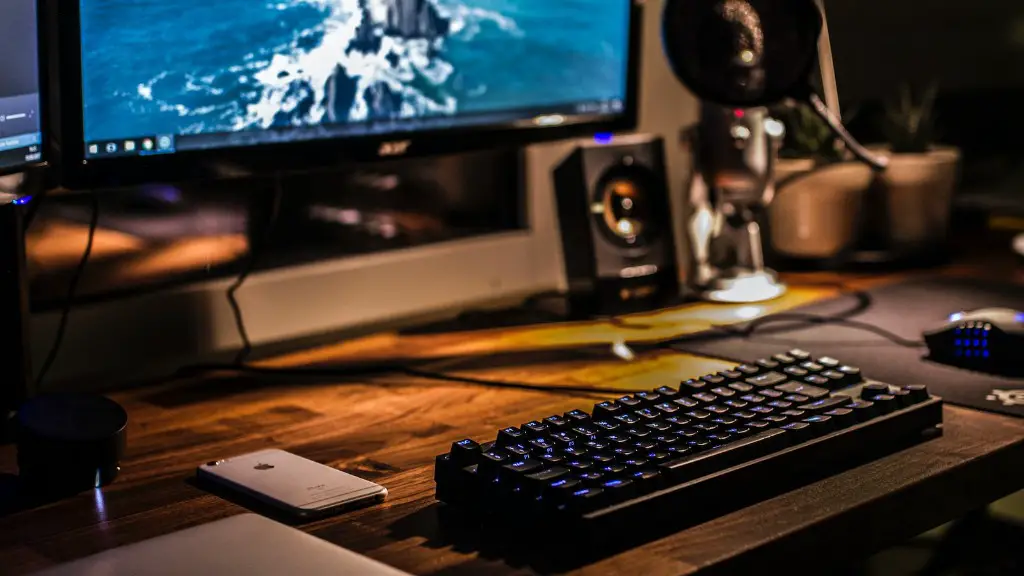
In summary, setting up a gaming monitor requires multiple steps. This includes choosing the best monitor, plugging in the necessary cables, calibrating the monitor, reducing input lag and making any additional visual adjustments. Finally, gaming monitors often come with advanced features such as G-SYNC and preset gaming modes, which are beneficial for smoother gaming performance.
