How to Make a Laptop Into a Gaming PC
Today, laptops are more powerful than ever, and with the right upgrades, they can be transformed into gaming PCs. This article will provide an overview of the necessary steps to turn a laptop into a gaming unit.
The minimum specifications a laptop should have to be considered a potent gaming machine are a GPU, processor, RAM, and storage. Depending on the games you plan to play, the GPU and CPU should have enough power to run them. Also, it’s important to choose the right RAM and storage size, as they will be responsible for running the operating system.
The GPU is the most important component when it comes to gaming performance, so it’s important to choose one that has enough power to run the games you want to play. The best way to assess which GPUs are compatible with your laptop is to look up the manufacturer’s website and see what specific model of GPU is available for your laptop.
The processor is also a crucial component, as it will determine the speed of your laptop. The more powerful the processor, the better the gaming experience. Ideally, it should have at least four cores and a frequency of at least 2.4GHz.
RAM is essential for a gaming laptop, as it will affect how quickly the system can run programs and games. The laptop should have a minimum of 8GB of RAM, but 16GB is recommended. For storage, a laptop should have an SSD, as it provides faster performance than a traditional hard drive.
The last component to consider when making a gaming laptop is the laptop’s cooling system. To ensure that the laptop remains cool during long gaming sessions, a cooling pad is necessary. The cooling pad will draw out the heat from the laptop so that it won’t overheat.
Optimizing The PC For Gaming
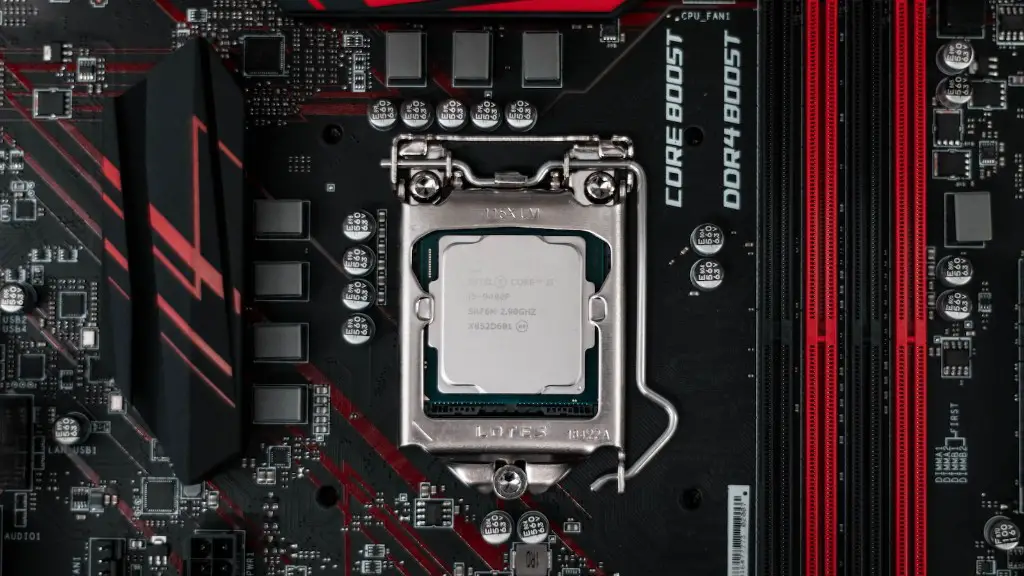
Once you have the components of your laptop upgraded for gaming, you need to optimize the PC’s performance to get the best results. This includes setting the graphics settings to their highest performance level, optimizing software settings, and updating the drivers.
The graphics settings are typically found in the laptop’s BIOS or in the graphics control panel. Make sure to set the graphics to their highest performance level as this will give you the maximum performance when gaming. You also need to optimize your software settings. This can be done by disabling any unnecessary programs that are running in the background and setting the power settings to “high performance.”
It’s important to keep the laptop’s drivers up to date, as outdated drivers can cause gaming performance to suffer. The best way to ensure that the drivers are up to date is to download the drivers directly from the manufacturer’s website.
Finally, consider investing in a cooling pad for your laptop as this will help keep the laptop cool and improve gaming performance.
Overclocking The PC
The next step in optimizing a laptop for gaming is to overclock the CPU and GPU. Overclocking is the process of boosting a component beyond its default speeds to improve performance. It is important to note that overclocking requires additional cooling and can be risky, so it should only be done with the right knowledge and proper caution.
The process of overclocking a laptop’s CPU and GPU involves tweaking the BIOS settings and increasing the core frequency and voltage. It is also necessary to upgrade the cooling system if you want to achieve stable overclocking and the temperatures should be monitored during the process.
Once you have set the overclocking parameters, it is important to test the system and make sure that it is stable and functioning properly. This can be done with benchmark testing software and stability tests.
Keep in mind that overclocking can greatly improve gaming performance, but it also increases power consumption and heat generation, so it should be done with caution.
Improving The Display Quality
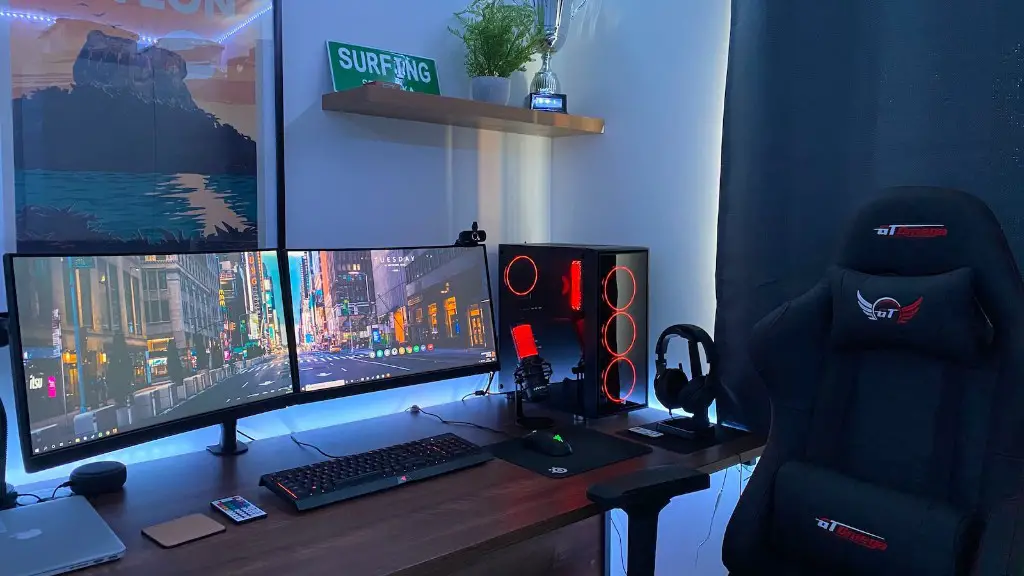
When it comes to gaming, it is important to have an excellent display. Laptop screens are typically lower resolution than desktop monitors and they are also limited in size. The most common way to improve the display quality is to connect an external monitor.
There are a few different types of external monitors that can be used with a laptop. The most common are HDMI and VGA, although newer models can support DisplayPort and USB-C. When choosing a monitor, it is important to consider the resolution, refresh rate, aspect ratio, and response time.
In addition to connecting an external monitor, it is also possible to increase the resolution of the laptop’s display. This can be done by changing the resolution settings in the laptop’s BIOS or in the operating system’s settings. Keep in mind that increasing the resolution will decrease the performance of some games.
Finally, you can improve the display quality by using a gaming mouse with adjustable DPI settings. This will allow you to make small tweaks to the mouse sensitivity, which can make a big difference in gaming performance.
Adding Accessories
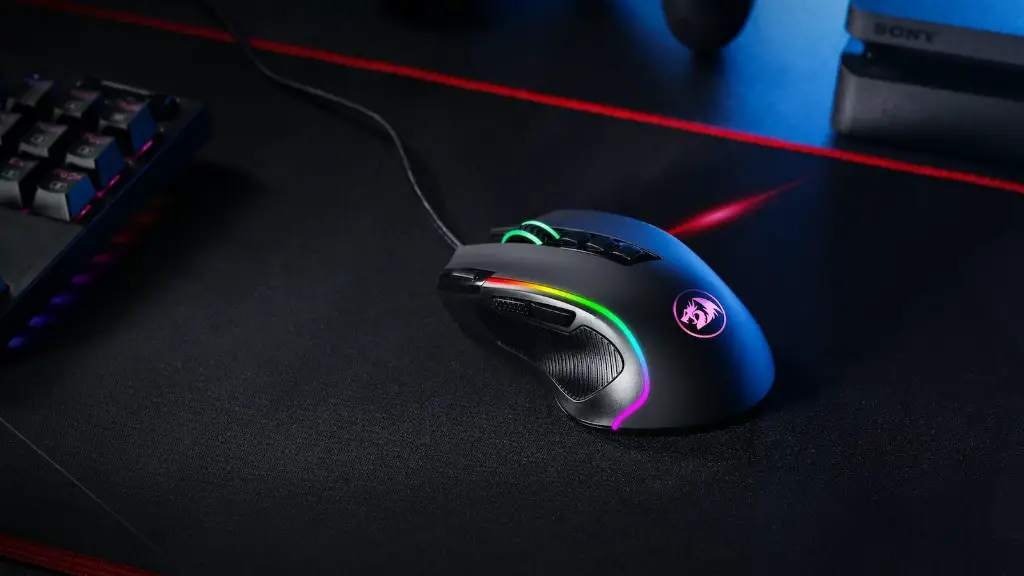
The last step in transforming a laptop into a gaming PC is to add accessories. This includes things like a gaming mouse, keyboard, headset, and controller. For a gaming mouse, it is important to choose one that is comfortable and has adjustable DPI settings.
When it comes to keyboards, you should look for one that is comfortable and has customizable lighting. Also, it’s important to choose a headset that has clear sound quality and noise isolation. Finally, you can enhance your gaming experience by investing in a gaming controller.
These are just a few of the accessories that can be used to enhance your gaming experience. Depending on your budget and preferences, you can also add a webcam, a monitor, dedicated gaming chairs, and more.
Finishing Touches
The last step in turning your laptop into a gaming machine is to make sure it looks good. This includes customizing the laptop’s case, adding RGB lighting, and any other customizations you’d like.
If you’re looking for a more permanent solution, you can add a laptop wrap to make it more enjoyable to look at. You can also apply paint and add some custom decals to make your laptop stand out. Adding RGB lighting to the case is also a great way to customize the look of your laptop.
Finally, if you want to further optimize the system’s performance, consider adding additional RAM, or upgrading the operating system to the latest version. This will ensure that your laptop is running at its maximum potential.
