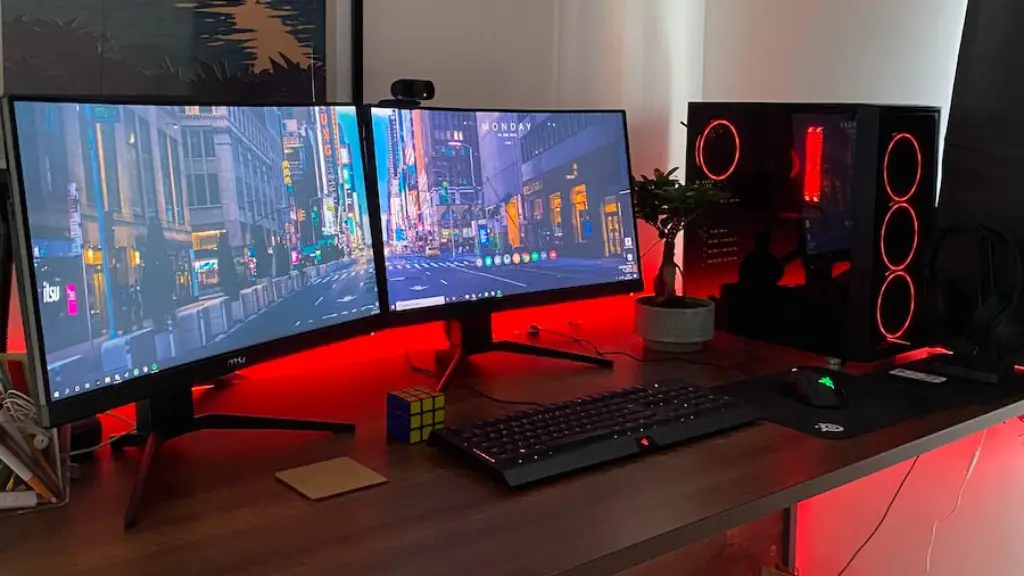
To check the specs of a gaming PC, it’s essential to know how to read and interpret specifications. Here are the steps:
1. First, check the processor. Processors are the brains of the PC. This is the component that will ultimately determine what games the PC can run and how effortlessly. Typically, any Intel Core i5 or better is considered suitable for gaming.
2. Second, check the RAM. This is the memory of the PC, the more the better for gaming. Generally, 16GB or more is ideal for gaming.

3. Third, check the graphics card. This is the component that will determine overall image quality and smoothness of gameplay. Look for an Nvidia RTX GPU or equivalent.
4. Fourth, check the hard drive. This is where all the PC’s games and data will be stored. An HDD or SDD, or a combination of the two, is desired.
5. Fifth, check the cooling system. This is usually forgotten about, but is hugely important for preventing premature damage. A good cooling system will prevent overheating and thus component damage.
6. Sixth, check the power supply. This is the component that powers the PC, the more power the better but make sure it is the right kind, such as a 550W or better.
7. Lastly, check the case size. This will determine how much room the PC will take up and how much space to leave for future upgrades.
Upgrading Your Gaming PC
If you’re looking to upgrade your current gaming PC, it’s important to know which parts you can upgrade and what will give you the biggest improvements. Here are a few essential upgrades you should consider:
1. First and foremost, consider the processor. If you have an older processor, you may want to upgrade this to a modern processor. This will give you a more significant boost than almost any other upgrade.
2. Next, look at the graphics card. If you have an older graphics card or none at all, you will need to invest in a modern graphics card to get the best performance from new games.

3. Third, look at RAM. 16GB or more is generally recommended for gaming, but if you have an older system with 8GB or less then upgrading to 16GB can be a great performance boost.
4. Fourth, consider the storage. If you’re running out of storage on your PC, upgrading your HDD or adding an SSD can make a big difference in the speed of loading.
5. Finally, think about the cooling system. If your current cooling system is not adequate or not powerful enough, then it is worth investing in a good cooling system to ensure your PC runs at optimal temperatures.
PC Optimization Tips
Optimizing your gaming PC to get the best performance possible is essential for serious gamers. Here are a few simple tips for optimizing your gaming PC:
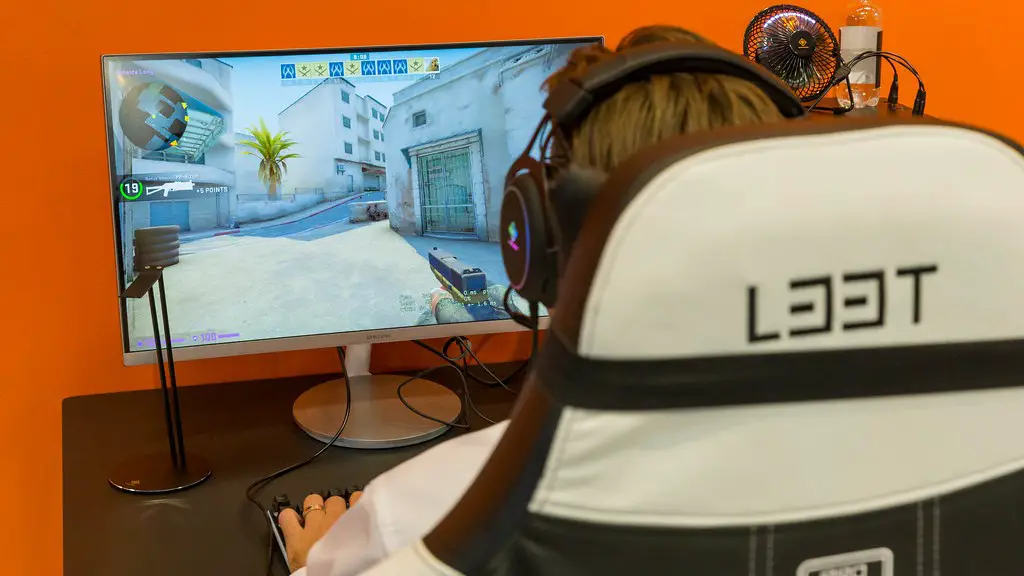
1. First, keep your system up-to-date. Ensuring that your drivers and Windows Update are up-to-date is key to getting the best performance from your hardware.
2. Next, clear out unnecessary processes running in the background. Unnecessary processes can drain resources and slow down your PC.
3. Third, keep your PC’s hard drive clean. Deleting unwanted files, defragmenting the hard drive, and making sure your junk files are clear of unneeded data can speed up your system considerably.
4. Fourth, look into overclocking. If your hardware allows for it, overclocking can give you a considerable boost in performance. However, be sure to know the risks involved before attempting to overclock.
5. Lastly, make sure your cooling system is adequate. If your system runs too hot, it can cause permanent damage, so make sure you have adequate cooling in place.
Troubleshooting Common Problems
If you are having technical issues with your gaming PC, it’s essential to know how to troubleshoot them. Here are a few tips on how to troubleshoot common gaming PC issues:
1. First, check to make sure all the components are securely plugged in. Also, check to make sure none of the components are overheating.
2. Next, check the driver versions. If they are outdated or corrupted, you may need to reinstall the drivers or check for updated versions.
3. Third, check the hard drive space. If your drive is full, you may need to free up some space.
4. Fourth, check for viruses. If your system is infected with a virus, it can have a significant impact on your performance and even cause damage to your system.
5. Lastly, check for hardware compatibility. If your hardware is too old, it won’t be able to run the newest games.
Repairs and Maintenance
If your gaming PC is not performing as it should, it may be necessary to repair or replace certain parts. Here are a few tips on how to correctly repair and maintain your PC:
1. First, check the specs of the parts you are looking to replace or upgrade, to ensure compatibility with the rest of your system.
2. Next, take the necessary safety precautions when handling delicate electronic components. Make sure all power sources have been disconnected.
3. Third, familiarize yourself with any instructions for the component you are replacing, if applicable. This can help to avoid any costly mistakes.
4. Fourth, make sure the component is correctly seated in the PC and the connections are tight, but not too tight.
5. Lastly, install any necessary drivers and software associated with the component and run any diagnostics to ensure it has been correctly installed and is working as it should.
