How To Change RGB Lights Of 1stplayer Firedancing Gaming Keyboard:
Changing the lighting of a 1stplayer Firedancing gaming keyboard can be quite a technical process, especially if you’re not familiar with the system. To successfully change the RGB lights, you’ll need to download the official ‘1stplayer Light Strike RGB Software’ from the manufacturer’s website. Once that’s installed, you’ll be able to begin customizing the settings of your gaming keyboard.
First, you need to open the software and select the ‘Light Strike’ option. This will let you choose between a range of preset RGB light settings or add your own customization. When tweaking your RGB lights, you can pick any of the 16 million colors offered and adjust the brightness accordingly. You can also save up to 8 lighting profiles at once, which allows you to easily swap between settings when needed.
After applying all the changes and saving the lighting settings, click on the ‘Apply’ button to finalize your changes. This will sync the lighting profiles with the keyboard. If the changes applied properly, you should be able to see the new lighting settings on your keyboard. However, if you’re not sure, pressing the ‘FN+F5’ hotkey should be able to switch between the different lighting settings.
Another feature that the software offers is the ability to use pre-made lighting profiles. These allow you to quickly pick out any of the preset profiles offered by 1stplayer. Custom-made lighting profiles can also be imported if you’ve downloaded any from the internet. These downloaded profiles can easily be imported into the Light Strike software with a few clicks.
When setting up the lighting profiles, you can also work with single key remap. This feature lets you customize the lighting of any one key as desired. Additionally, you can also synchronize the lighting settings of your keyboard with other devices such as mousemats and mousepads.
Finally, the software also provides an array of gaming modes. These let you keep your lighting settings when playing certain types of games. Additionally, you can also use the ‘Dynamic Lighting Effects Settings’ which gives you several other options to create a more dramatic feel when playing certain games.
Custom Lighting Effects
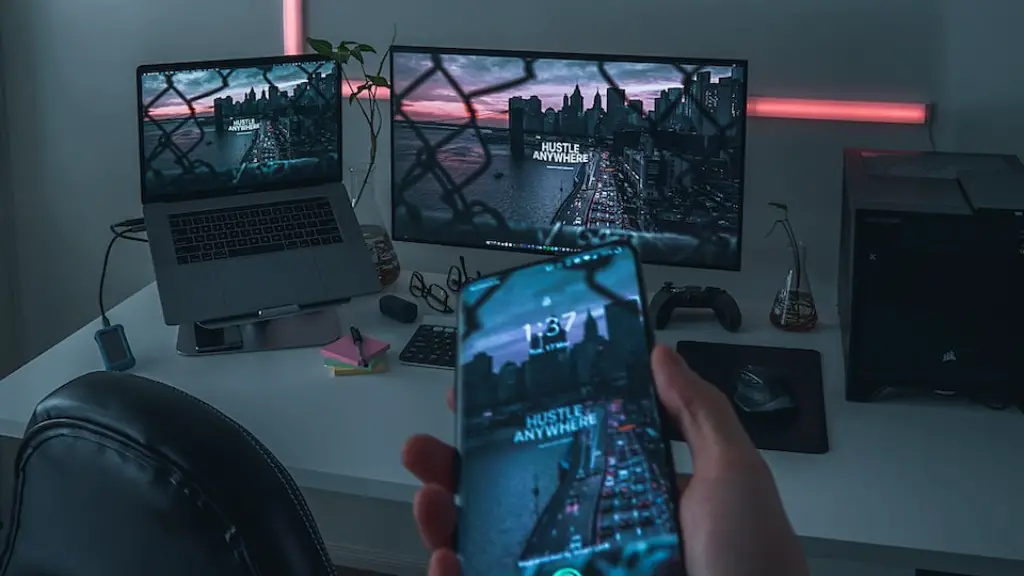
Changing the RGB lights of a 1stplayer Firedancing Gaming Keyboard can also help make your game-play more immersive. To really set yourself apart and make your gaming experience unique, you can use the custom Lighting Effects feature. This feature allows you to create your own custom lighting patterns that match your gaming needs. You can adjust the hue, brightness, speed and other specifications for your custom lighting effects.
Using the Light Strike software, you can also sync your lighting profiles with the game you’re playing. This means that the RGB lights will automatically switch between several preset lighting effects based on the game you’re playing. You can even customize the lighting effects for particular areas of the game. For example, you can set the lighting to darken during a night mission or intensify when there’s a battle in the game.
The custom lighting feature also covers a wide range of other game-specific presets. This can include a variety of lighting effects such as pulsing, breathing, wave, flow and raindrop effects. You can also combine multiple lighting effects to create something totally unique and eye-catching. The possibilities of custom lighting effects are almost endless so feel free to really have fun with it and get creative.
Although the process of changing the RGB lights on the 1stplayer Firedancing Gaming Keyboard may seem intimidating it’s important to remember that there are many tools and features available to help simplify the process. With a little bit of practice, you’ll be able to create amazing and unique lighting profiles that will make your gaming experience even more enjoyable and immersive.
Dynamic Lighting Effects
Lighting play a key role in gaming and the 1stplayer Firedancing Gaming Keyboard offers some great Dynamic Lighting Effects. This feature allows you to take your gaming to the next level, creating an exciting and enjoyable environment for even more immersive gaming. With Dynamic Light Effects, you can choose from a wide range of lighting options, from simple color cycling to glow and firework effects.
You can also bring some of your favorite games to life with dynamic lighting. The Light Strike software will sync the dynamic lighting effects with the game you’re playing, creating an even better gaming experience. Depending on your game, these lighting effects can change the atmosphere, making it feel even more intense. You can also use the presets to create a unique look for particular aspects of the game, for example, a brighter setting for in-game battles and a darker setting for in-game explorations or stealth scenarios.
Additionally, the dynamic lighting effects on the 1stplayer Firedancing Gaming Keyboard can also be set to adjust according to your task at hand. This means, you’ll be able to switch to a different lighting profile instantaneously when you switch applications. This makes it easy to get in and out of games quickly and conveniently.
When customizing the dynamic lighting effects, you have some great options. You can use an array of different color schemes, like the ‘Rainbow Wave’ and the ‘Single Key Gradient’ effects. You can also use the key-by-key lighting, where each and every single key can light up independently. This way, you can customize the lighting for each key to match your gaming needs.
When it comes to gaming, dynamic lighting can add a lot of atmosphere and excitement. With the 1stplayer Firedancing Gaming Keyboard, you can easily adjust the lighting to match any game or mood. Whether you want subtle lighting for when you’re exploring, or a dramatic and intense look when gaming in combat situations, you can do it all with the dynamic lighting effects of this amazing gaming keyboard.
Synchronize Peripherals With Lighting Profiles
The 1stplayer Firedancing Gaming Keyboard can also be used with other gaming peripherals such as mousemats and mousepads. This feature allows you to synchronize the lighting profiles of your keyboard with your other gaming peripherals, creating an even more immersive experience. You can adjust the lighting of the keyboard and the other peripherals separately, choose from pre-made lighting profiles, or combine different lighting effects together to create something totally unique.
In addition to creating a more exciting gaming experience, using peripherals with the 1stplayer Firedancing Gaming Keyboard can also provide you with multiple lighting options. You can create profiles for different games or activities, making it easier to switch between different settings as needed. All you have to do is select a profile on the keyboard and then synchronize the peripherals with it, and your lighting effects will be automatically adjusted.
The synchronization process is quite simple and straightforward. Firstly, you need to connect the gaming peripherals with the keyboard. Then, open the Light Strike software of your 1stplayer Firedancing Gaming Keyboard and select the ‘Peripheral Sync’ option. Next, select the peripherals which you want to sync and then pick the desired lighting profile. After that, click the ‘Apply’ button to apply the lighting profile to your peripherals.
With some practice, you’ll be able to change the RGB lights of your 1stplayer Firedancing Gaming Keyboard in no time. Additionally, syncing the lighting profiles with other gaming peripherals can create even more exciting gaming vibes. Just remember to have fun and create something that you can really be proud of!
Light Strike Cloud
For serious gamers, the 1stplayer Firedancing Gaming Keyboard offers the ‘Light Strike Cloud’. This is a very powerful cloud storage system that gives you the possibility to share and store your lighting profiles. It’s an online platform that offers you online access to your Light Strike profiles. You can back up your settings, share them with your friends or other gamers, or access profiles made by other users.
To access the ‘Light Strike Cloud’, you’ll first need to create an account and log in. After that, all your Light Strike profiles will be synced with the cloud. This will allow you to access them anywhere you have an internet connection. Additionally, you can also share your profiles with others or download profiles made by other users, giving you an almost limitless choice when it comes to lighting profiles.
The ‘Light Strike Cloud’ also offers a variety of other features, such as the ability to customize settings for particular games. With this feature, you’ll be able to optimize the settings for your favorite games, creating an even more exciting gaming experience. You can also receive notifications when new lighting profiles are released, giving you a chance to stay up-to-date with the ever-growing Light Strike software library.
The ‘Light Strike Cloud’ is a great feature that allows gamers to make the most of their 1stplayer Firedancing Gaming Keyboard. With the right settings, you can transform your gaming experience into something unique and eye-catching. Syncing your lighting profiles with other peripherals will also create exciting and enjoyable gaming vibes, making it easier to take gaming to the next level of excitement.
Hotkeys
The 1stplayer Firedancing Gaming Keyboard also features a few hotkeys. By pressing the ‘FN+F2’ key combination, you can activate the ‘Game Mode’ which briefly changes the speed of the keyboard and deactivate the ‘Windows Keys’. Pressing the ‘FN+F5’ hotkey allows you to quickly switch between different lighting settings. Pressing the ‘FN+F10’ key combination resets the keyboard to its factory settings.
Having the right hotkeys is essential to make the most of your 1stplayer Firedancing Gaming Keyboard. With these hotkeys, you can access certain settings quicker and easier, such as the lighting profiles or game mode. Additionally, you can also assign other keyboard keys to hotkeys, transforming your gaming keyboard into an even more powerful system.
The ‘FN+F2’ hotkey can also be used to adjust the audio settings of your gaming keyboard. This way, you’ll be able to adjust the volume, bass and treble settings easily. Additionally, the hotkey can also be used to access the launch application window and modify your profiles for specific games.
When it comes to keyboards, hotkeys can truly make a difference. With the 1stplayer Firedancing Gaming Keyboard, you can access settings quickly and easily. This can vastly improve your gaming experience, giving you faster access to the settings you need, when you need them. And with the right hotkey settings, you’ll be ready to take gaming to the next level of excitement in no time.
