Setting up a New Gaming Monitor: The first step in getting the best gaming experience is setting up your gaming monitor. Connecting a monitor to your gaming laptop or computer is simple, but preparing your gaming environment takes a few extra steps. Here are the steps to set up your new gaming monitor for the best gaming experience.
The first step is to unbox the new gaming monitor following the manufacturer’s instructions. Make sure to take out all of the pieces carefully and connect the power cable to the back of the monitor. If the monitor doesn’t come with a power cable, purchase one from an electronics store.
The second step is to connect the appropriate interface type to your device. Common connections include VGA, DVI, and HDMI. VGA is the oldest connection and should only be used if the video card on your device doesn’t have any other connection types. DVI is newer and more common, while HDMI is the latest connection and offers the best gaming performance.
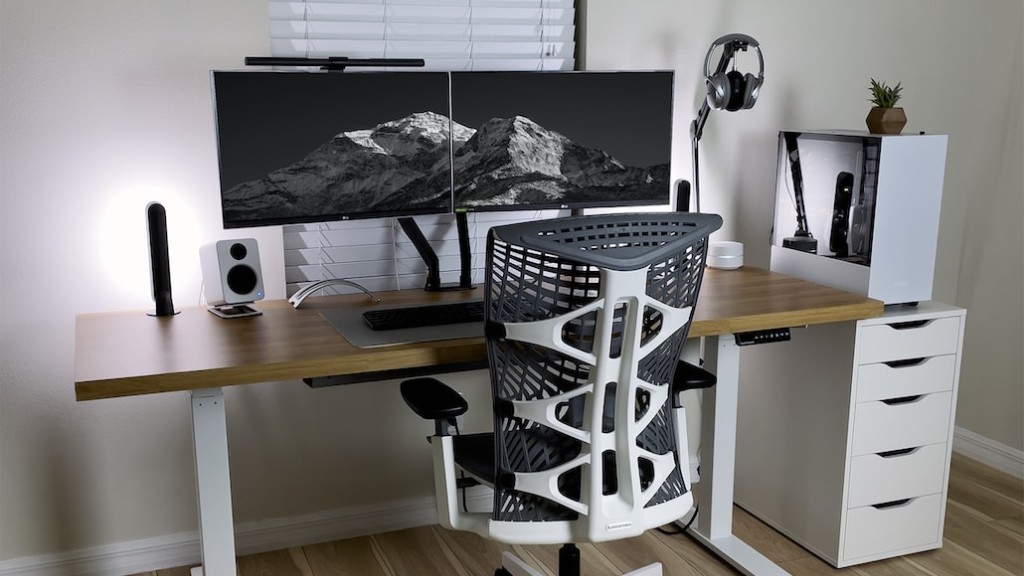
The third step is to adjust the resolution and refresh rate. The resolution is the number of pixels the monitor displays, while the refresh rate is the frequency at which the monitor updates the image. For a gaming monitor, the optimal resolution and refresh rate will depend on the graphics card in the gaming device and the type of game you will be playing. If the gaming monitor supports higher resolutions and refresh rates, it is best to choose the highest ones for the best gaming experience.
The fourth step is to adjust the color settings of the gaming monitor. The monitor usually comes preset to a low level of brightness and contrast, but this can be adjusted to get the best image quality. This can be done through the monitor’s on-board controls or through the control panel on the gaming computer or laptop.
The fifth step is to adjust the monitor’s refresh rate according to the desired gaming experience. Refresh rate determines how quickly the monitor updates the image and is an important factor in competitive gaming. If the refresh rate of the gaming monitor is too low, it will cause lag and lead to a poorer gaming experience.
The sixth step is to tune the monitor’s display to the best setting. Most gaming monitors come with preset gaming modes, such as FPS, RTS, and MOBA. Each of these modes is designed for a different type of game and adjusts the monitor’s sharpness, brightness, and color temperature accordingly.
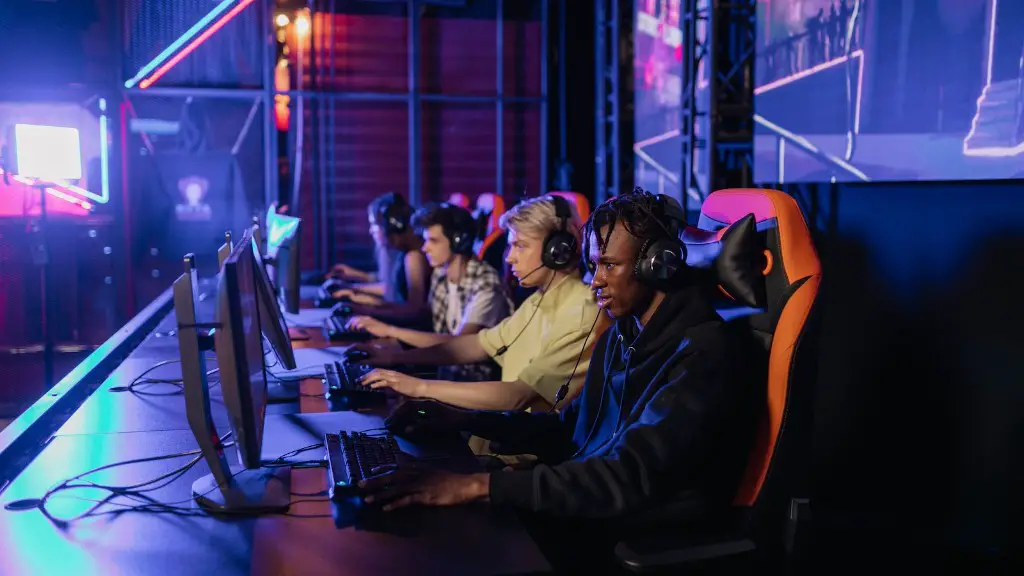
The seventh step is to adjust the audio settings. Most gaming monitors have built-in speakers that allow gamers to hear the game audio without needing to wear headphones. To get the best audio experience it’s important to adjust the audio settings on the gaming monitor to match the game audio.
Overview of Setting up a New Gaming Monitor
Setting up a new gaming monitor involves connecting the monitor to your device, adjusting the resolution and refresh rate, adjusting the color settings, adjusting the refresh rate, tuning the display, and adjusting the audio settings. Taking the time to set up your new gaming monitor correctly will ensure a better gaming experience.
Positioning the Gaming Monitor
After the monitor is set up, the next important step is to position the monitor correctly. Positioning the monitor correctly will ensure that the player has a comfortable gaming experience as well as providing the best picture quality. The monitor should be positioned so that the player is looking directly at the center of the screen. The top of the monitor should be at least two to three inches lower than the player’s eyes.
The next step is to position the monitor at the proper distance. Placing the monitor too close can cause eye strain and blurriness, while placing the monitor too far away can cause the player to have trouble reading the text on the monitor. It is important to position the monitor at a distance that is both comfortable and provides the best picture quality.
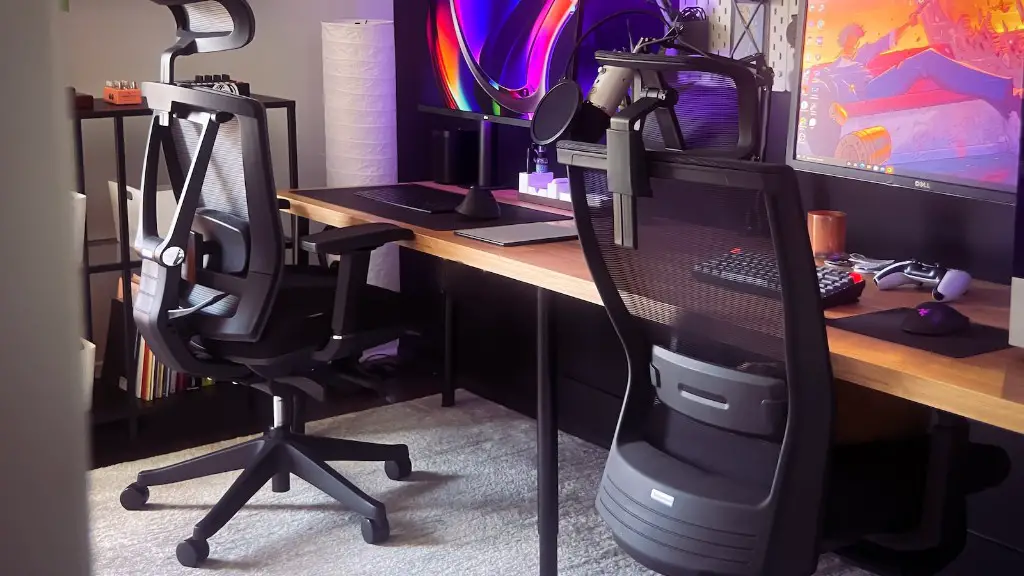
It is also important to position the monitor at the right angle. If the monitor is tilted too much, it can cause glare on the screen. The monitor should be placed at an angle that allows the player to see the entire screen without glare or reflections from lights or windows.
Cables and Connectors for a Gaming Monitor
The type of cable and connector required for a gaming monitor depends on the type of graphics card on the gaming device. If the graphics card supports digital connections such as DisplayPort, HDMI, and DVI, these should be used. If the gaming device has an older graphics card that only supports analog connections such as VGA, then this connector should be used.
It is important to use the highest quality cables and connectors to ensure the best gaming performance. Cheap cables and connectors can cause lag and poor picture quality. It is best to use the original cables and connectors that come with the monitor or, if these are not available, to purchase high-quality compatible cables from an electronics store.
Using the Best Gaming Monitor Settings
The best gaming monitor settings depend on the type of game being played and the player’s preferences. Brightness, contrast, gamma, and color temperature should all be adjusted for the best picture quality. For gaming, a refresh rate of 60Hz or more should be used. For competitive gaming, the refresh rate should be boosted as high as the monitor can support.
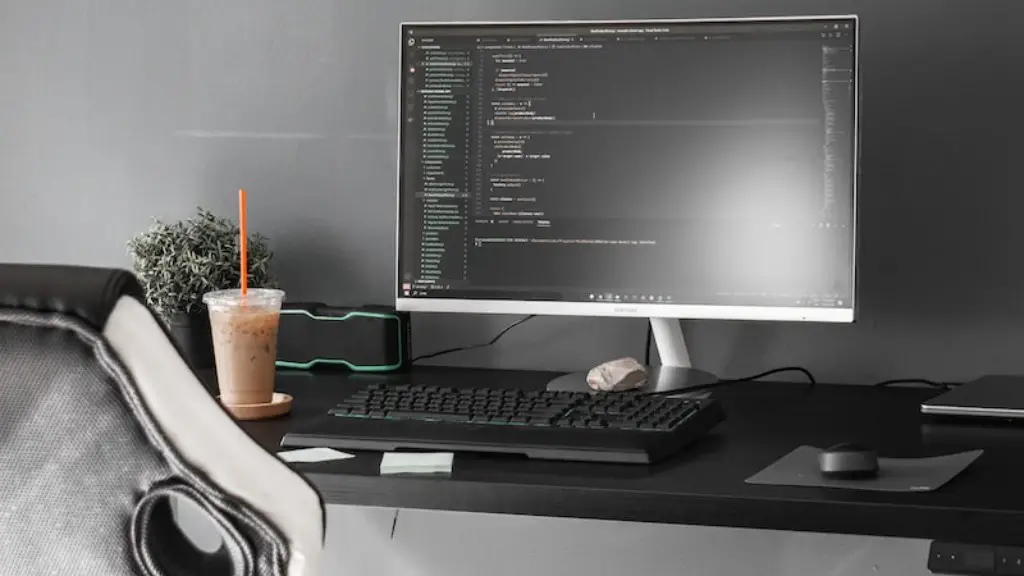
It is important to remember that different games require different settings. For example, a game with a high frame rate will benefit from a higher refresh rate, while a game with slower graphics will do better with a lower refresh rate. It is also important to adjust the picture quality and color settings according to the type of game being played. It is best to experiment with the settings to find the ones that provide the best gaming experience.
Testing Your Gaming Monitor Setup
Once the gaming monitor is set up, it is important to test it to ensure the gaming experience is optimal. It is best to play a few games with the new settings to make sure that the picture quality and refresh rate are suitable for the games being played. The audio should also be tested to make sure it is working properly. If any issues are identified, it is best to adjust the settings or purchase new cables.
It is also important to test the latency of the gaming monitor. A good gaming monitor should have a latency of less than 20 milliseconds. This can be tested by playing a game that requires fast reaction time, such as a shooter game, and paying attention to how quickly the game responds to your inputs. If the latency is too slow, it is best to try adjusting the settings or purchasing a new monitor.
Finally, it is important to clean the monitor regularly. Dust and fingerprints can cause streaks and blurriness, which can diminish the gaming experience. A soft cloth and gentle cleaning solution should be used to wipe down the monitor without damaging any part of the display.
