Hooking up a PS4 to a gaming monitor is an essential step for any serious gamer. This guide will provide an overview of the process, as well as helpful tips to ensure a smooth and enjoyable experience. First and foremost, you’ll need a compatible gaming monitor and a high-speed HDMI cable. Once both items are acquired, it’s time to connect the PS4 to the monitor.
First, you’ll need to turn off both the PS4 and the monitor. Then, connect one side of the HDMI cable to the HDMI Out port on the PS4, and the other side of the cable to one of the HDMI ports on the gaming monitor. If the HDMI ports are too high or too low, you can use a cable extender to reach them. Then, turn on the monitor and the PS4.
Once the PS4 and the monitor are powered on, the next step is select the correct source on the monitor. To do this, you’ll need to press the button on the monitor with the ‘input’ symbol. This will allow you to choose from the multiple input sources. Select the HDMI port that you plugged in the PS4 and it will automatically switch to that source.
Once you’ve selected the input source, the PS4 will automatically detect the monitor and display the startup screen. You’ll also need to adjust the resolution settings on the monitor in order to best suit the console’s display. On the PS4, you can do this by navigating to the settings and selecting the option to adjust the resolution.
Lastly, make sure to plug in any necessary peripherals, such as extra controllers, headphones, or any other equipment. This will allow you to get the most out of your gaming experience.
What to Look for in a Gaming Monitor
When looking for a gaming monitor, there are certain key features you want to consider. The monitor should have a high refresh rate of at least 144 Hz and a response time of 1ms, this will help ensure the image is displayed in a smooth and uninterrupted way. Additionally, the monitor should have multiple ports, such as multiple HDMI, DVI, and display port.
Display size is also important, as larger displays can provide an immersive gaming experience. The ideal size for a gaming monitor is 27″ or above, but you can also opt for a smaller size if you’re on a budget. Finally, make sure the monitor you choose features adaptive synchronization, this technology helps to synchronize the graphics and reduce input lag, making for a more enjoyable gaming experience.
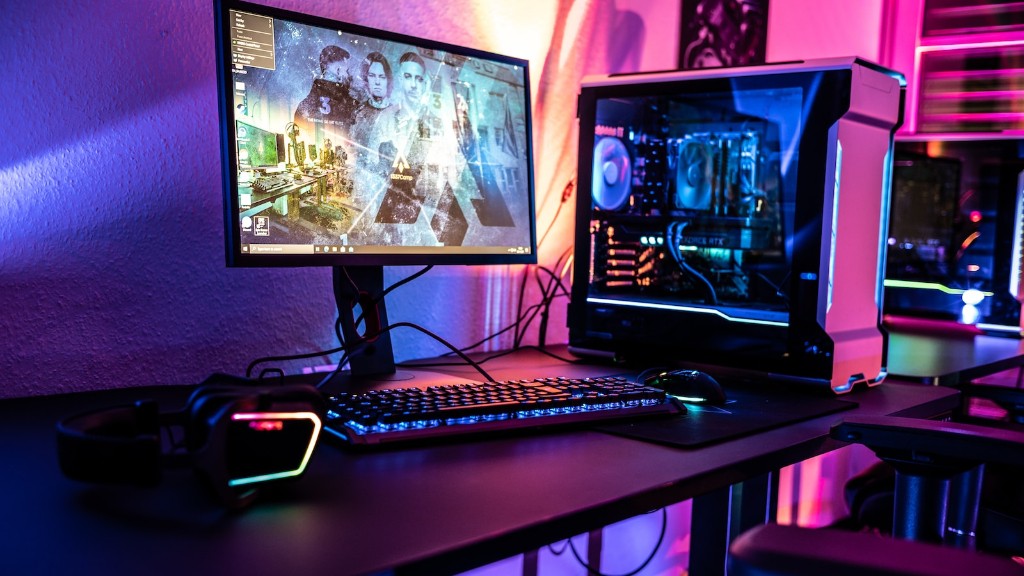
It’s important to research the available gaming monitors before making a purchase, and make sure it has the features you need. With the right monitor and the right configuration, you can greatly enhance your PS4 gaming experience.
When it comes to picking out a compatible gaming monitor, there are many options available. Many companies offer a wide range of monitors with different features, so do your homework to find the right one for you. With the right setup and a compatible monitor, you’ll be gaming in no time.
Finally, once the monitor is acquired and properly configured, you’ll need to connect the PS4 to the monitor. This is a relatively straightforward process, but it’s still important to read up on it and make sure you have all the necessary components. With the right game monitor, you can get the most out of your gaming experience.
Connecting the Monitor to Other Consoles
The gaming monitor can also be used with other consoles, such as the Xbox One, Nintendo Switch, and even some computers. The process for connecting the monitor is generally the same as it would be for the PS4. First, turn off both the console and the monitor, then connect one end of an HDMI cable to the output port of the console and the other end of the cable to one of the HDMI ports on the monitor.
Once both the console and the monitor are powered on, you’ll need to select the correct source on the monitor. To do this, press the button on the monitor with the ‘input’ symbol, then select the appropriate HDMI port and the monitor will switch to that source.
Once the source is set, you’ll need to adjust the display settings on the console, if applicable. This is done by navigating to the settings and selecting the best resolution for the monitor.
Finally, you’ll need to plug in the necessary peripherals, such as extra controllers, headphones, or any other equipment. This will allow you to get the most out of your gaming experience.
Hooking up a gaming monitor to other consoles is just as easy as it is for the PS4. Just make sure to use the correct components and follow the above steps, and you’ll be gaming in no time.
Maintaining a Gaming Monitor
Once you’ve successfully connected your gaming monitor to the console, it’s important to ensure that it has proper maintenance. This will not only extend the life of the monitor, but also ensure that the image quality is maintained.
Regularly cleaning the monitor is essential, as dust buildup can impair performance. A microfiber cloth should be used to gently wipe the surface of the monitor. Additionally, make sure to use the appropriate settings and avoid pushing the monitor beyond its limits. You should stick with the manufacturer’s specified refresh rates and resolution settings.
It’s also important to update the monitor’s firmware regularly, as this helps to ensure that compatibility and performance are kept at a maximum level. Finally, you should also make sure the cables are kept tidy and not knotted or bent.
Following these basic maintenance steps will go a long way in prolonging the life of your gaming monitor. Taking the time to keep your monitor clean and updated is an important part of having the best gaming experience possible.
The Benefits of Vicinity Gaming
An added benefit of having a gaming monitor set up with PS4 is playing with friends and family. Vicinity gaming allows multiple gamers to play together in the same room. This creates an enjoyable and fun social gaming experience that you can’t get from playing online. With vicinity gaming, you can sit close together, talk and joke around, and generally have a lot of fun.
Popular vicinity games include titles such as Rocket League, Super Smash Bros, Mario Kart, and Street Fighter. These games are easy to pick up and play with friends, and they are a great way to bond with family or friends. Some other games, like Fortnite and Call of Duty, also allow for vicinity gaming.
Setting up your gaming monitor to play vicinity games is easy. All you need to do is make sure that each player has their own controller, a copy of the game, and a headset. This will ensure everyone has the best experience possible.
Vicinity gaming adds another element to your PS4 experience and allows for a more social and intimate way to game with friends and family. Whether you’re playing a racing game or a fighting game, vicinity gaming allows for an amazing experience that is difficult to replicate otherwise.
If you’re looking for an enjoyable and fun way to play with friends and family, vicinity gaming is the way to go. With the right gaming monitor, you can game with your loved ones in the comfort of your own home.
